In this tutorial, you will learn how to:
• Access Note Assist
• Summarize notes
• Translate notes to different languages
• Auto format notes
• Generate note covers
Access Note Assist
1. Note assist uses AI to help you organize and improve your notes. To use Note assist, from the home screen, select the  Samsung Notes app.
2. Select the desired Note.
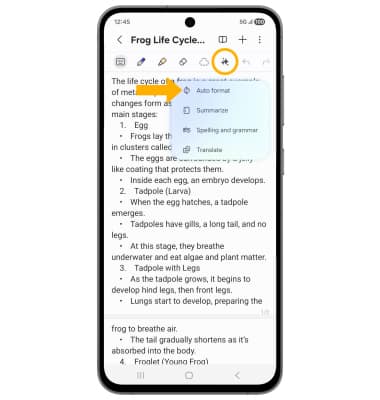
3. Select the Note Assist icon, then select the desired option.
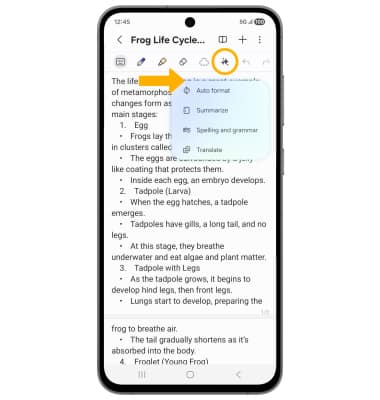
Summarize notes
1. From the desired note, select the Note Assist icon, then select Summarize.
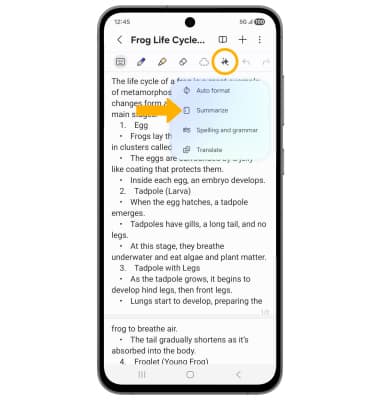
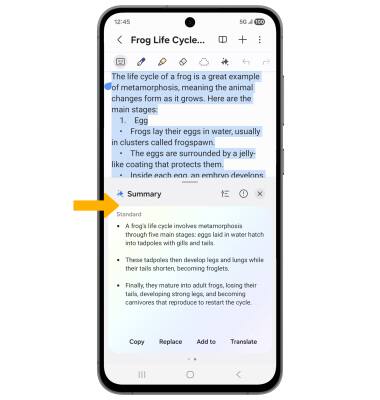
2. The text will be summarized in bullet points at the bottom of the screen.
Note: To save the note summary, select the summary then select Add to. Select New page before to add the bulleted summary to a new page at the beginning of the existing note or select New note to save the summary as a new note.
Translate notes to different languages
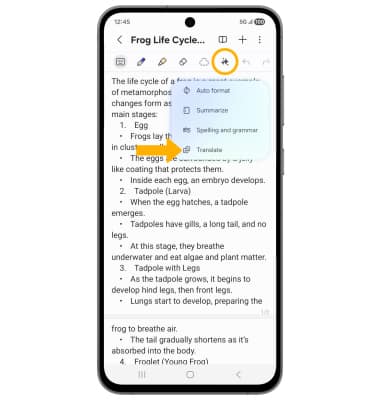
1. From the desired note, select the Note Assist icon, then select Translate.
Note: If it is your first time accessing translate, you will be prompted to select the desired language that you would like the text translated to. To add a language to the translation list, select Add languages and follow the prompts. When finished, select Translate
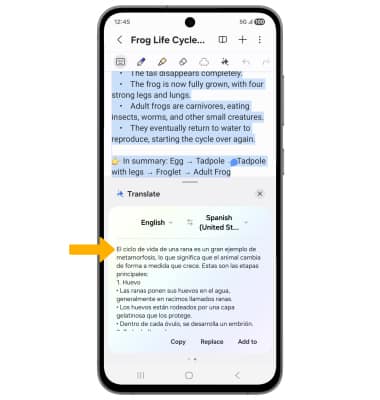
2. The translation will appear at the bottom of the screen.
Note: To translate the text into a different language, select the language drop-down arrow then select the desired language. To save the translation, select the translation to view save options. Select Add to, then select New page before to add the translation to a new page at the beginning of the existing note or select New note to save the translation as a new note.
Auto format notes
1. From the desired note, select the Note Assist icon, then select Auto format.
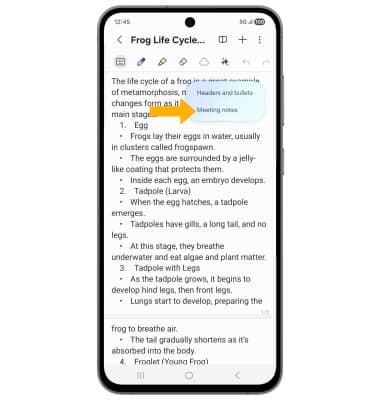
2. Select the desired format.
Note: For this tutorial, Meeting notes was selected.
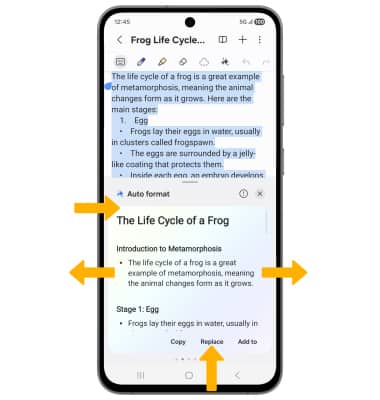
3. The formatted text will appear at the bottom of the screen. Swipe left or right to the desired format, then select Replace to replace the current text with the new format.
Generate note covers
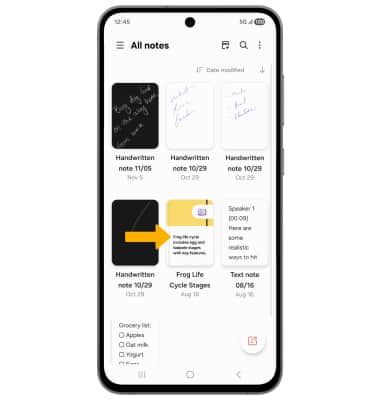
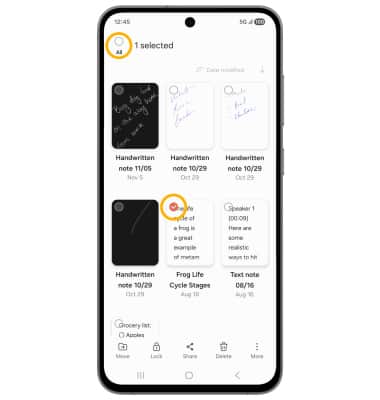
1. From the Samsung Notes app, select and hold a note, then select the All circle.
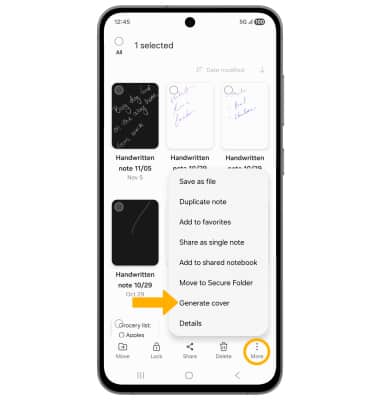
2. Select the  More icon, then select Generate cover.
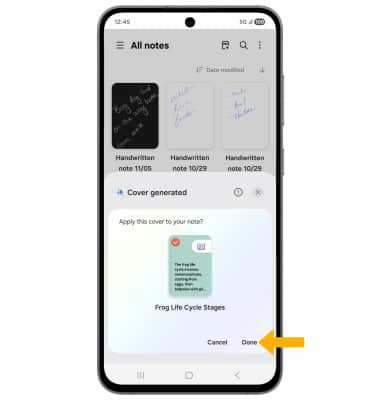
3. When finished, select Done.