
In this tutorial, you will learn how to:
• Call or message your child
• View call history
• Access messages from the AT&T amiGO™ app
• Set an SOS contact
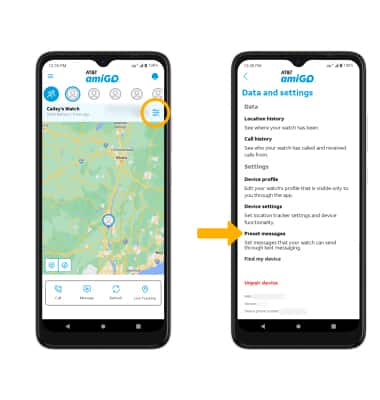
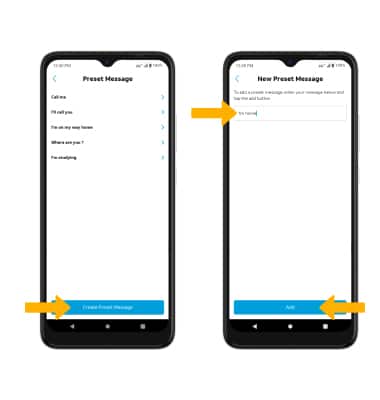
• Add Preset Messages to a Device
• Create a contact
• Edit a contact
• Delete a contact
To access the AT&T amiGO™ app, swipe up from the home screen to access the App tray, then select the  AT&T amiGO™ app.
Call or message your child
AT&T amiGO™ app on your smartphone, select the desired device. Menu icon then select My Devices.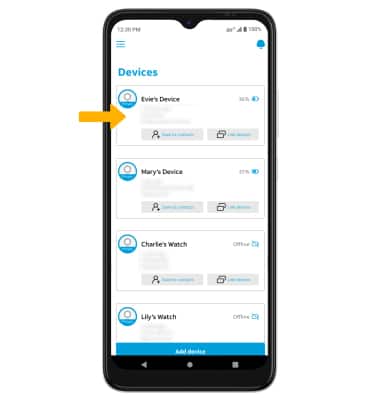
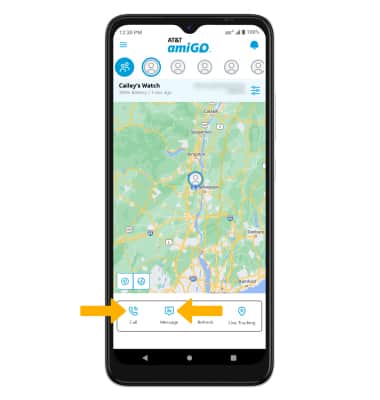
• CALL: Select the Call icon.
• MESSAGE: Select the Message icon. Enter your message, then select the Send icon.
View call history
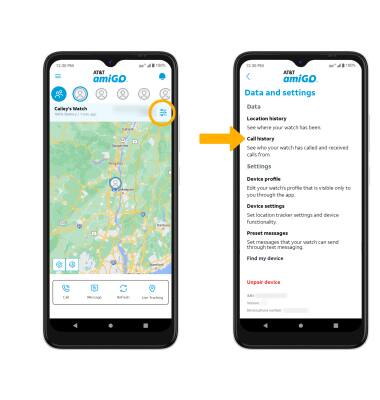
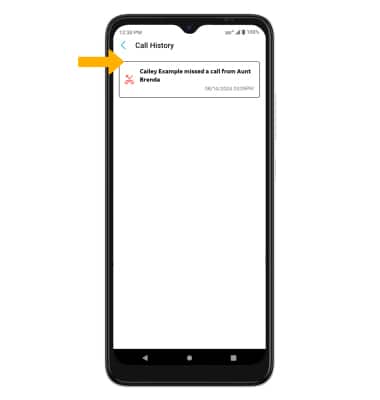
AT&T amiGO™ app on your smartphone, select the desired device.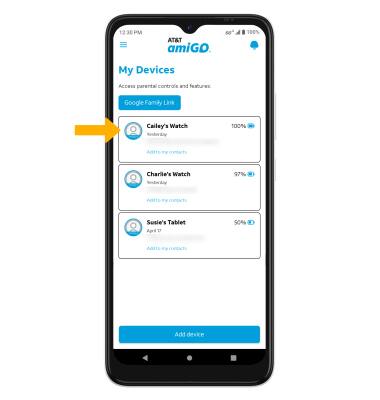
Access messages from the AT&T amiGO™ app
AT&T amiGO™ app on your connected smart phone, select the Menu icon then select Messages. Select the desired message thread.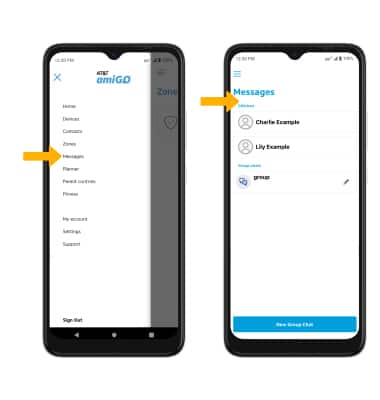
Set an SOS contact
The SOS contact will automatically be synced to the account set as the primary guardian upon initial setup.
Add Preset Messages to a Device

Create a contact
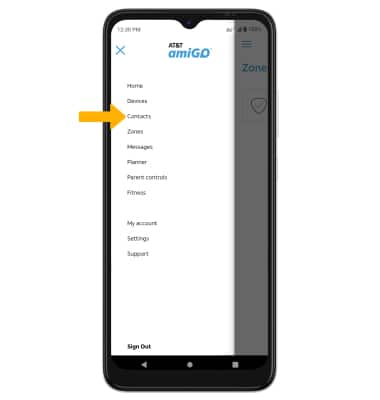
1. From the AT&T amiGO™ app on your connected smart phone, select the Menu icon then select Contacts.
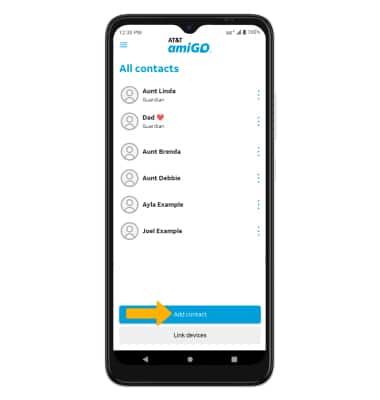
2. Select Add contact.
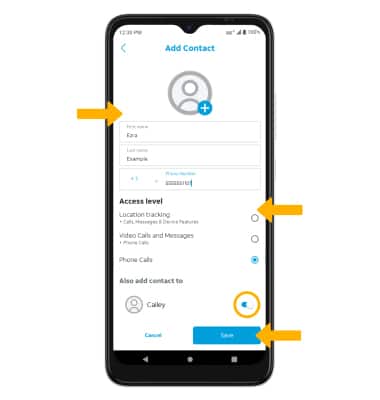
3. Enter the contact information as desired, then select the desired access level. Scroll to and select the switch next to the desired device(s) to add the contact to. When finished, select Save.
Edit a contact
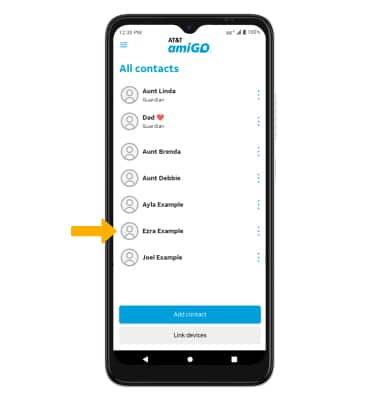
1. From the all contacts screen, select the desired contact.
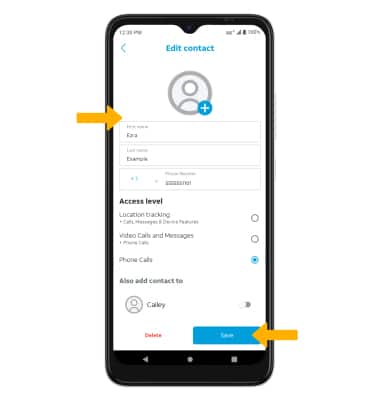
2. Edit the contact information as desired, then select Save.
Delete a contact
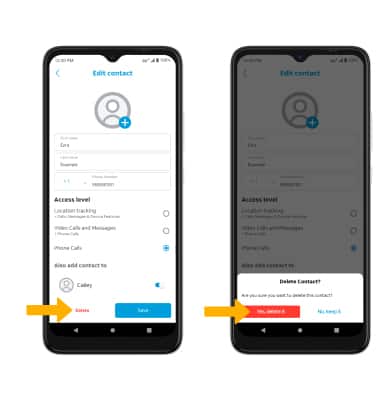
From the edit contact screen, select Delete. Select Yes, delete it to confirm.