
In this tutorial, you will learn how to:
• Proofread
• Rewrite
• Use Smart Reply
Proofread
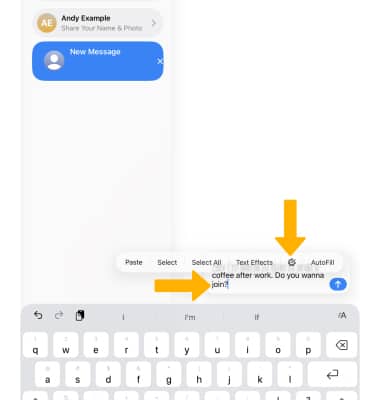
1. Apple Intelligence can proofread all of your text from wherever you are typing. Select and hold the desired text field, then select the Writing Tools icon.
2. Select Proofread.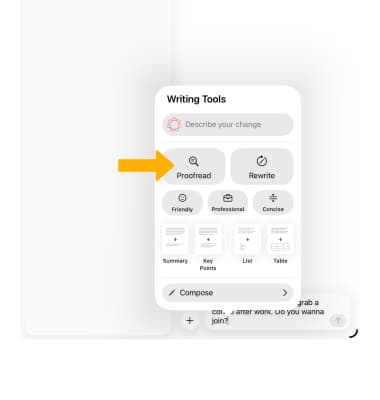
3. Select the up or down arrow to review the changes, then select the Checkmark icon.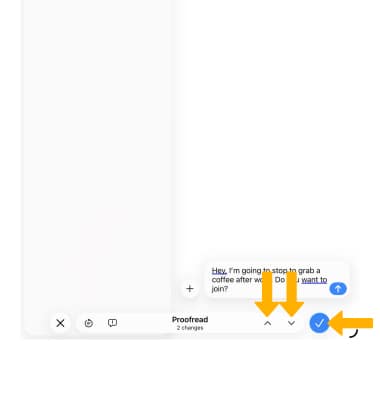
Rewrite
1. Select and hold the desired text field, then select the Writing Tools icon.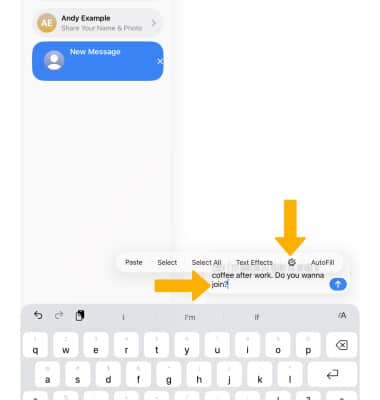
2. Select Rewrite. To rewrite with a specific tone, select the desired tone (Friendly, Professional or Concise).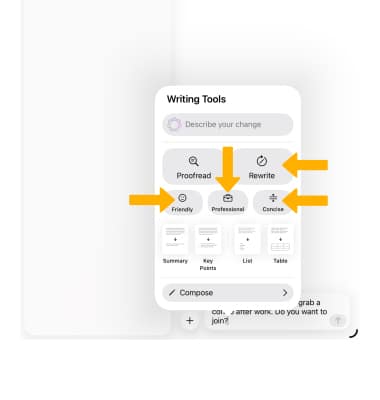
3. Review the changes. Select the Rewrite icon to view another version. When finished, select the Checkmark icon.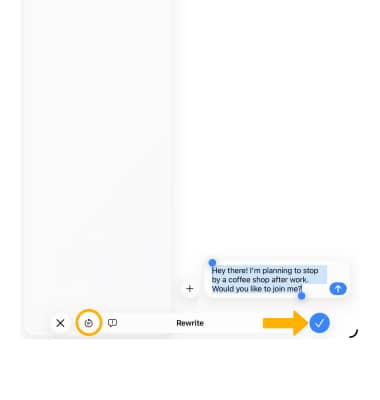
Smart Reply
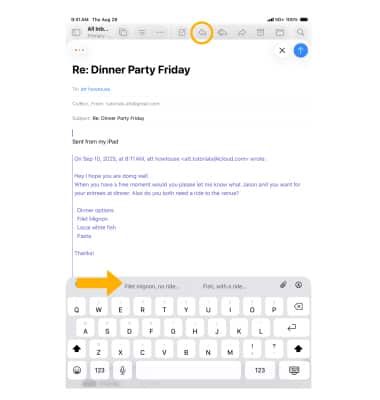
Apple Intelligence can scan your emails for questions and help generate a smart reply. From the desired email, select the  Reply icon. A Smart Reply will automatically appear, select the desired option.
Note: If there are multiple questions, Smart Reply will offer additional answers. Select the desired option. When finished, select Done.