 Learn more about
 In this tutorial, you will learn how to:
• Reduce interruptions
Prioritize notifications
Priority Notifications appear at the top of the notification stack to surface what’s most important, and summaries help users scan long or stacked notifications to show key details right on the Lock Screen, such as when a group chat is particularly active. To enable priority notifications, from the home screen, select the  Settings app > Notifications > select the desired option.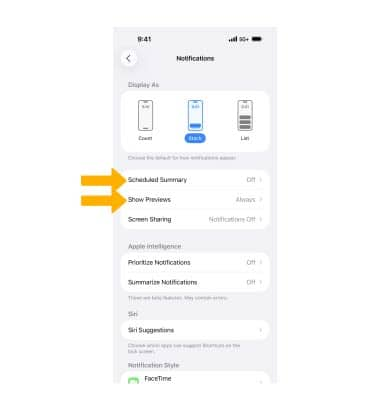
• SCHEDULE A SUMMARY: Select Scheduled Summary then select the  Scheduled Summary switch to place it in the on position. Edit Summary schedules as desired.
• SHOW PREVIEWS: Select Show Previews then select the desired option.
Reduce interruptions
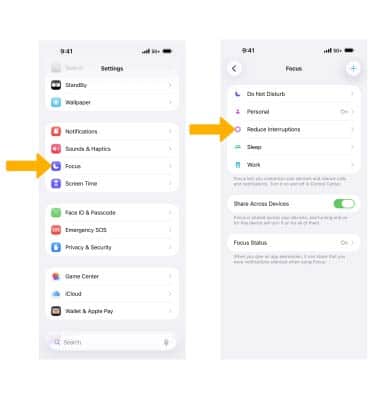
Reduce Interruptions is a new Focus that surfaces only the notifications that might need immediate attention. To enable priority notifications, from the home screen, select the Settings app. Scroll to and select Focus, then select Reduce Interruptions.