
In this tutorial, you will learn how to:
• Enable ChatGPT
• Use ChatGPT with Siri
• Use ChatGPT with Writing Tools
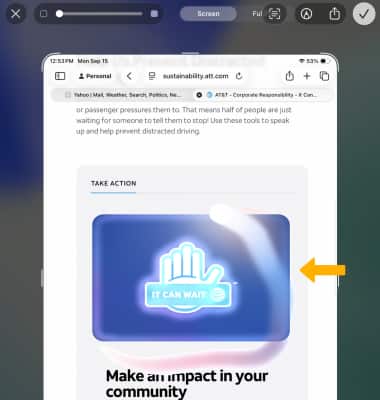
• Circle to Search in a Screenshot
Enable ChatGPT
1. From the home screen, navigate to and select the  Settings app.
2. Select Apple Intelligence & Siri, then select ChatGPT.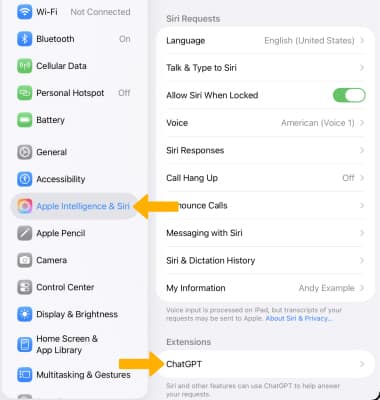
3. Select Set Up...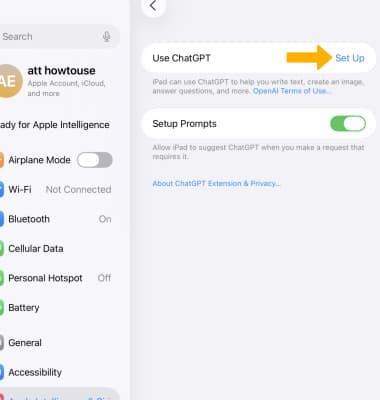
4. Review the ChatGPT prompt then select the desired option.
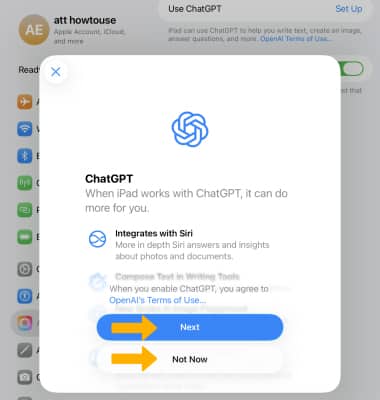
5. Review the Privacy and ChatGPT prompt, then select the desired option.
Note: If you use ChatGPT without an account your requests are anonymous and won't be used to train OpenAI models.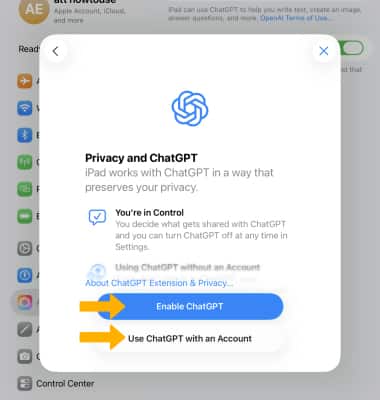
Use ChatGPT with Siri
With the ChatGPT extension enabled, Siri can use ChatGPT when it might be helpful to get the information you’re looking for. Siri can be used as your normally would or you can mention ChatGPT in the request. If you do not mention ChatGPT in the request, Siri will ask if you would like use ChatGPT. Select Use ChatGPT.
Note: For more information, visit Apple's site: Use Apple Intelligence with Siri on iPad.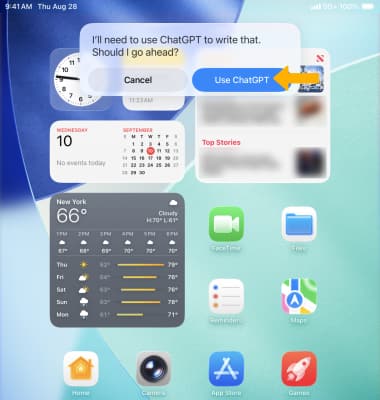
Siri with ChatGPT can respond to requests such as:
• “Hey Siri, ask ChatGPT to compose a haiku about dragons.”
• “What should I get my uncle for his 70th birthday? He loves to fish.”
• “Hey Siri, ask ChatGPT for some ideas of how to spend a free afternoon in Malibu if I don’t feel like hitting the beach.”
• “Hey Siri, compose a limerick about a tiger named Terry.”
• “What kind of recipes can I make with this?” with a photo of fruit open in the Photos app.
• “Hey Siri, ask ChatGPT to summarize this document for me,” with a document—like a PDF of a lease agreement—open in the Files app.
Use ChatGPT with Writing Tools
1. Apple Intelligence and ChatGPT can compose text based off your prompt. Select and hold the desired text field then select the Writing Tools icon.
Note: For more information, visit Apple's site: Use Writing Tools with Apple Intelligence on iPad.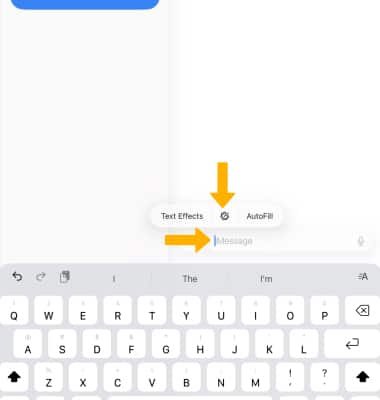
2. Select Compose. 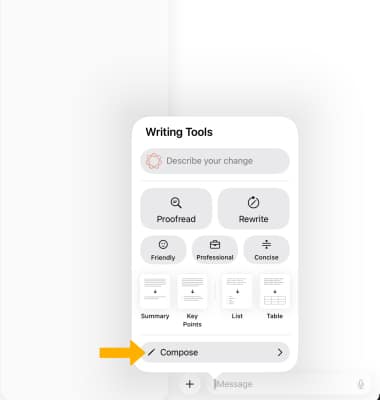
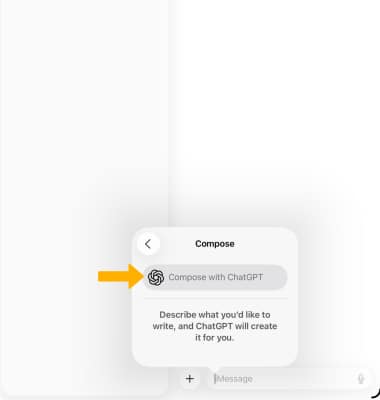
3. Select Compose with ChatGPT,
4. Enter the desired prompt, then select the Arrow icon.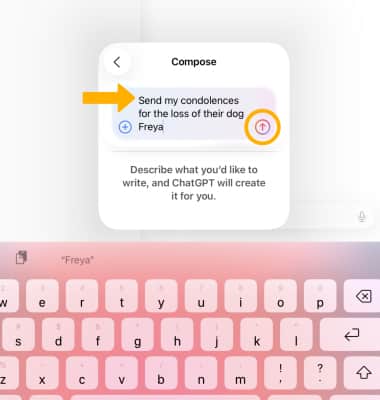
EDIT TEXT: Select the desired option to edit the message as desired.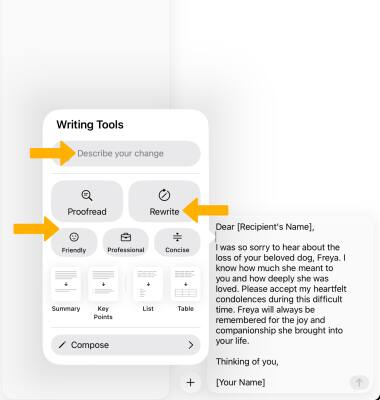
• REFINE: Enter the desired changes into the "Describe your changes" field to refine your prompt.
• REWRITE: Select Rewrite to have ChatGPT rewrite the prompt.
• CHANGE TONE OR FORMAT: To change the tone or format of your prompt, select the desired tone (Friendly, Professional or Concise) or format option (Summary, Key Points, List or Table).
Circle to Search in a Screenshot
After taking a screenshot, you can use Circle to Search to get more information. From the desired screenshot, use your finger to circle the desired object. Swipe up to view more results.
Note: Full-Screen Preview is enabled by default. You can use Circle to Search on Full-Screen Preview. If Full-Screen Preview is disabled, after taking a screenshot, select the screenshot in the bottom left corner of the screen. To enable or disable Full-Screen Preview, from the Settings app select General > Screen Capture >  Full-Screen Previews switch.