
In this tutorial, you will learn how to:
• Access Image Playground
• Create a New Image
• Create a Genmoji
Access Image Playground
From the home screen, navigate to and select the  Image Playground app.
Create a New Image
CREATE AN IMAGE: To create an image with Image Playground, select the desired option. 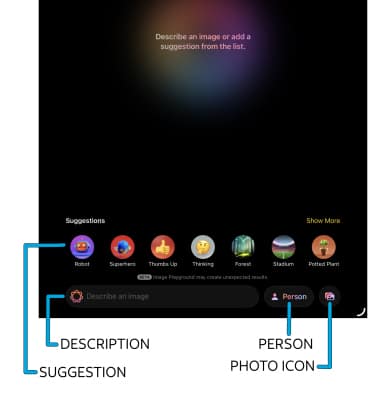
• DESCRIBE AN IMAGE: Enter the desired description into the text field.
• SELECT A SUGGESTION: Select the desired suggestion. Select Show More to view more suggestions.
• ADD A PHOTO: Select the Photo icon, then follow the prompt to select or take a photo.
• ADD A PERSON: Select Person, then follow the prompt to select a person or create an appearance.
GENERATE NEW VERSIONS: After selecting an initial input, Image Playground will generate several options based off of your prompt. If you would like to generate additional versions, swipe left.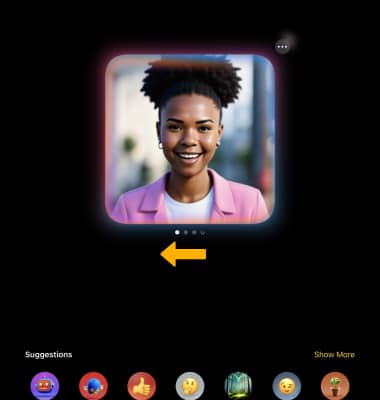
ADD ADDITIONAL PROMPTS: You can also add other images to your generated image. Select the desired option or describe an additional prompt.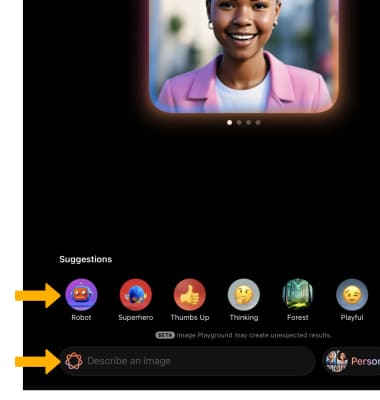
REMOVE A PROMPT: To remove a prompt from your image, select an empty space outside of the generated image. 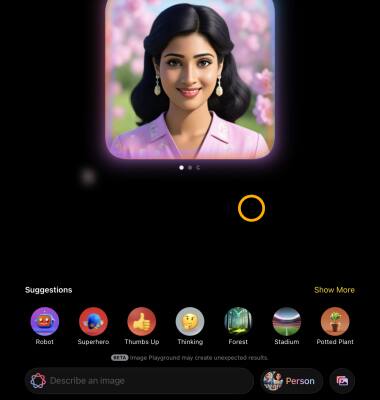
Select the Minus icon on the desired prompt you would like to remove.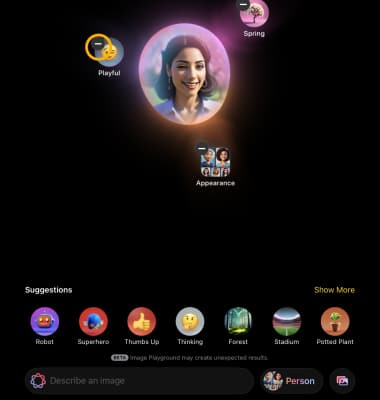
FINALIZE AN IMAGE: When you are finished with your image, select Save.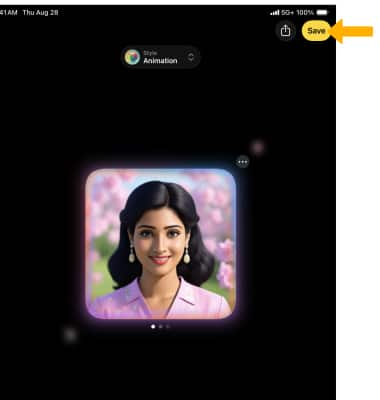
Create a Genmoji
1. With the power of Apple Intelligence, emoji is taken to the next level with Genmoji, making conversations with family and friends more fun and playful, and opening up entirely new ways to communicate. From the desired message thread within the Messages app, select the
 Add icon then select Genmoji.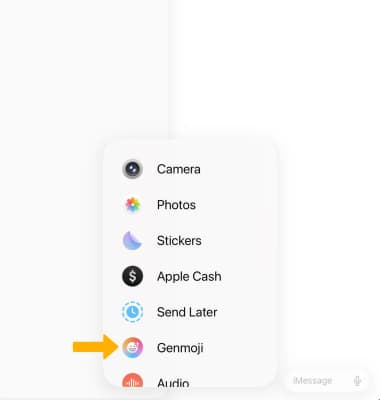
2. Describe the desired emoji you would like to create in the text field then select the Arrow icon.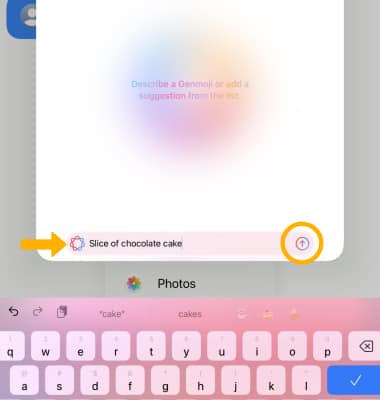
4. New Emojis will be generated. Swipe left to generate additional emojis.
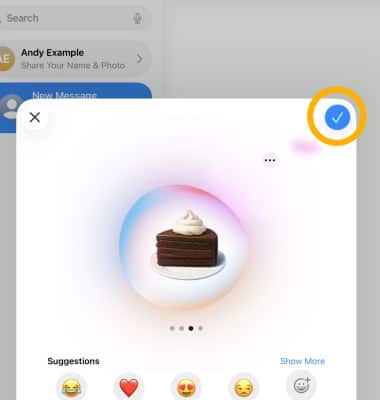
5. When finished, select the Checkmark icon.