In this tutorial, you will learn how to:
• Access Google Family Link
• Find location
• Manage contacts
• Edit school time
• Access Google Family Link settings
• Exit Kids mode
Access Google Family Link
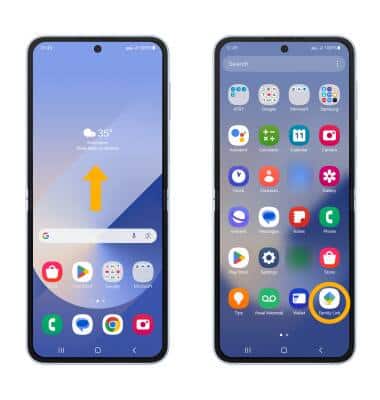
To view your child’s location, edit contacts, and other parental control, you must access the Google Family link app on your paired device. To access the Google Family Link app, from the home screen, swipe up to access the Apps tray. Scroll to and select the Google Family Link app.
Note: If Google Family Link is not downloaded on your paired device, you must install Google Family to use Galaxy Watch for Kids. To download, from the home screen, select the  Play Store app >
  Search tab > search for Google Family Link > select Google Family Link > Install.
Find location
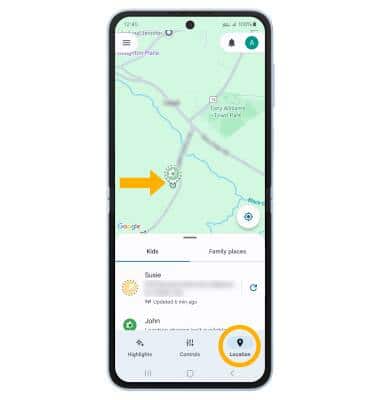
To use find location, from the Google Family Link screen, select the location tab. The location of your child’s device will be displayed.
Manage contacts
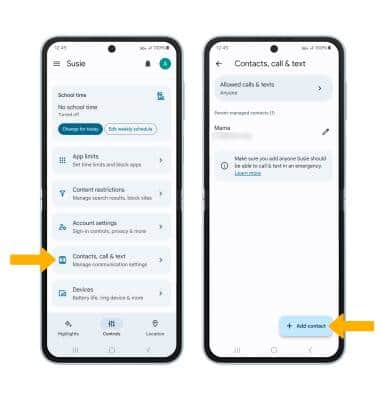
ADD A CONTACT: To add a contact, from the Google Family link app, scroll to and select Contacts, call & text. Select Add contact.
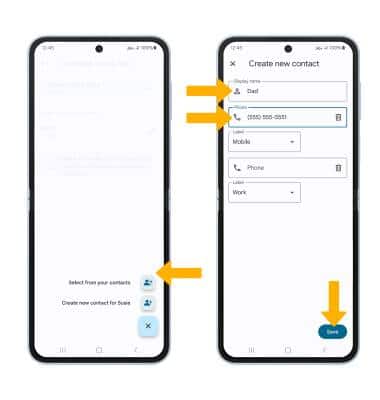
Select the desired option. Enter the display name and number, then select Save.
Note: For this demonstration, Create new contact was selected.
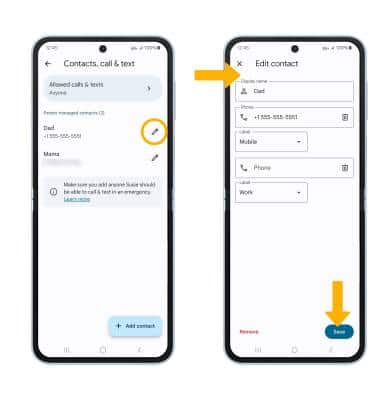
EDIT A CONTACT: From the Contacts, call & text screen, select the desired contact. Edit the contact information as desired, then select Save.
DELETE A CONTACT: To delete a contact, from the Contacts, call & text screen, select the desired contact then Remove. Select Remove again to confirm.

Edit school time
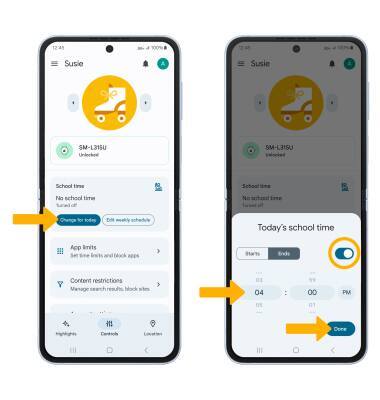
CHANGE FOR TODAY: From the Google Family Link screen, select Change for today. Select the switch, then enter desired time. When finished, select Done.
EDIT WEEKLY SCHEDULE: From the Google Family Link screen, select Edit weekly schedule. To edit the school time for a specific day, select the desired day(s). To turn off a specific day(s), select the circle next to the desired day(s). To enable or disable the weekly schedule, select the Schedule switch. When finished, select Save.

Access Google Family Link settings
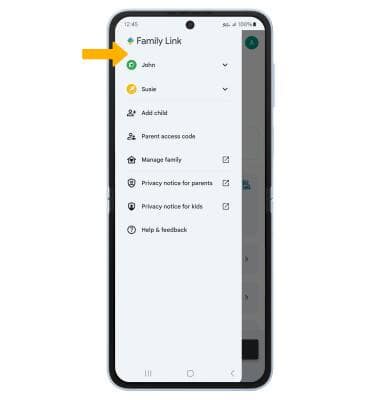
From the Google Family Link screen, select  Menu icon. Select the desired option to edit Google Family Link settings as desired.
Exit Kids mode
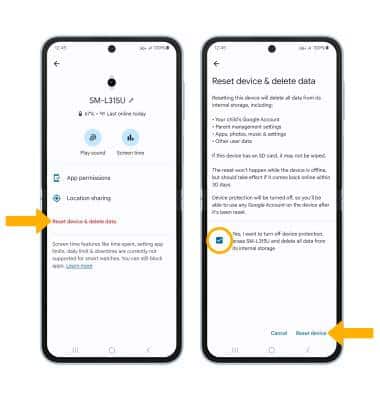
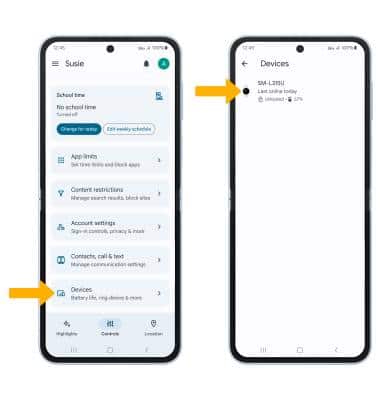
1. To exit Kid’s mode, you must factory reset your child’s watch. To perform a reset, from the Google Family Link app, scroll to and select Devices. Select the desired device.
2. Select Reset device & delete data. Select the checkmark box to confirm you want to turn off protections and erase all data, then select Reset device.