
 Access the
 In this tutorial, you will learn how to:
• Access messages
• Compose and send a message
• Read and respond to a new message
• Use chat translate
• Change writing style
• Pin a message thread
• Delete a message
When a new message is received, the  New Message icon will display in the Notification bar.
Access messages
From the home screen, select the  Messages app.
Compose and send a message
1. Select the Compose icon. Select the 'To' field, then enter or select the desired recipient.
Note: To create a Group Message, select Create group under the 'To' field. Select all desired contacts. When finished, select Next to name and create the group.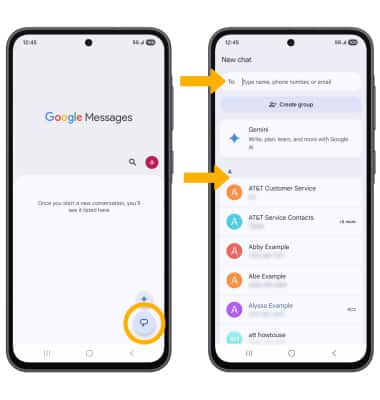
2. Compose and send a message using the following options as desired: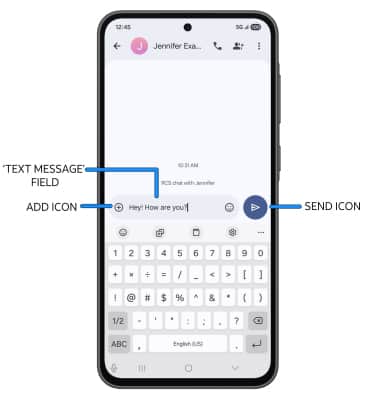
• ENTER MESSAGE: Select the 'Text message' field, then enter the desired message.
• ADD ATTACHMENT: Select the Add icon to attach a GIF, sticker, location, contact, or file.
• SEND A MESSAGE: When finished composing a message, select the  Send icon to send the message.
Read and respond to a new message
From the Messaging inbox, select the desired message thread.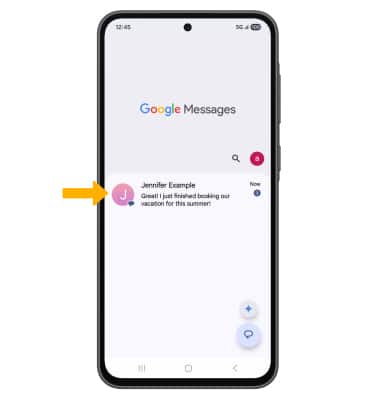
VIEW/SAVE AN ATTACHMENT: To view an attachment, select the desired attachment. To save an attachment, select and hold the desired attachment then select the Save icon. 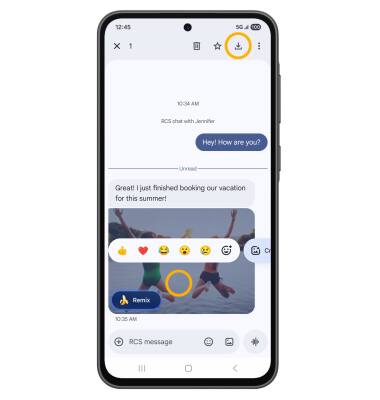
RESPOND TO A MESSAGE: Select the desired option.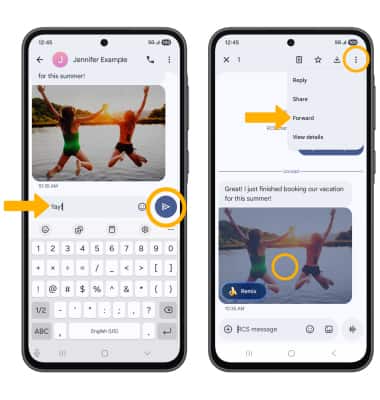
• REPLY: Enter the desired message in the 'Text message' field, then select the Send icon.
• FORWARD: Select and hold the desired message > select the  Menu icon > select Forward and follow the prompts to forward a message.
Use chat translate
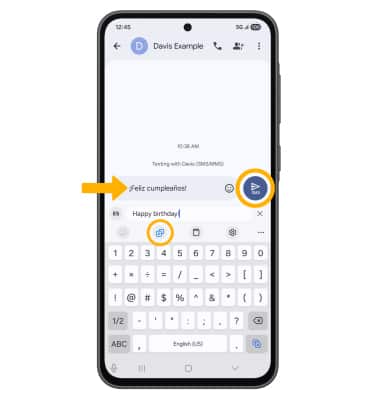
Chat translate allows you send and receive translated messages. To send a message, from the desired message thread, select the Chat Translate icon then enter the desired message. The translated message will appear in the Text message field. When finished, select the Send icon.
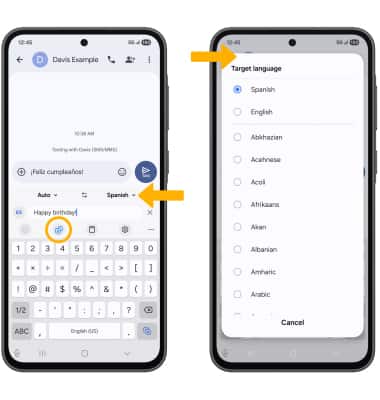
To change language settings, select the Language icon. Select either the source or target language drop-down icon, then select the desired language.
Pin a message thread
From the Messaging screen, select and hold the desired message thread, then select the Pin icon.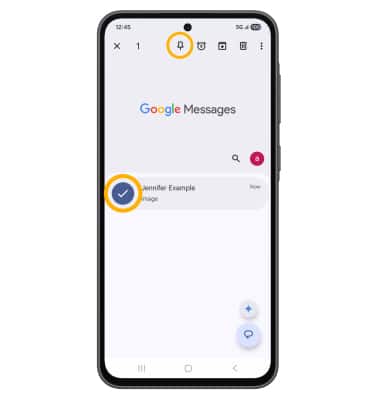
Delete a message
From the desired message thread, select and hold the desired message, then select the  Delete icon. Select Delete again to confirm.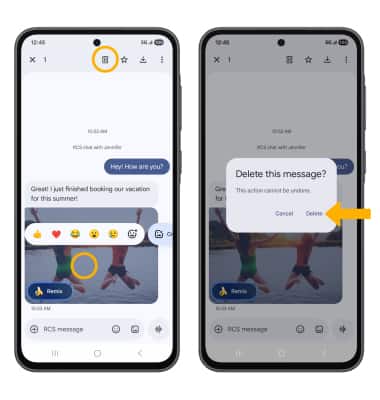
DELETE MESSAGE THREAD: From the Messaging screen, select and hold the desired message thread, then select the Delete icon. Select Delete to confirm.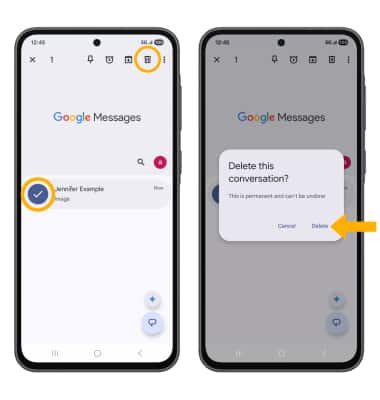
Tips
By default, attachments will be saved to the Messages folder in the Photos app. To view saved attachments, swipe up from the home screen to access the Apps tray, then select the  Gallery app > Albums tab > Messages.