
In this tutorial, you will learn how to:
• Access Intelligent features
• Access and use Read Aloud
• Photo Assist
Intelligent features is a series of built-in AI features introduced into selected apps.
Access Intelligent features
1. Swipe down from the upper right corner of the screen, then select the settings  Settings icon.
2. Scroll to and select Advanced features, then select Intelligent features.
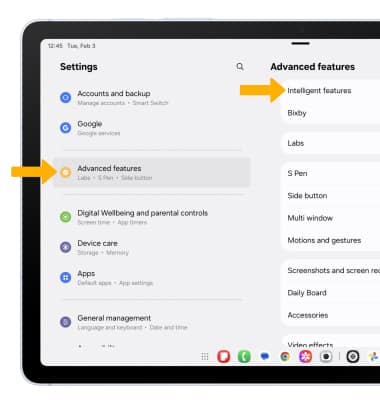
3. You will see a list of advanced intelligence apps and features. Select the desired option, then edit settings as desired.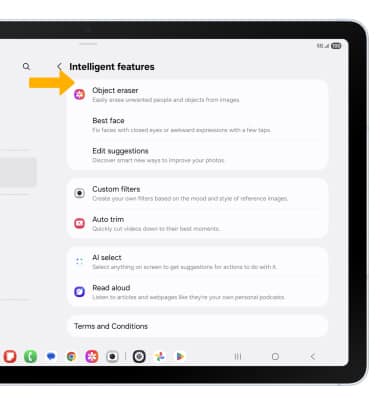
Access and use Read Aloud
1. Read Aloud will read articles and webpages for you. To access Read Aloud, swipe up from the center of the home screen to access the apps tray, then select the  Internet app.
Note: Read Aloud is only available though Samsung Internet. Accessing Intelligent features will require you to be connected to a network and signed into your Samsung account. To use Read Aloud, update the latest Samsung Internet app version. Upon initial access, review the Samsung Internet prompt, then select Continue.
2. Select the  Assist icon, then select Read aloud.
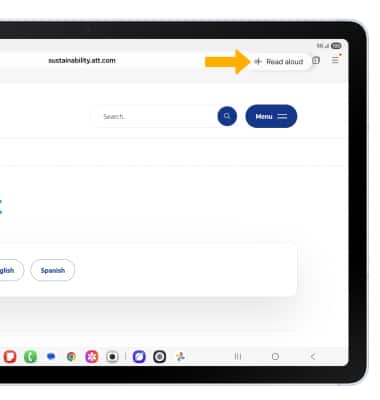
Photo Assist
Photo assist offers various AI features to help you edit photos in the Gallery app. Learn more about the photo editing features that Photo assist provides.