In this tutorial, you will learn how to:
• Access and use Photo Assist
• Access and use Edit suggestions
Access and use Photo Assist
1. From the home screen, select the  Gallery app. Navigate to and select the desired image to edit, then select the
  Assist icon.
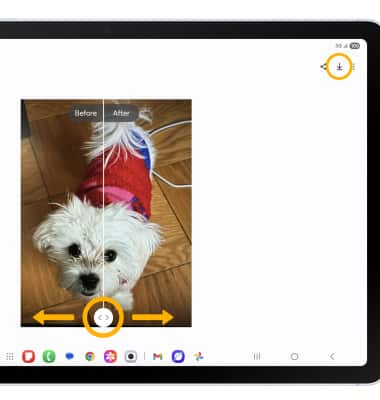
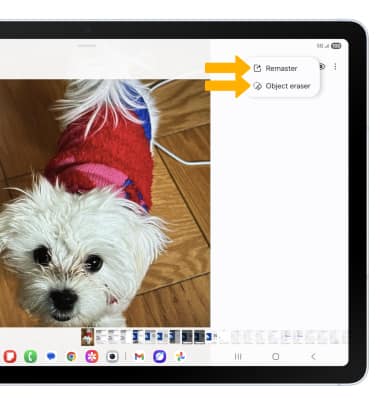
2. Your device will scan your image and offer various Intelligent assistive features to improve or edit your photo. Select the desired option. Some Intelligent assistive features include: Erase Reflections, Fix lens distortion, Remaster, Background blur, Object eraser and more.
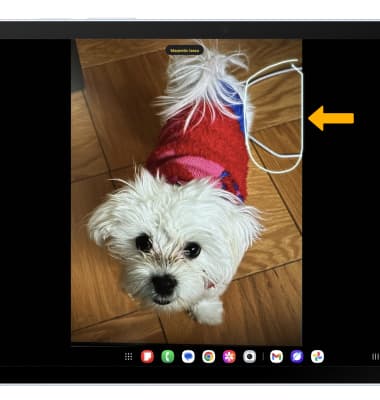
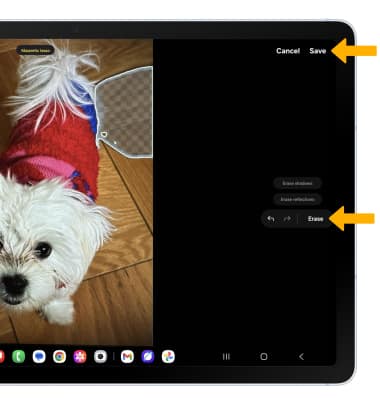
3. With your finger or S Pen, draw circle around the desired person or object.
4. Select Erase, then select Save.
Access and use Edit suggestions
1. From the desired image in the Gallery app, swipe up to show the image's information.
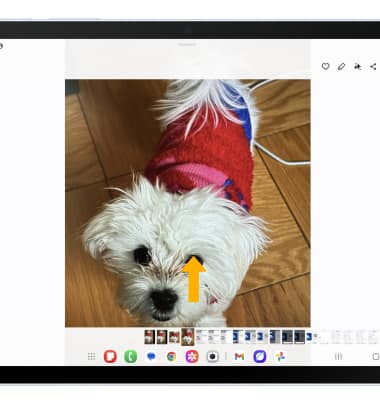
2. Select the desired smart edit suggestion to use.
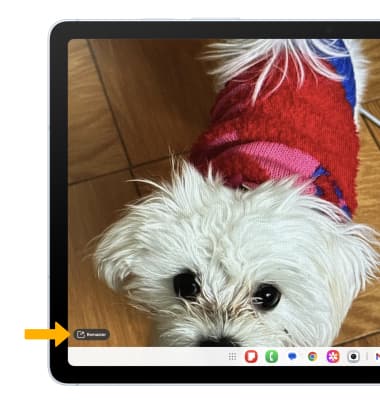
3. Edit as desired, then select the Save icon.