In this tutorial, you will learn how to:
• Access Air Command
• Hand write memos
• Write or draw on screenshots
• Use AI select
• Access S Pen settings
• Turn Air view on or off
To learn about all S Pen can do, remove the S Pen > select the  Air command icon > select the
  Settings icon, and scroll down to the General section to learn about the S Pen and its features. You can find additional information at the Samsung S Pen page.
Access Air Command
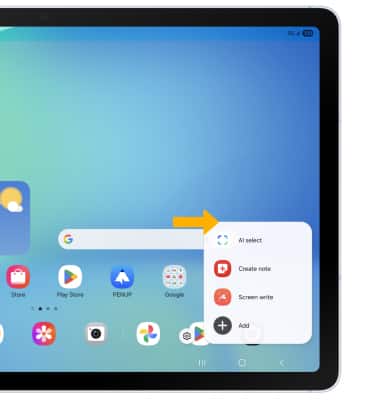
The S Pen can be attached to a magnetic strip on the back side of the device. To access Air Command, select the Air Command icon, then select the desired option.
Note: Upon first use, you will be prompted to review a short tutorial about the S Pen, then select Done.
Hand write memos
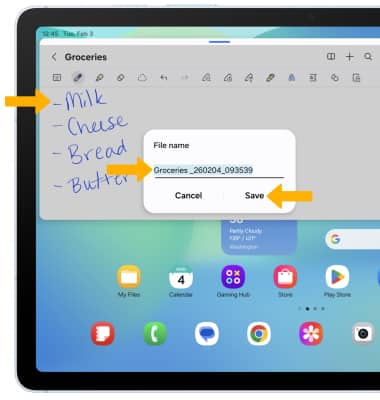
1. From the Air command screen, select  Create note.
2. Write your memo. When finished, select the  Menu icon > scroll to and select Save as file > select the desired file type > desired location > Done > enter the desired file name > select Save.
Note: Your memo will be automatically saved to Samsung Notes. To access Samsung Notes, from the home screen swipe up from the center of the screen to access the Apps tray. Navigate to, then select the  Samsung Notes app.
Write or draw on screenshots
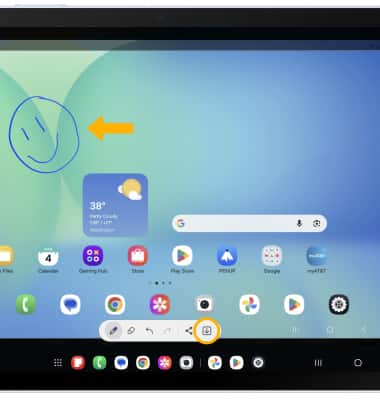
From the Air command screen, select  Screen write. After the screenshot is captured, you can write or draw on it. Select the Save icon when finished.
Use AI select
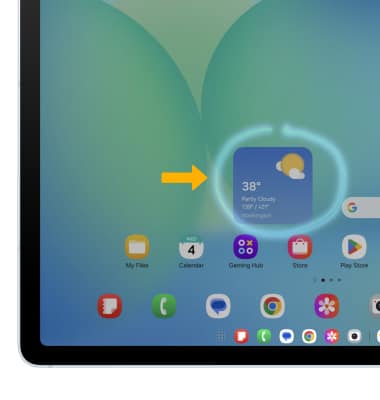
1. With AI select, you can capture selected portions of the screen. From the Air command screen, select  AI select, then use your S Pen to circle the desired object.
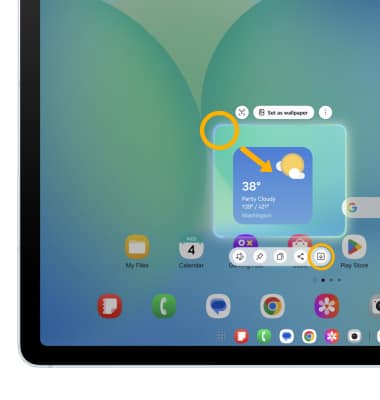
2. Select and drag the outlined corners to modify the selected area. Select the Save icon to save.
Access S Pen settings
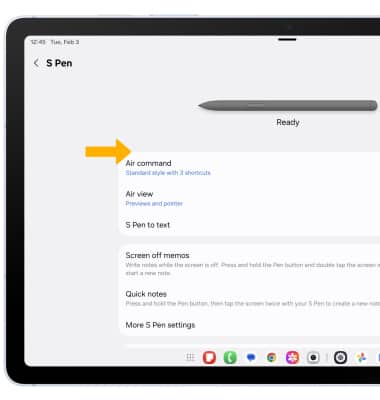
From the Air command screen, select the Settings icon. Edit settings as desired.
Note: Alternately, swipe down from the upper right corner of the screen then select the Settings icon > scroll to and select Advanced features > select S Pen.
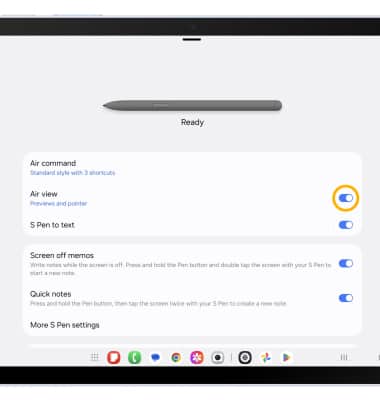
Turn Air view on or off
Air view allows you to preview information, extend text, or enlarge pictures by hovering your pen over the screen. From the S Pen settings screen, select the Air view switch.