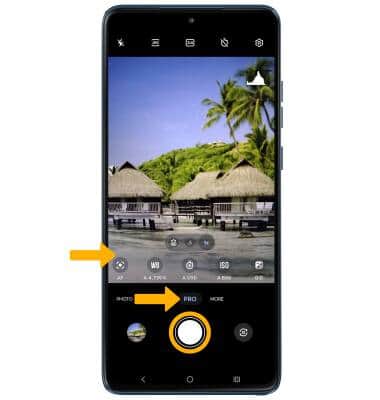
In this tutorial, you will learn how to:
• Access camera settings
• Change the picture size
• Turn the flash on or off
• Set the timer
• Access and edit Capture methods
• Access and edit Capture assistant settings
• Enable AI Audio
• Add a watermark
Access camera settings
From the home screen, select the  Camera app then select the
  Settings icon.
Change the picture size
From the camera screen, select the  Ratio icon, then select the desired option.

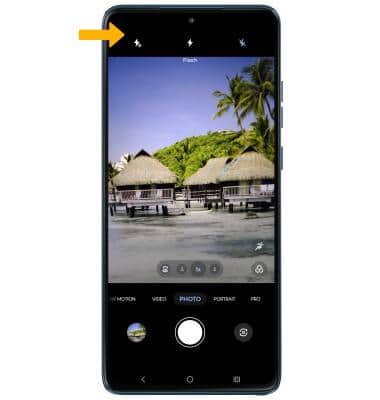
Turn the flash on or off
From the camera screen, select the  Flash icon then select the desired option.
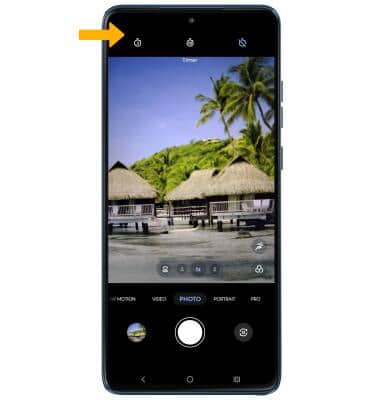
Set the timer
From the camera screen, select the  Timer icon then select the desired option.
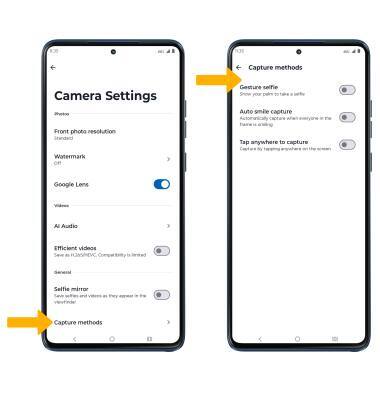
Access and edit Capture methods
From the camera settings screen, select Capture methods then select the desired switch.
Access and edit Capture assistant settings
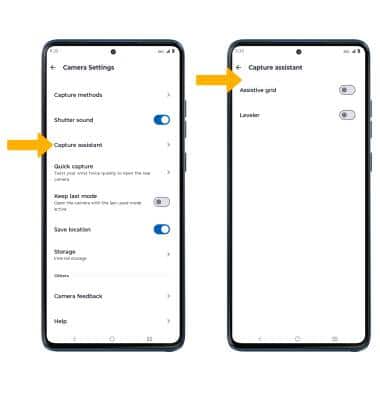
From the Camera settings screen, scroll to and select Capture assistant. Select the Assistive grid switch to turn the camera grid on or off. Select the Leveler switch to turn the leveler on or off.
Enable AI Audio
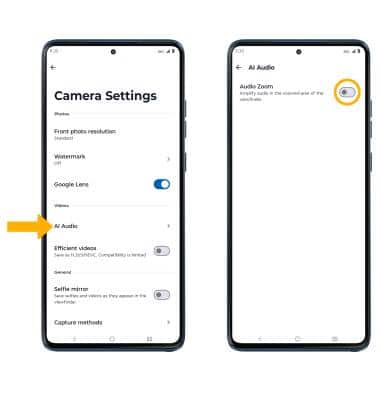
From the Camera settings screen, select AI Audio then select the Audio Zoom switch.
Add a watermark
1. From Camera settings screen, select Watermark then select the Watermark switch.
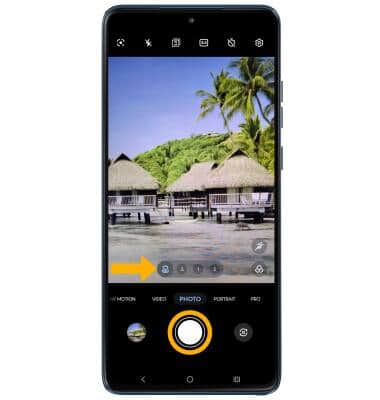
2. Select the switch next to the desired watermark option. When finished, select the back arrow.
Note: After taking a photo, the watermark will appear on the bottom corner of your photo.