In this tutorial, you will learn how to:
• Access AI editing features
• Use Magic Eraser
• Use Photo Unblur
• Use AI Enhance
Access AI editing features
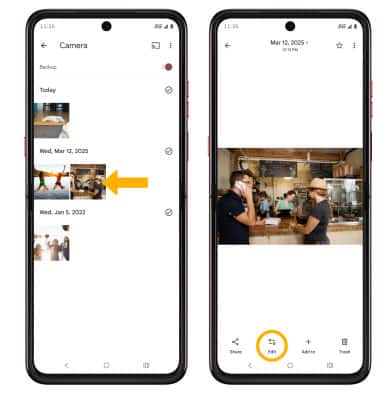
1. From the home screen, select the  Google Photos app.
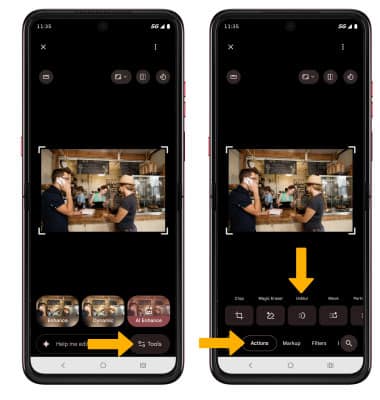
2. Navigate to and select the desired image to edit, then select the Edit icon.
Use Magic eraser
1. While editing a photo, select Tools then select Magic eraser.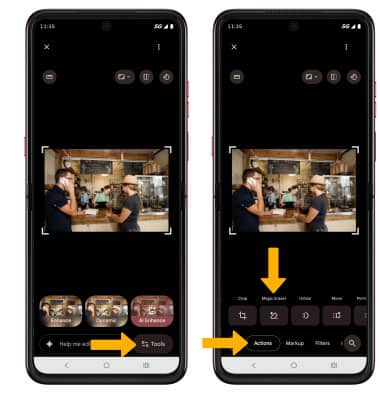
2. Brush or circle any area on the image to erase. Once the desired area is selected, select Erase.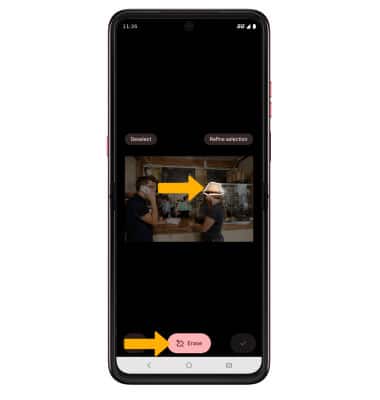
3. While editing with the magic eraser tool, select the desired option. 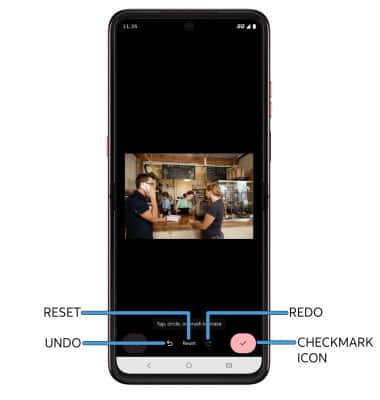
• RESET: Select Reset to revert the image back to its original state.
• UNDO: Select the Undo icon.
• REDO: Select the Redo icon.
• SAVE: Select the Checkmark icon.
Use Photo Unblur
1. While editing a photo, select Tools then select Unblur.
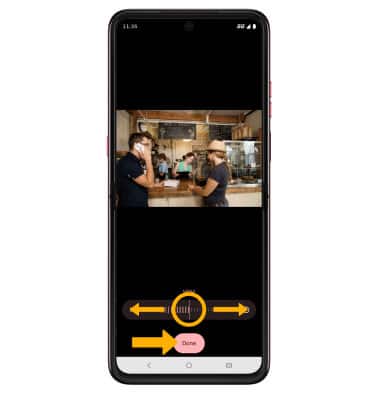
2. Swipe left or right to adjust effect strength as desired. When finished editing, select Done.
Use AI Enhance
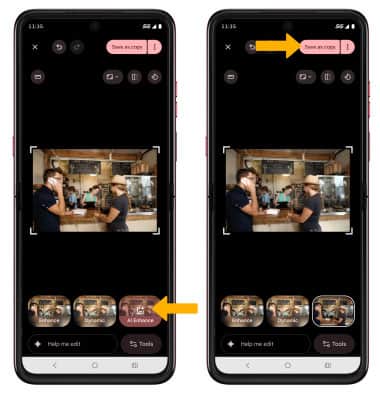
While editing a photo, select AI Enhance. AI Enhance automatically improves image quality by adjusting colors, lighting, and sharpness. When finished, select Save copy.