In this tutorial, you will learn how to:
• Access AI editing features
• Use Magic Eraser
• Use Photo Unblur
• Move or Resize Objects
Access AI editing features
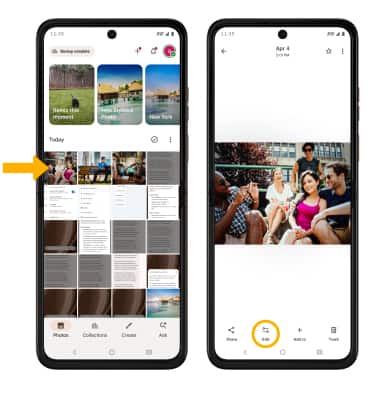
1. From the home screen, select the  Google Photos app.
2. Navigate to and select the desired image to edit, then select the Edit icon.
Use Magic eraser
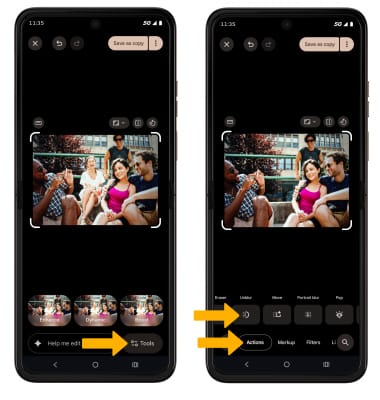
1. While editing a photo, select Tools. Select Actions, then select Magic eraser.
2. Brush or circle any area on the image to erase.
3. While editing with the magic eraser tool, select the desired option. 
• RESET: Select Reset to revert the image back to its original state.
• UNDO: Select the Undo icon.
• REDO: Select the Redo icon.
• SAVE: Select the Checkmark icon.
Use Photo Unblur
1. While editing a photo, select Tools. Select Actions, then select Unblur.
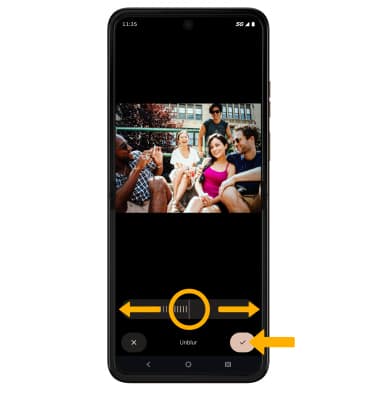
2. Swipe left or right to adjust effect strength as desired. When finished editing, select the Checkmark icon.
Move or Resize Objects
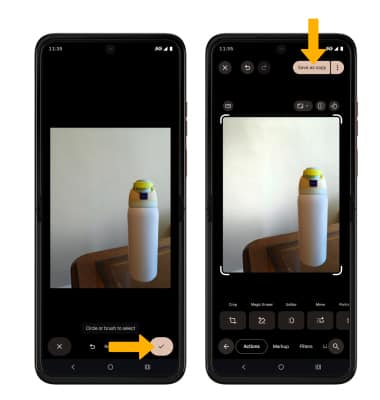
1. While editing a photo, use your finger to circle or brush the desired object. Select Move.

2. Select and drag the desired object to the desired location to move an object. Select and drag two fingers together to make the object smaller. Select and drag two fingers apart to make the image larger. When finished select Move.

3. The move feature will take a moment to generate your changes. Select the Checkmark icon, then select Save as copy.