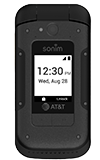
In this tutorial, you will learn how to:
• Access call forwarding
• Enable call forwarding
• Disable call forwarding
When call forwarding is turned on, the  Call forwarding icon will be displayed in the Notification bar.
Access call forwarding
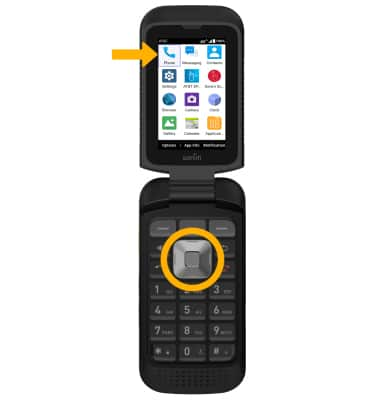
1. From the home screen, press the Center Dynamic key to access the Menu.
2. Press the navigation keys to highlight the Phone app, then press the Select button.
3. Press the Right Dynamic key to select Settings. Press the navigational keys to highlight Calling accounts, then press the Select button.
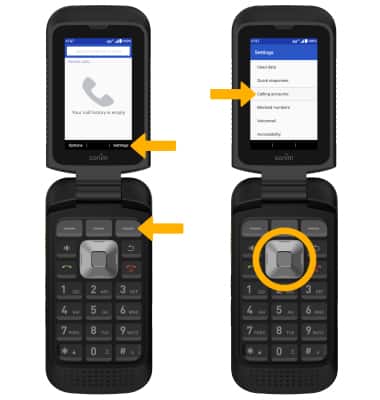
3. Press the Right Dynamic key to select Settings. Press the navigational keys to highlight Calling accounts, then press the Select button.
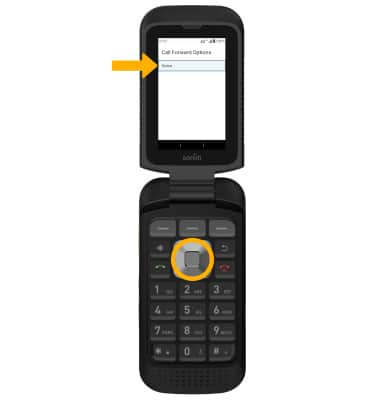
4. Ensure that the desired SIM is highlighted then press the Select button. Press the down navigational key to highlight Call forwarding, then press the Select button to select
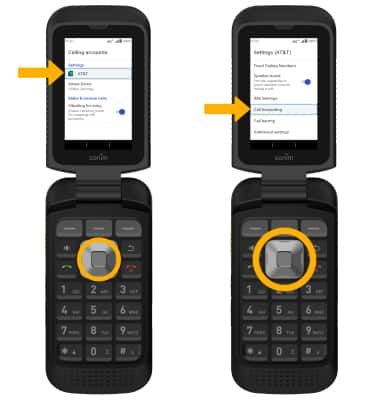
5. Press the Select button to select Voice.
Enable call forwarding
From the Call forwarding settings screen, ensure Always forward is highlighted, then press the Select button. Use the keypad to dial in the desired number, then press the Right Dynamic Key to select Turn on.

Disable call forwarding
From the Call forwarding settings screen, ensure Always forward is highlighted, then press the Select button. Press the Center Dynamic key to select Turn off.
Note: To change the Call forwarding number while Call forwarding is already active, from the Always forward screen, edit the phone number, then press the Right Dynamic key to select Update.
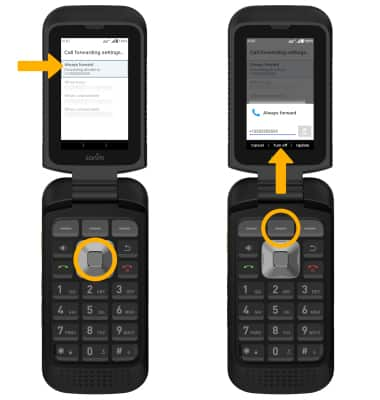
Note: To change the Call forwarding number while Call forwarding is already active, from the Always forward screen, edit the phone number, then press the Right Dynamic key to select Update.