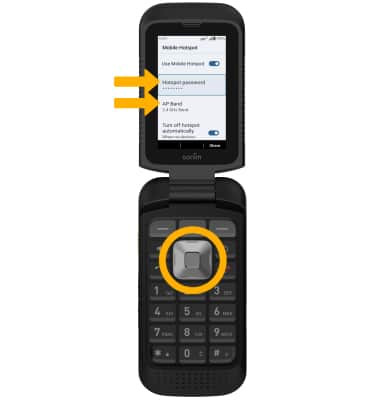

In this tutorial, you will learn how to:
• Turn mobile hotspot on/off
• View mobile hotspot network name & connected devices
• Configure hotspot settings
When Mobile Hotspot is enabled, the  Mobile hotspot icon will be displayed in the Notification bar.
Turn mobile hotspot on/off
1. From the home screen, press the Center Dynamic key to access the Menu. Press the navigation keys to highlight the  Settings app then press the Select button.
2. Press the navigation keys and then the Select button to select Network & internet > Hotspot & tethering > Mobile hotspot.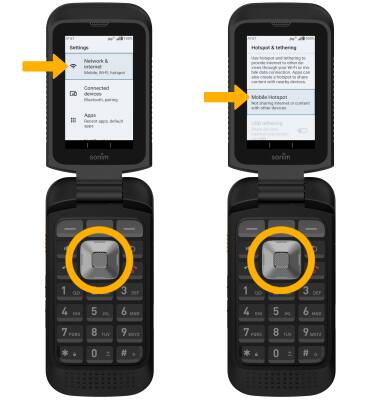
3. Press the Select button to turn the Use Mobile Hotspot switch on or off.
Note: If Wi-Fi is turned on, you will be prompted to press the Right Dynamic key to select OK. 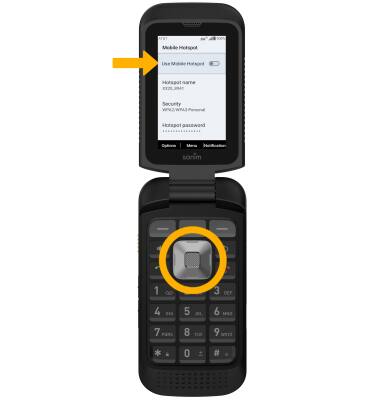
View mobile hotspot network name & connected devices
VIEW MOBILE HOTSPOT NETWORK NAME: The Hotspot name is displayed on the Mobile hotspot screen.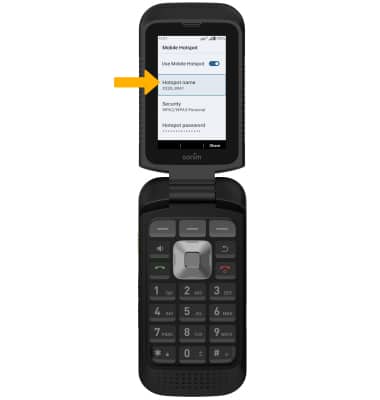
VIEW CONNECTED DEVICES: Press the navigation keys to highlight Connected Device List, then press the Select button. Connected devices will be displayed.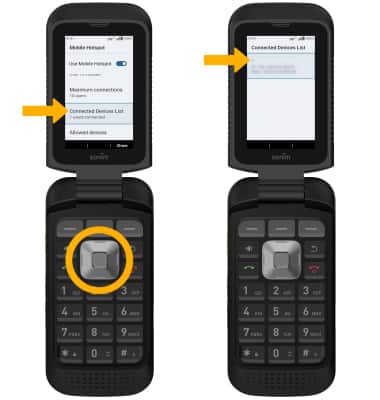
Configure hotspot settings