
 Camera app. You can also press the Side button twice or swipe up from the
 In this tutorial, you will learn how to:
• Access camera modes and filters
• Customize photo and video settings
• Turn shutter sound on/off
• Crop a photo
• Object Eraser
• Use Flex mode
• Use Pro mode
Access camera modes and filters
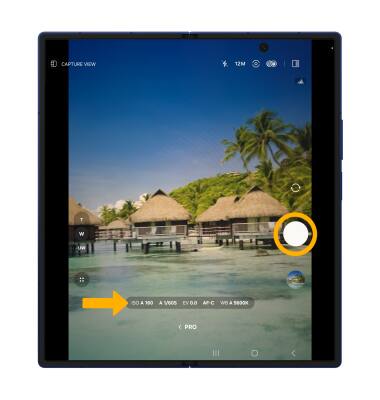
1. From the Camera app, swipe left to MORE to access modes such as Pro, Hyperlapse and Panorama. Select the desired option.
Note: Pro allows you to manually adjust settings such as ISO, White Balance and exposure levels. Panorama allows you to create wider photos by stitching together multiple photo. Hyperlapse allows you to create time lapse photos.
2. To access filters, select the Filters icon then select the desired filter.
Note: Filters are not available in some camera modes.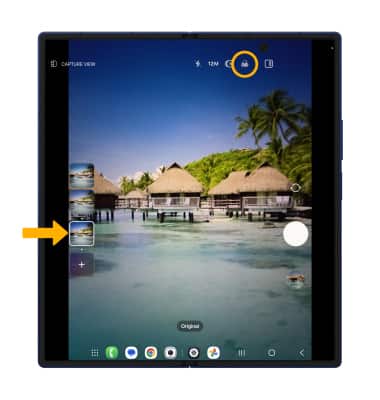
Customize photo and video settings
From the Camera app, select the  Quick Control icon. Select the
  Settings icon then edit settings as desired.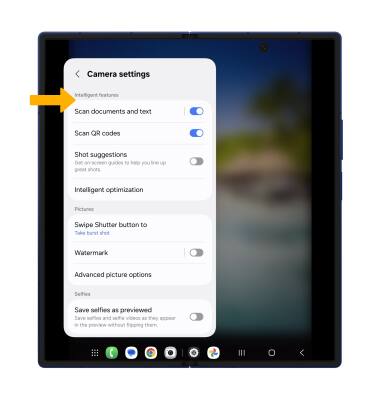
Turn shutter sound on/off
From the Camera settings screen, scroll to and select the Shutter sound switch.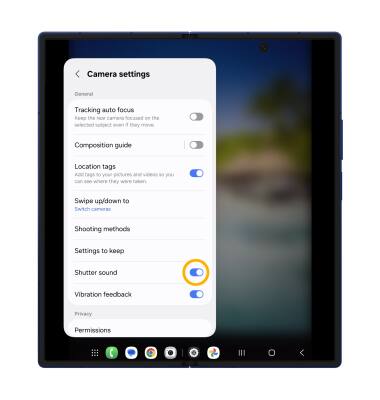
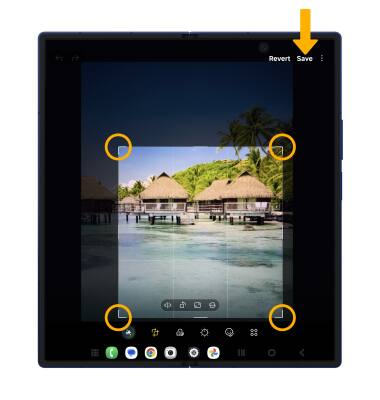
Crop a photo
Note: Alternately, from the home screen, select the
 Gallery app then navigate to and select the desired photo.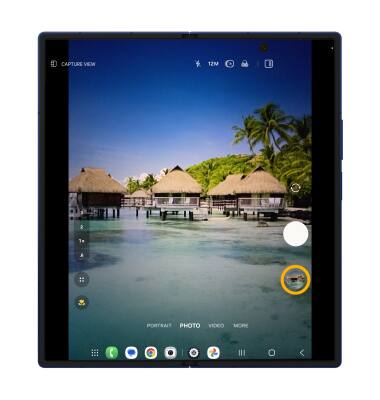
2. Swipe left to the desired photo, then select the Edit icon.

Object Eraser
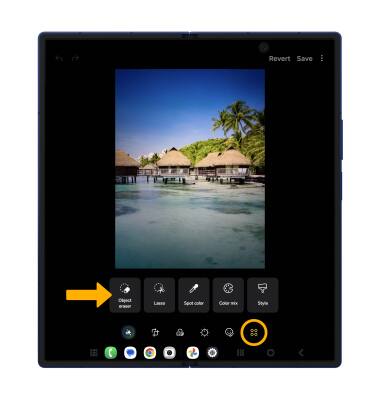
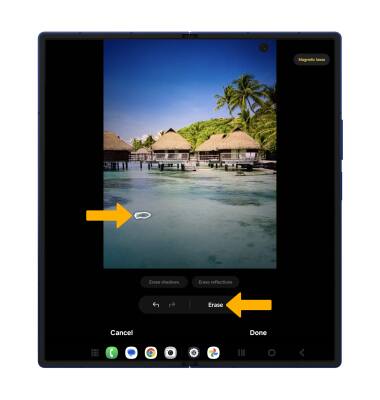
2. Tap or draw around anything you want to erase, then select Erase.

Use Flex mode
Flex mode allows you to use your camera to take hand-free selfies. To use Flex mode, fold your Samsung Galaxy Fold7 halfway and adjust the orientation so that the front screen of the sits on your desk. The bottom half of your screen will display all the camera controls while the top half will be the camera's viewfinder. Select the desired options: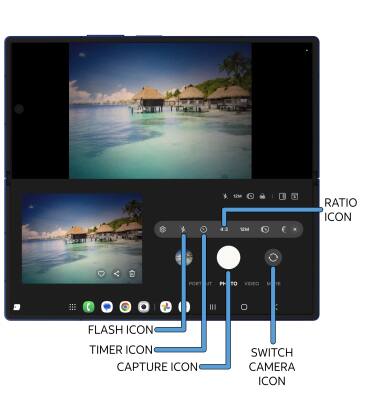
• SWITCH CAMERA: Select the Switch camera icon.
• TAKE A PHOTO: Select the Capture icon.
• PICTURE SIZE: Select the Quick Control icon. Select the Ratio icon, then select the desired option.
• TIMER: To change Timer settings, select the Quick Control icon. Select the Timer icon then select the desired time.
• FLASH: To turn the flash on or off, select the Flash icon then select the desired option.
Use Pro mode
1. From the Camera app, swipe left to MORE then select Pro.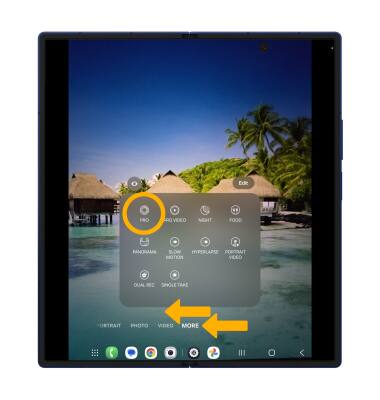
2. Adjust camera settings as desire, then select the Capture icon.