In this tutorial, you will learn how to:
• Access contacts
• Call or send a message
• Add a contact
• Edit or delete a contact
• Add a ringtone to a contact
• Back up your contacts
Access contacts
Swipe up from the bottom of the clock screen to access the Apps tray, then select the Contacts app.
Call or send a message
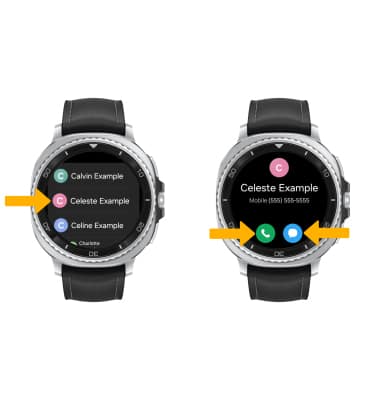
From the Contacts app, scroll to and select the desired contact. To call the contact, select the Phone icon. To send a message, select the Message icon.
Add a contact
1. Contacts must be added and edited from the paired Samsung smartphone. From your paired device, navigate to and select the Contacts app.
Note: Contacts will sync with your watch automatically.
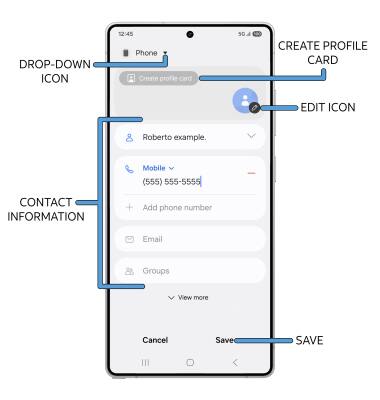
2. Select the  Add icon. Enter the desired contact information in the corresponding fields. Select the drop-down icon to change the desired account you want to save the contact to. To add a picture or AR Emoji, select the Edit icon then navigate to the desired image. To create a background for your contact card, select Create profile card. Select Save when finished.
Edit or delete a contact
EDIT CONTACT: From the Contacts app on your paired device, select the desired contact, then select the  Edit icon. Edit the contact as desired, then select Save.
DELETE CONTACT: From the contact list on your paired device, select and hold the desired contact, then select Delete. Select Move to Trash to confirm.
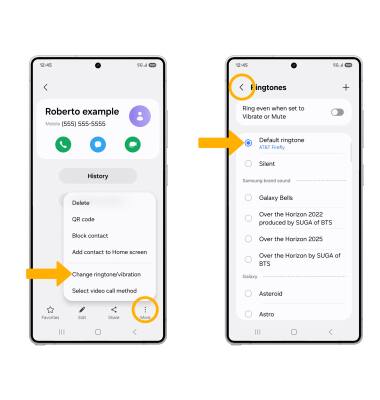
Add a ringtone to a contact
From the desired contact info screen, select the  More icon > Change ringtone/vibration > Ringtone > desired ringtone. When finished, select the Back arrow.
Back up your contacts
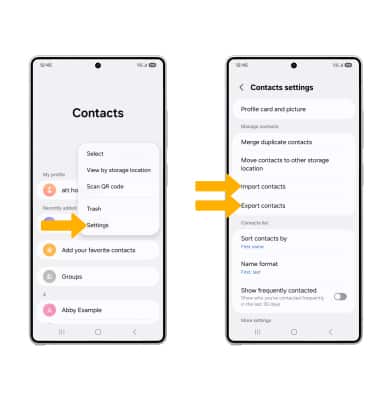
From the Contacts screen, select the Menu icon > Settings > Import contacts or Export contacts and follow the prompts.