In this tutorial, you will learn how to:
• Access app shortcuts
• Add/remove widgets
• Add/remove widgets
• Edit widget order
• Change watch face
• Change watch face
Access app shortcuts
From the clock screen, swipe left then swipe left or right to access the desired app shortcuts.
Note: To edit app shortcuts from your connected device, navigate to and select the  Wearable app > select Tiles > edit tiles as desired > select Save.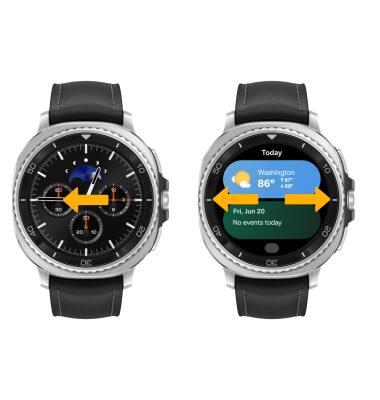
Add/remove widgets
To add a widget, swipe left to the end of the widgets list then select the  Add icon. Navigate to and select the desired widget.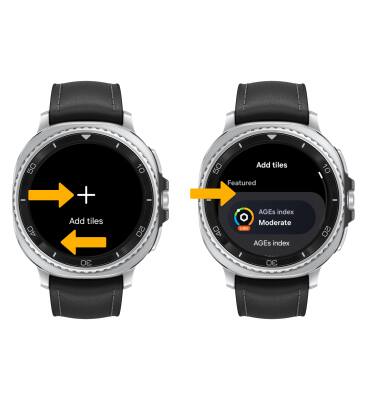
To remove a widget, select and hold the desired widget until the  Remove icon displays in the top right corner. Select the Remove icon to confirm.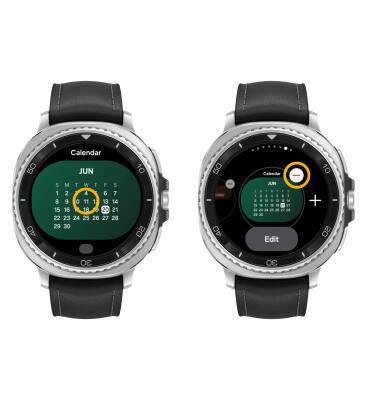
Edit widget order
Select and hold a widget, then select and drag the desired widget to the desired location. 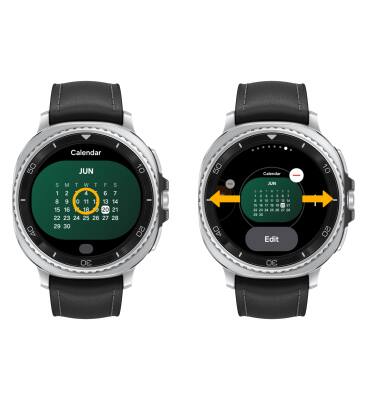
Change watch face
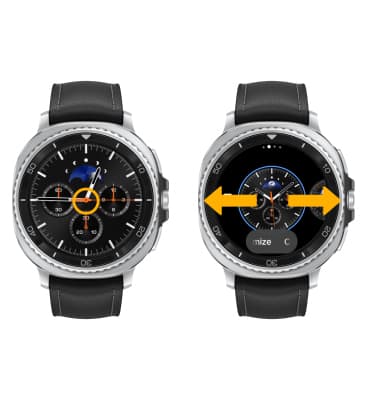
From the clock screen, select and hold the center of the screen then swipe left or right to and select the desired watch face.
Note: For more information on changing your watch face, view the Change Clock Style tutorial.
Note: For more information on changing your watch face, view the Change Clock Style tutorial.