
In this tutorial, you will learn how to:
• Access Bixby
• Customize Bixby
• Access Bixby settings
Access Bixby
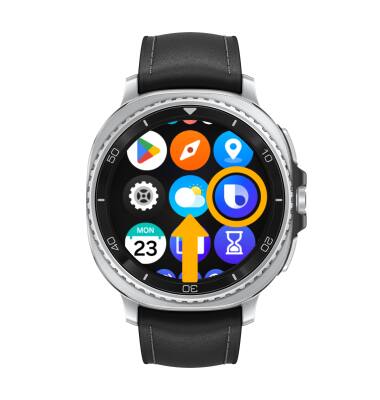
Swipe up from the bottom of the clock screen to access the Apps tray, then scroll to and select the Bixby app.
Note: If this is your first-time accessing Bixby, you will be prompted to pick a voice style. Select the desired voice style, then follow the prompts.
Note: If this is your first-time accessing Bixby, you will be prompted to pick a voice style. Select the desired voice style, then follow the prompts.
Customize Bixby
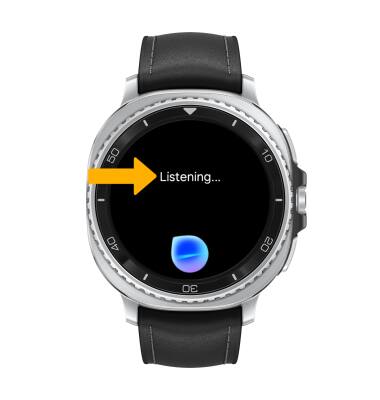
When Listening... is on screen, say "Hi, Bixby" to set up voice commands. Use the Bixby app to find food recommendations, upcoming scheduled appointments, reminders, emails, news, sports, weather, and more.
Access Bixby settings
1. Swipe up from the bottom of the clock screen to access the Apps tray, then scroll to and select the  Settings app.
Settings app. 2. Scroll to and select Advanced features, then scroll to and select Bixby.
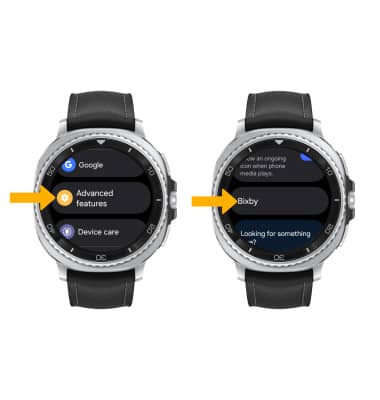
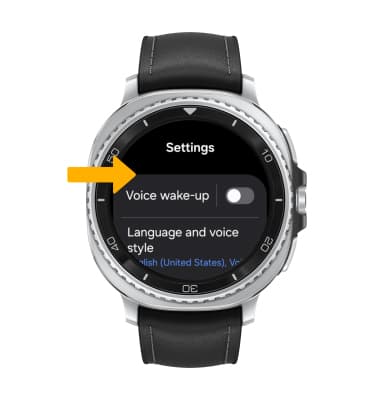
3. Edit settings as desired.