In this tutorial, you will learn how to:
• Access and use Google Gemini
• Brainstorm ideas
• Write notes
• Summarize unread messages
• Create lists
• Access Google Gemini settings
Access and use Google Gemini
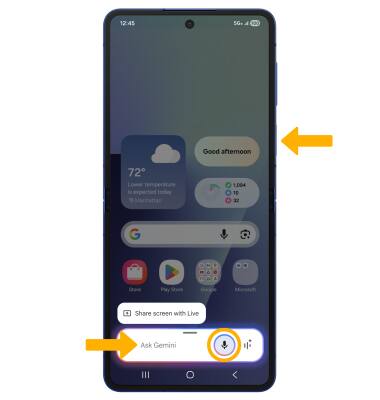
1. From the home screen, swipe up to access the apps tray then select the  Gemini app.
2. Enter the desired action or search term(s) or select the Microphone icon to speak them instead.
Brainstorm ideas
Say the desired idea you wish to have Google Gemini help you brainstorm. A list will be displayed.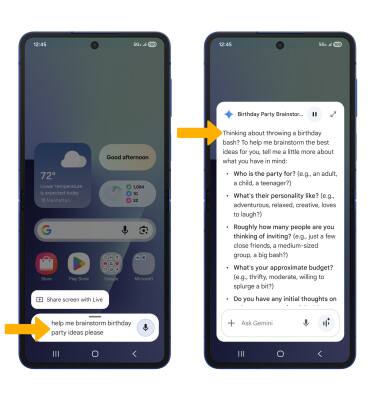
Write notes
Say the desired note you wish to have Google Gemini help you write. A note will be displayed.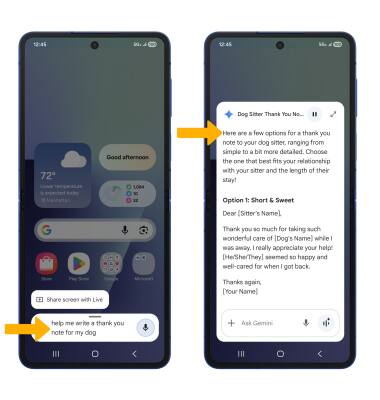
Summarize unread message
1. Navigate to the desired message you wish to summarize, then press and hold the Side button to launch Google Gemini.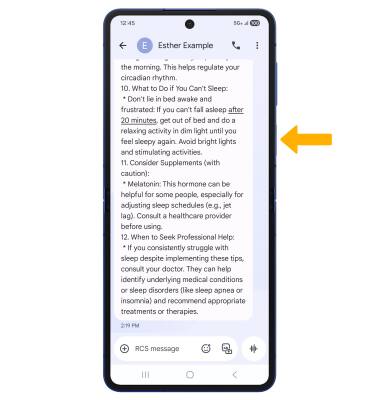
2. Select Ask about this screen, then select the Microphone icon.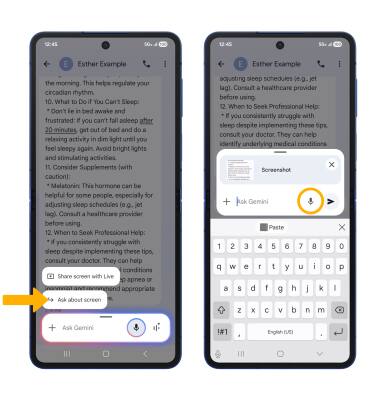
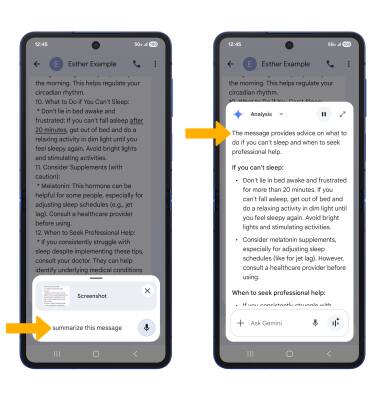
3. Say "Summarize this message". The summary of the message will be displayed.
Create lists
From the Gemini screen, say the desired search term(s) to create a list. A list will be displayed.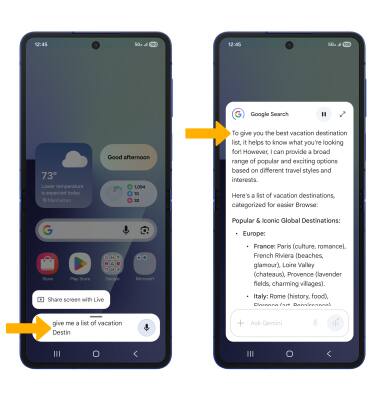
Access Google Gemini settings
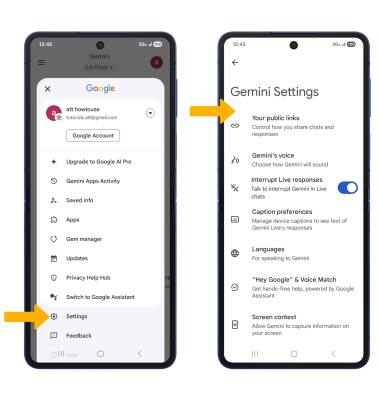
1. From the home screen, swipe up to access the Apps tray then navigate to and select the Gemini app, then select the Account icon. 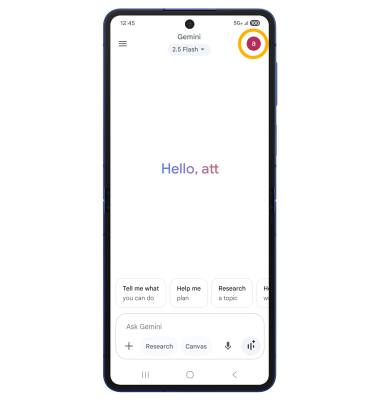
2. Select Settings, then edit Gemini settings as desired.