In this tutorial, you will learn how to:
• Use Gemini Live
Use Gemini Live
1. Swipe up from the home screen to access the apps tray, then navigate to and select the  Gemini app.
Note: Alternately, press and hold the Side button to launch Google Gemini.
2. Select the Live icon.
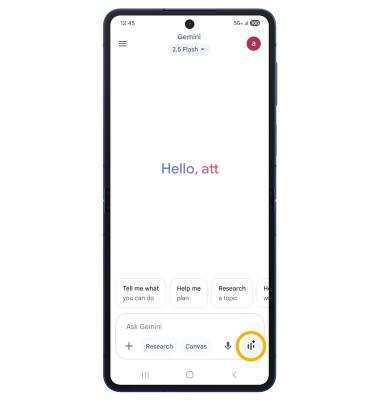
3. Begin speaking to start the conversation. With Gemini Live, you can have a natural, free-flowing conversation with Gemini in up to 2 languages, interrupt when you want to add more details or change the topic of the conversation, brainstorm ideas, plan an event and more.

• PAUSE A CONVERSATION: To pause a conversation, select the Hold icon.
• END A CONVERSATION: To end a conversation, select the End icon.
• SHARE YOUR SCREEN: To share your screen with Gemini Live, select the Screen Sharing icon.
• SHARE YOUR CAMERA: To share your Camera with Gemini Live, select the Camera icon.
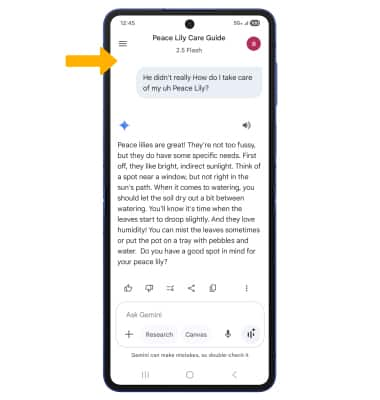
4. When you are done using Gemini Live, you will see a transcript of your conversation.