
 Camera app. Alternatively, from the lock screen, press the Power/Lock button twice.
In this tutorial, you will learn how to:
• Take a photo
• Switch between the front and rear cameras
• Focus the camera
• Zoom in and out
• Access and use Night Sight
• Access and use Panorama
• Access and use Google Lens
• Access and use Action Pan
• Use Add Me
Take a photo
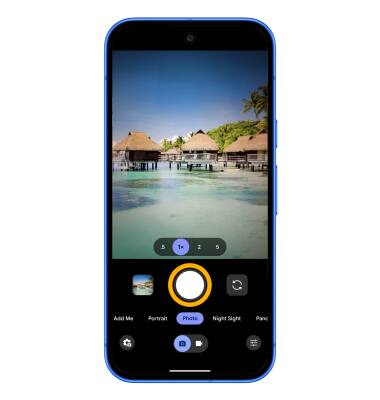
Select the Capture icon.
Note: Alternately, press either of the Volume buttons.
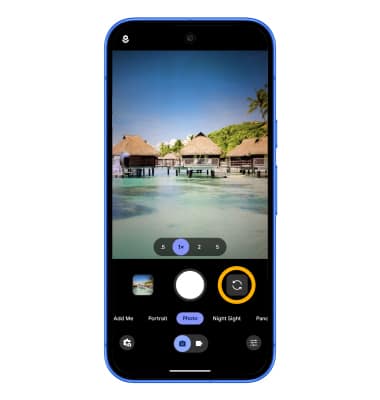
Switch between front and rear cameras
Select the Open camera.
Focus the camera
Select the screen in the desired location to focus the camera.
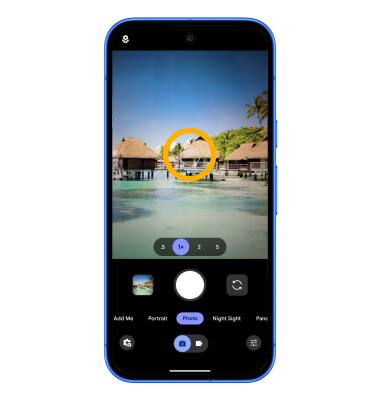
Zoom in and out
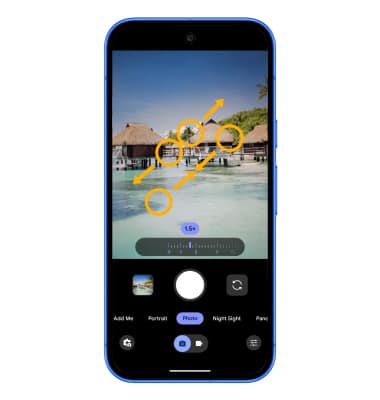
Drag two fingers from the middle of the screen toward the outer edges of the screen to zoom in. Pinch two fingers from the outer edges of the screen to the middle of the screen to zoom out. The Pixel 10 can also use telephoto macro by utilizing it's advanced triple rear camera system: 48 MP wide, 13 MP ultrawide with Macro Focus, and 10.8 MP 4.5x telephoto lens.
Access and use Night Sight
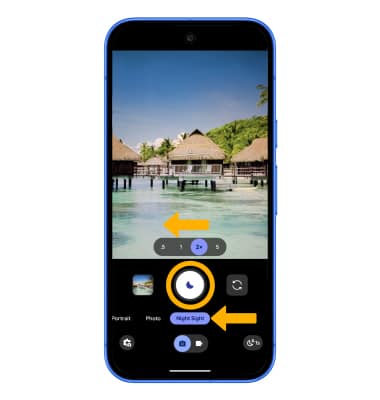
From the Camera app, swipe left to Night Sight, then select the Capture icon and hold the camera very still for about 5 seconds.
Access and use Panorama
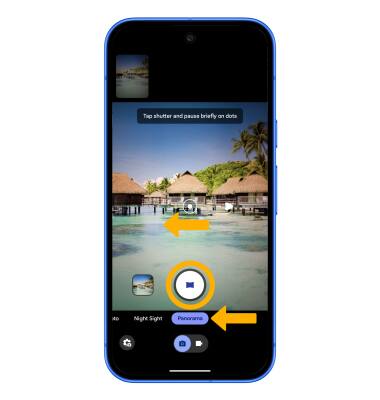
Panorama allows you to create wider photos by stitching together multiple photos. To access Panorama mode, from the Camera app, swipe left to Panorama. Select the Capture icon then pan the camera to the left or right to complete the capture.
Access and use Google Lens
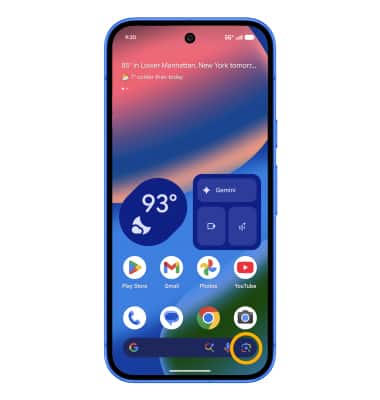
1. Google Lens can search for similar objects or locations, translate, copy text from image, search up homework questions, and search for products and places. From the home screen, select the Google Lens icon.
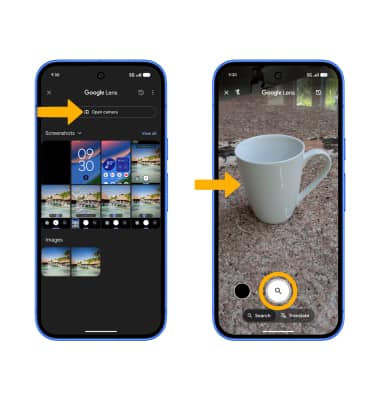
2. Select Open camera. Point the device's camera at an object or location, then select the Capture icon. Google Lens will automatically identify the object or location.
Note: If it is your first time accessing Google Lens, review the permission prompts and select the desired option. To access additional Google Lens features, swipe left or right to the desired Google Lens feature and follow the prompts.
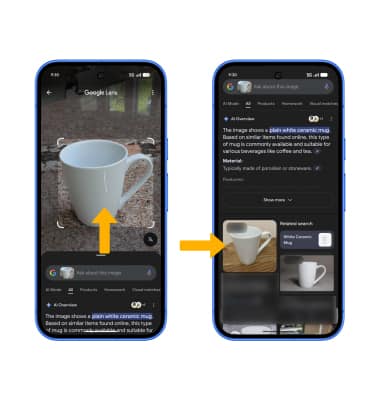
3. Swipe up from the bottom of the screen to view additional search results, then select the desired search result.
Access and use Action Pan
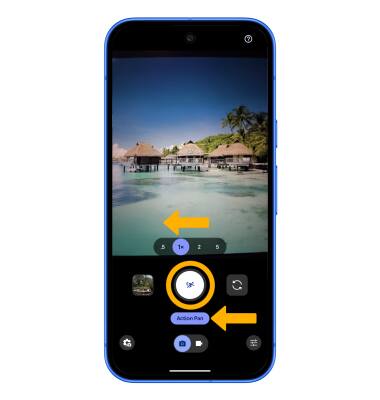
Action Pan allows you to focus on a moving subject and add a creative blur to the background. To access Action Pan, from the Camera app, swipe left to Action Pan. Select the Capture icon, then hold your camera still or follow the subject to get the motion blur effect.
Use Add Me
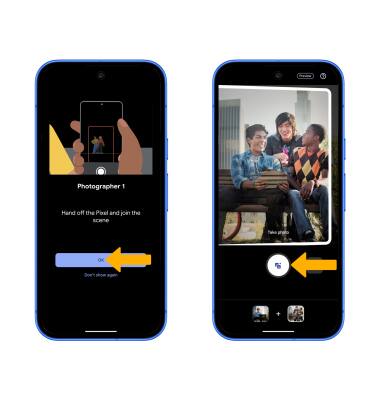
1. Forget about selfie sticks or needing a helpful stranger. Add Me can seamlessly merge two photos into one amazing image. It combines true-to-the-moment photography with the power of AI and augmented reality, so everyone who was there can be in your pictures. From the Camera app, select Add Me.
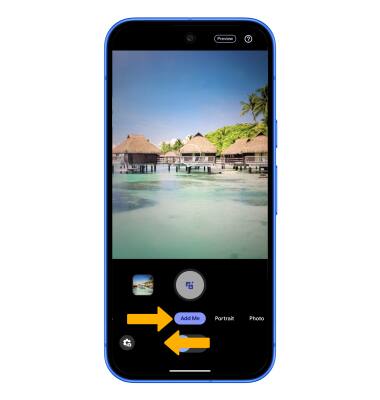
2. Review the prompt to take the first picture, then select OK. Leave space for another person to fill in the next picture. Select the Shutter icon to take a picture.
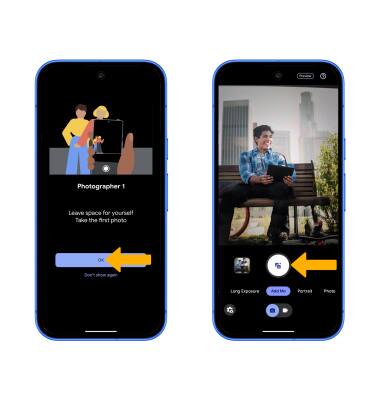
3. Review the prompt to take the first picture, then select OK. Align the frame so that it matches the previous photo, then select the Shutter icon to take a picture.
Note: The newly created group photo will automatically be saved to the Photos app.