In this tutorial, you will learn how to:
• Set up Samsung Kids
• Set parental controls
• View usage
• Add or delete an app
• Exit Kid's mode
Set up Samsung Kids
1. Swipe down from the upper right corner of the screen, then swipe down from the icons section. Select the Kids icon.
Note: If the Kids icon is not in the icons section, you can add it by selecting the  Menu Edit icon > Edit > then drag the Kids icon to the desired location in the icons section.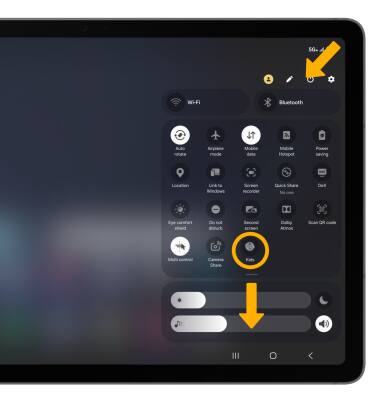
2. Select Start. 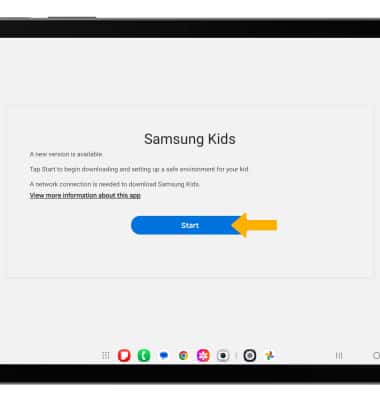
3. Review the features of Samsung Kids, then select Continue > select Continue again.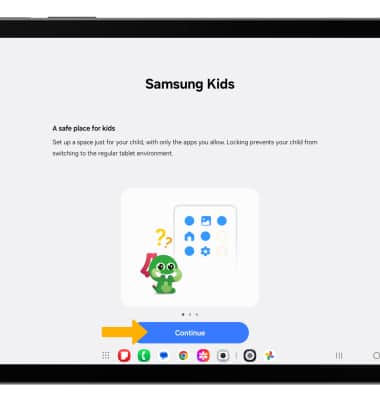
4. Upon first access, you will be prompted to set up a Pin. You will be required to enter this Pin whenever you edit parental controls, edit the home screen, access settings or exit Kids mode. Enter the desired Pin, then edit the desired Pin again to confirm.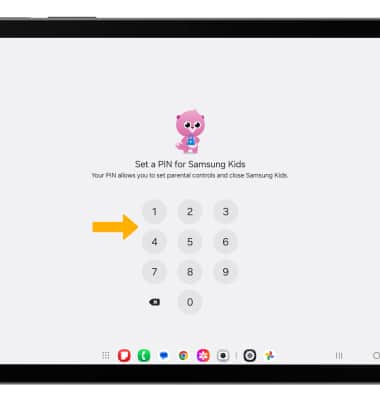
Set parental controls
To access parental control, from the Samsung Kids home screen, select the Menu icon then select Parental control > enter your Pin.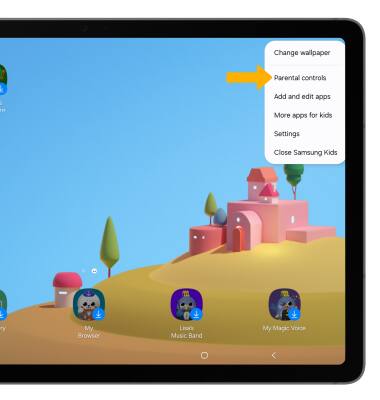
EDIT SCREEN TIME: Select Screen time > select the On/Off switch, then select the desired option to edit.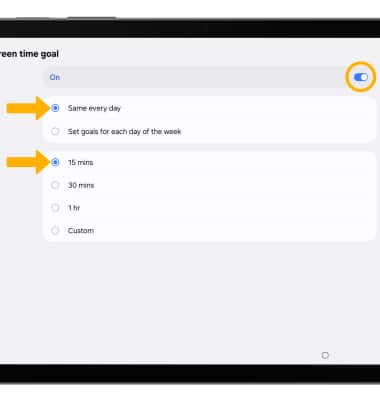
EDIT BEDTIME: Select Bedtime > edit the desired sleep/wake time, schedule and label, then select Save.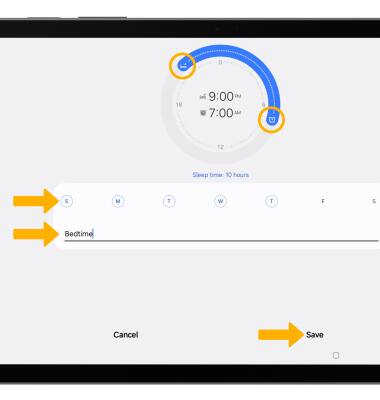
View usage
Usage will be displayed in the Parental controls. 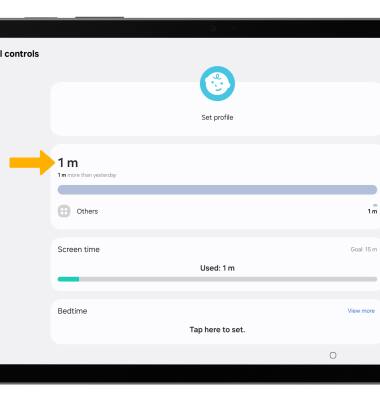
To view a detailed usage report, select the Usage. Screen time and app activity will be displayed.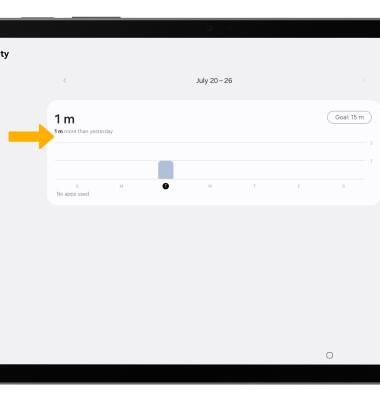
Add or delete an app
1. To add an app to the home screen, from the Kids home screen, select the Menu icon then select Add and edit apps.
2. Enter your Pin > select the  Add icon > select the desired app, then select Add.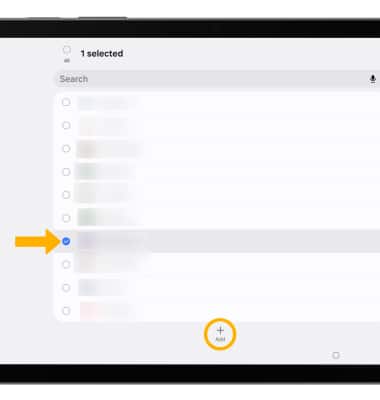
3. To delete an app, select and hold the desired app then select Delete. When finished, select Save. 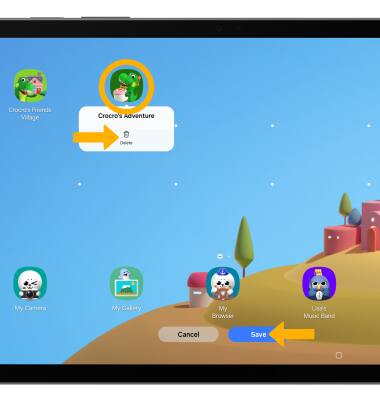
Exit Kid's mode
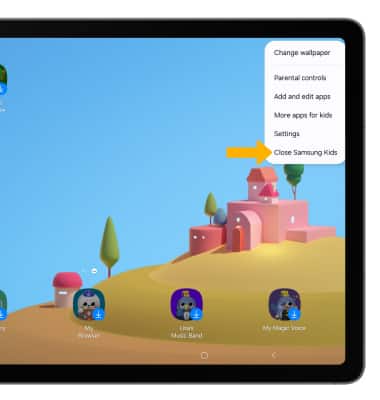
From the Kids home screen, select the Menu icon > Close Samsung Kids > enter your Pin.