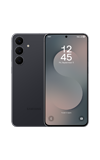
In this tutorial, you will learn how to:
•Access camera modes and filters
•Use Pro mode
•Use Night mode
• Change the picture size
• Turn the flash on or off
• Set a timer
• Turn the shutter sound on or off
• Use voice commands
• Turn on Shot suggestions
• Turn tracking auto-focus on or off
•Object Eraser
•Access and use Audio Eraser
To access camera settings, from the home screen, select the  Camera app >
  Quick control icon >
  Settings icon.
Access camera modes and filters
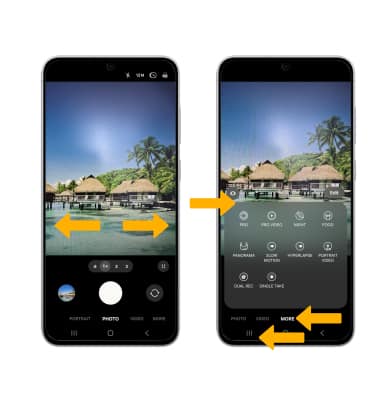
From the Camera app, swipe left or right to access camera modes. To access additional camera modes such as Pro, Panorama, Slow motion and Hyperlapse, swipe left to MORE then select the desired option.
Note: Pro allows you to manually adjust settings such as ISO, shutter speed and exposure levels. Panorama allows you to create wider photos by stitching together multiple photos. Slow motion allows you to record videos at a high frame rate which can be played in slow motion. Hyperlapse allows you to capture changes that happen slowly in a smooth time-lapse video.
Use Pro mode
1. From the Camera app, swipe left to MORE then select Pro.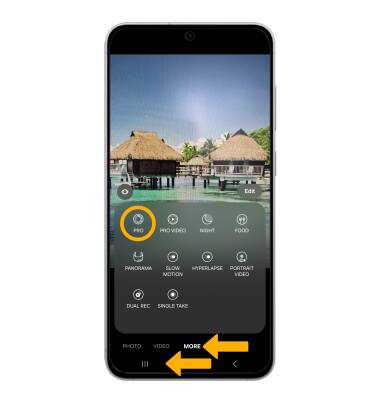
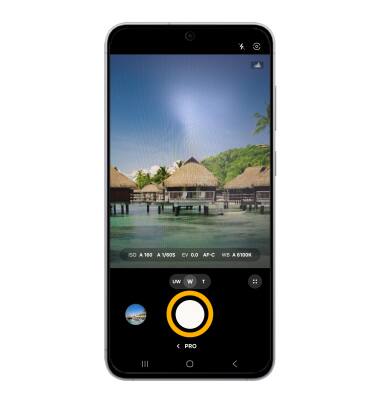
2. Adjust camera settings as desire, then select the Capture icon.
Use Night mode
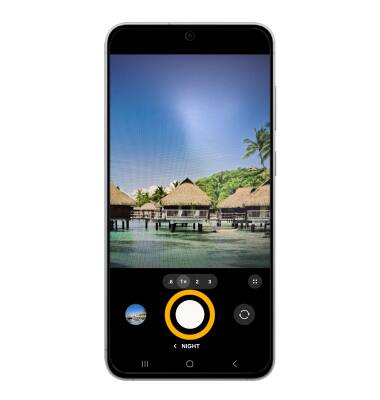
1. From the Camera app, swipe left to MORE then select Night.
2. Select the Capture icon.
Change the picture size
From the camera screen, select the Quick control icon. Select the  Ratio icon, then select the desired option.
Turn the flash on or off
From the camera screen, select the Quick control icon. Select the  Flash icon, then select the desired option.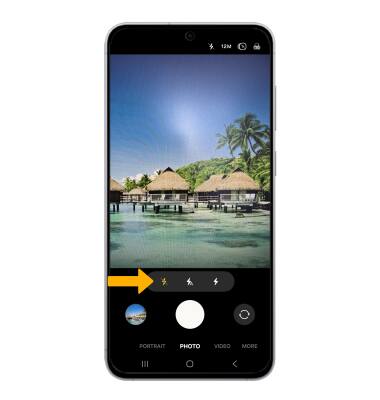
Set a timer
From the camera screen, select the Quick control icon. Select the  Timer icon, then select the desired time.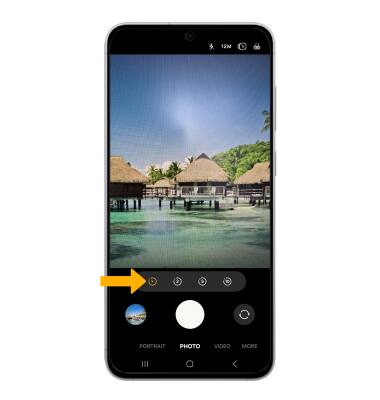
Turn the shutter sound on or off
From the Camera settings screen, scroll to and select the Shutter sound switch.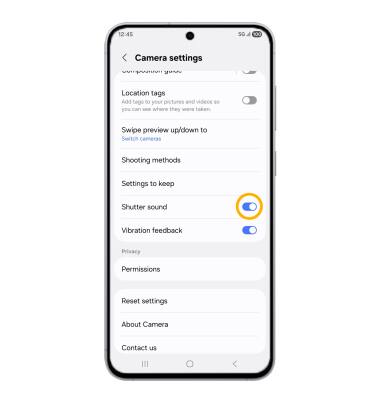
Use voice commands
Voice control allows you to take pictures by saying "Smile", "Cheese", "Capture", or "Shoot", or record videos by saying "Record Video". To access voice control settings, from the Camera settings screen, scroll to and select Shooting methods then select the Voice commands switch. 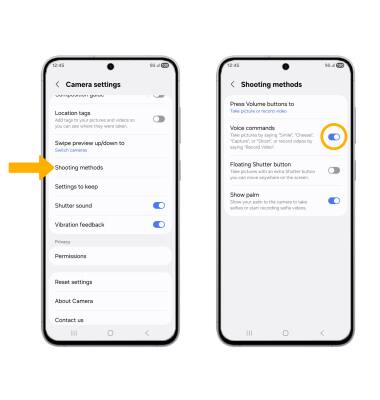
Turn on Shot suggestions
To turn on Shot suggestion, from the Camera settings screen, select the Shot suggestion switch. 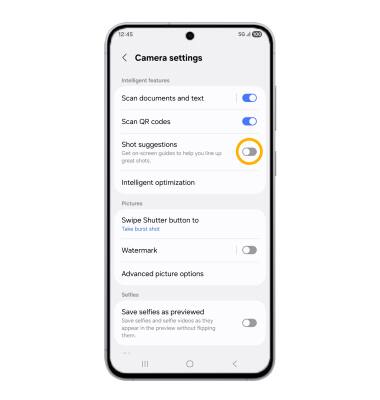
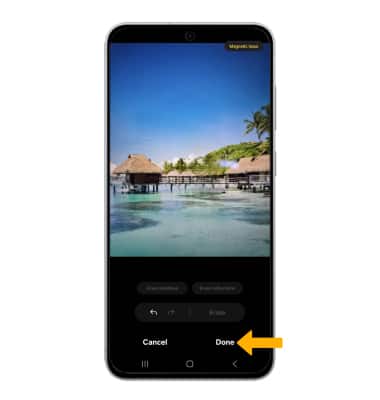
Object Eraser
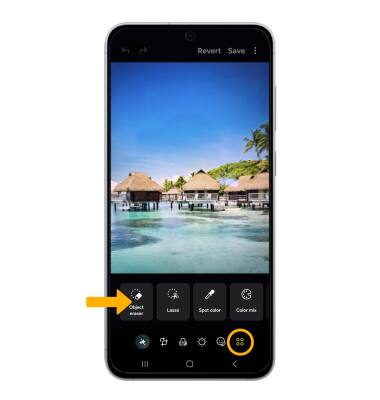
2. Tap or draw around anything you want to erase, then select Erase.
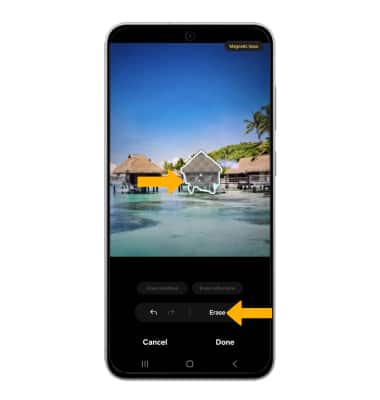
Access and use Audio Eraser
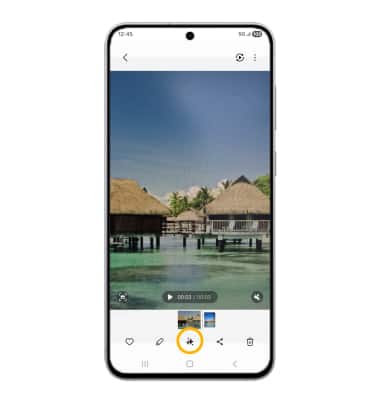
1. From the desired video, select the Generative icon.
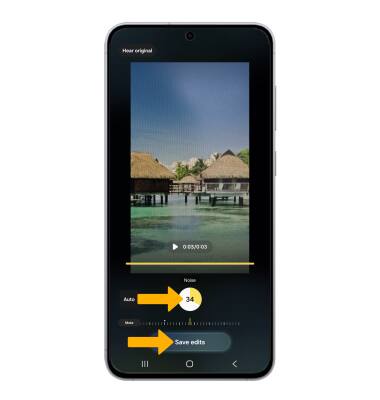
2. Edit audio settings as desired, then select Save edits.
Tips
ALTERNATE METHODS TO ACCESS CAMERA: Press the Side button twice or, from the lock screen, swipe up from the Camera icon.
CHANGE CAMERA MODES: From the Camera app, swipe left to MORE to access different camera modes.