Google Wallet
Use Google Wallet to make in-app and tap-to-pay purchases from your device.
In this tutorial, you will learn how to:
• Set up Google Wallet
• Use Google Wallet
Google Wallet can be used at payment terminals that feature the  Google Wallet symbol or the
  Contactless symbol. For more information on using Google Wallet in stores visit Pay in Stores. For more information on using Google Wallet on an app or website, visit Pay on an app or website.
Set up Google Wallet
1. From the home screen, select the Google folder then select the Google Wallet app.
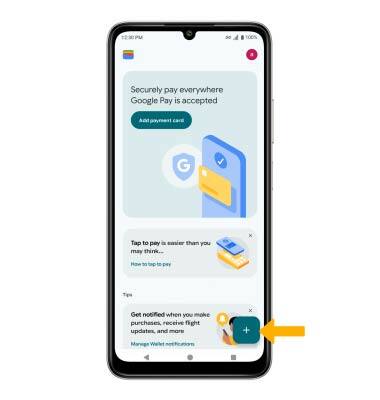
2. To add a method of payment, select Add to Wallet then follow the prompts to complete setup.
Use Google Wallet
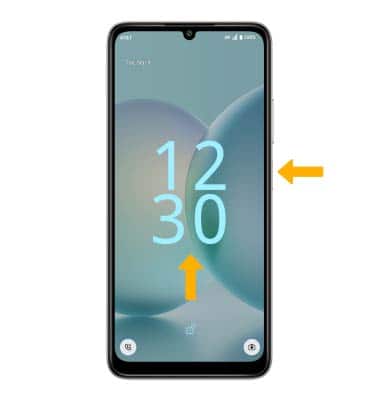
To use Google Wallet in stores, your phone must be unlocked and NFC must be enabled. To unlock your device, press the Power/Lock button located on the right side of the device then swipe up from the bottom of the lock screen.
Note: If you have set up a screen lock, you will have to enter your current screen lock.
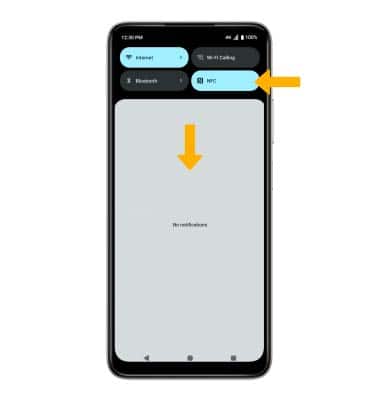
To enable NFC, swipe down from the Notification bar, then select the NFC icon.