
In this tutorial, you will learn how to:
• Take a photo
• Record a video
• Stop and save a video
• Record a video
• Stop and save a video
This tutorial requires you open the Camera app. To access the camera from the Clock screen, swipe right. Alternately, swipe left on the Clock screen then select the  Camera app.
Take a photo
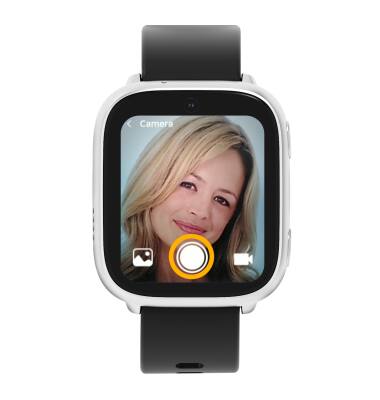
Select the Capture icon.
Record a video
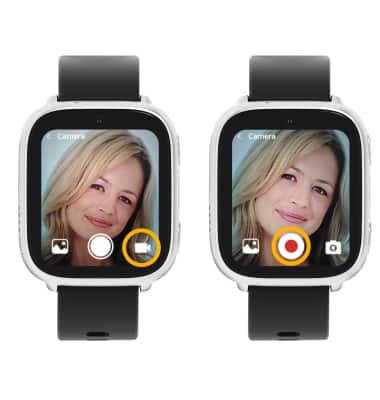
From the Camera screen, select the Video icon to access Video mode then select the Record icon.
Stop and save a video
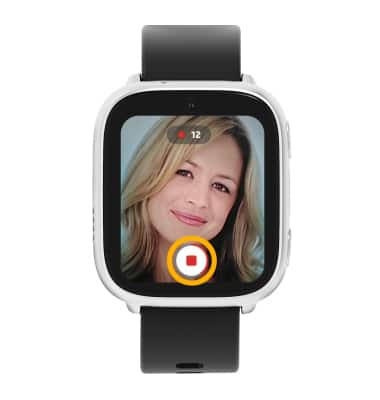
The video will automatically finish recording after 20 seconds. To manually stop the recording, select the Stop icon.
Note: Videos are automatically saved when recording ends.