In this tutorial, you will learn how to:
• Set an alarm from your watch
• Turn an alarm on or off from your watch
• Delete an alarm from your watch
• Add, edit and delete alarms from the AT&T amiGO™ app
Set an alarm from your watch
1. From the Clock screen, swipe left twice then select the  Alarm app.
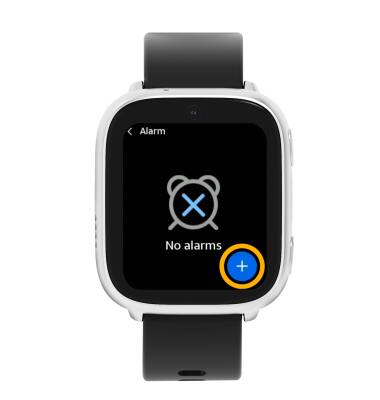
2. Select the Add icon.
Note: Alarms added from the watch will not be displayed in the AT&T amiGO™ app.
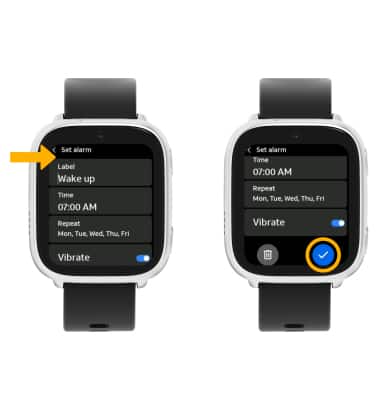
3. Edit the alarm settings as desired, then scroll to and select the Checkmark icon.
Turn an alarm on or off from your watch
Select the switch next to the desired alarm to turn it on or off. 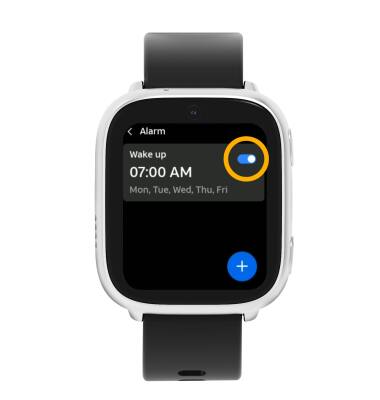
Delete an alarm from your watch
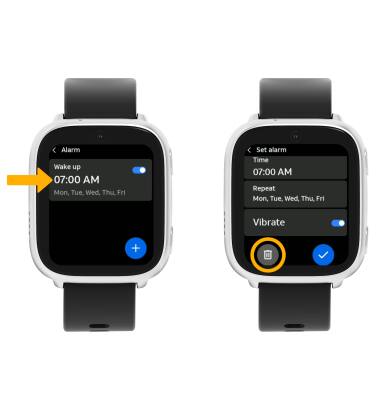
Select the desired alarm, then scroll to and select the Delete icon.
Note: You’ll be prompted to select the Delete icon again to confirm. You can only edit or delete alarms that you added from the watch.
Add, edit and delete alarms from the AT&T amiGO™ app
1. From your connected smartphone, open the  AT&T amiGO™ app.
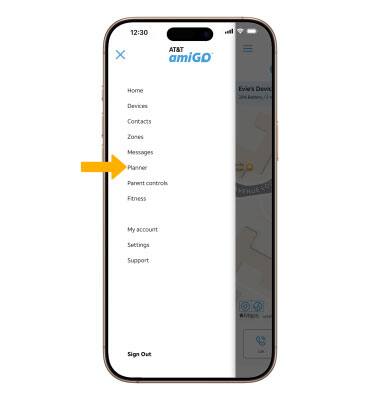
2. Select the  Menu icon then select Planner.
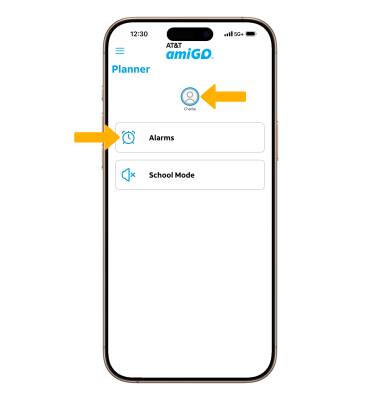
3. Select the desired Account icon, then select Alarms.
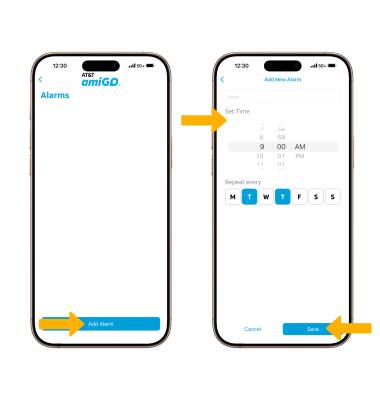
4. Select Add Alarm. Enter the desired alarm settings, then select Save.
Note: The alarm will automatically be added to the watch. Alarms added through the AT&T amiGO™ app can only be edited in the app.
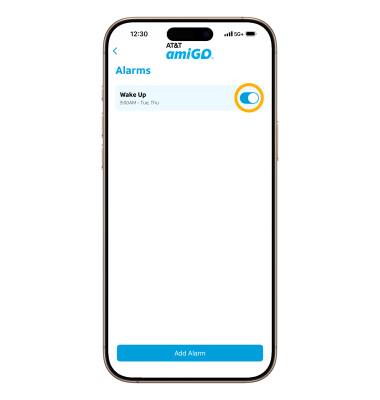
5. To enable or disable an alarm added from your smartphone, select the switch next to the desired alarm.
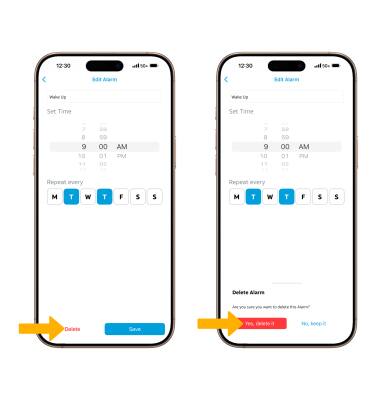
6. To edit an alarm, select the desired alarm. Edit the alarm settings as desired, then select Save.
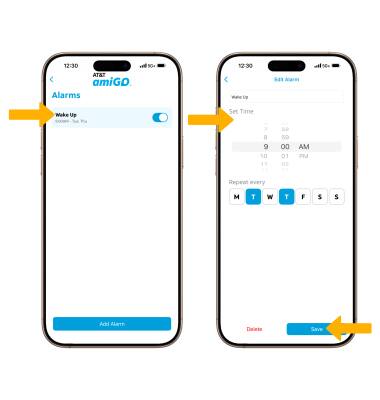
7. To delete an alarm, select Delete, then select Yes, delete it to confirm.