In this tutorial, you will learn how to:
• Access features from the clock screen
• Return to previous screen
• Return to the Clock screen
• Lock/wake up the device
• Enable/disable Raise to Wake
• Return to previous screen
• Return to the Clock screen
• Lock/wake up the device
• Enable/disable Raise to Wake
Access features from the clock screen
From the Clock screen, perform the desired action:

• ACCESS QUICK SETTINGS: Swipe down from the top right corner of the screen.
• ACCESS NOTIFICATIONS: Swipe down from the top left corner of the screen.
• ACCESS APPS: Swipe left to access the Apps screen.
• ACCESS CAMERA: Swipe right to access the camera.
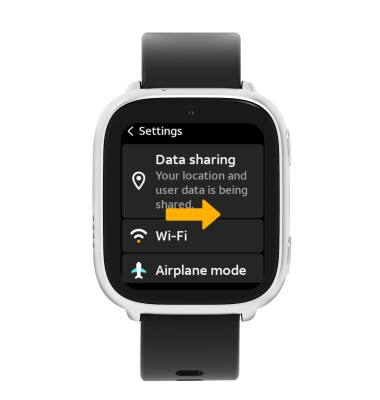
Return to previous screen
Swipe right to return to the previous screen.
Return to the Clock screen
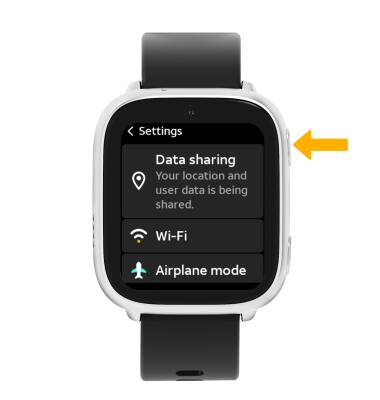
From any screen, press the Power button to return to the Clock screen.
Lock/wake up the device
Press the Power button to lock or wake up the device.
Note: Alternately, when Raise to Wake is enabled, the device will automatically wake up when lifted.
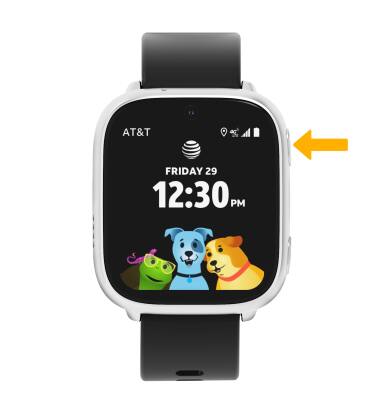
Note: Alternately, when Raise to Wake is enabled, the device will automatically wake up when lifted.
Enable/disable Raise to Wake
1. From the Clock screen, swipe left four times then select the  Settings app.
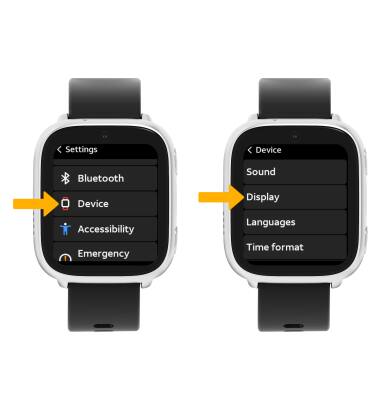
2. Scroll to and select Device, then select Display.
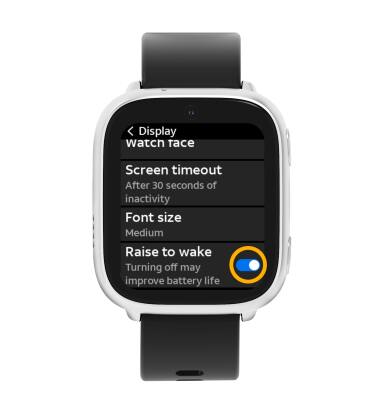
3. Select the Raise to wake switch.
Settings app.2. Scroll to and select Device, then select Display.
3. Select the Raise to wake switch.