In this tutorial, you will learn how to:
• Quickly turn Bluetooth on or off
• Enable or disable Bluetooth through Settings • Enable or disable Bluetooth through Settings
• Pair with a device
• Unpair a device
• Enable or disable Bluetooth through Settings • Enable or disable Bluetooth through Settings
• Pair with a device
• Unpair a device
When connected to a device via Bluetooth, the  Bluetooth pair icon will display in the notification bar.
Quickly turn Bluetooth on or off
Swipe down from the upper right corner of the screen to access Quick Settings, then select the  Bluetooth icon.
Bluetooth icon.
Enable or disable Bluetooth
1. From the Clock screen, swipe left four times then select the  Settings app.
Settings app.
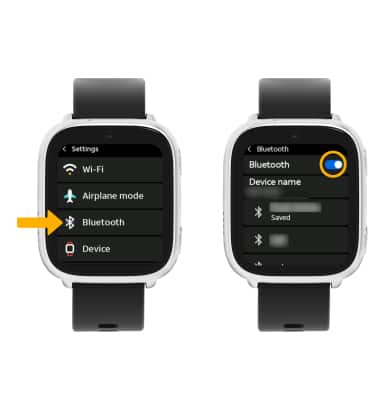
2. Scroll to and select Bluetooth, then select the Bluetooth switch.
Note: To optimize battery life, turn Bluetooth off when not in use.
Pair with a device
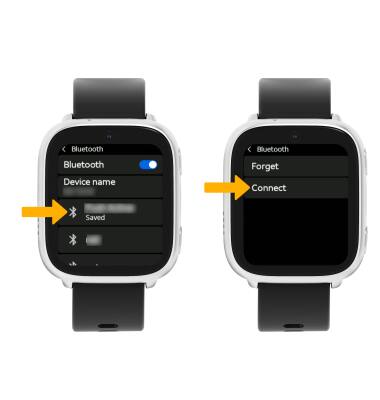
When Bluetooth is enabled, your watch will automatically scan for devices. Select the desired device to pair, then select Connect.
Unpair a device
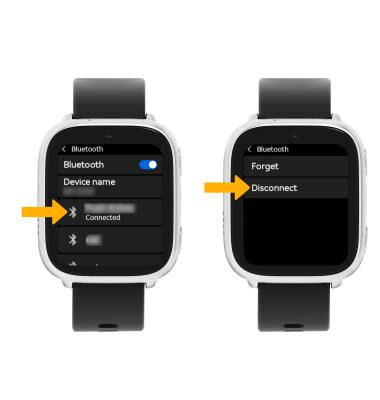
From the Bluetooth screen, select the desired paired device, then select Disconnect to unpair.
Note: If you’re having trouble pairing or unpairing with your vehicle, refer to your vehicle’s user manual for additional steps.
Note: If you’re having trouble pairing or unpairing with your vehicle, refer to your vehicle’s user manual for additional steps.