In this tutorial, you will learn how to:
• Access the amiGO web browser
• Navigate to a website
• Access and use website management
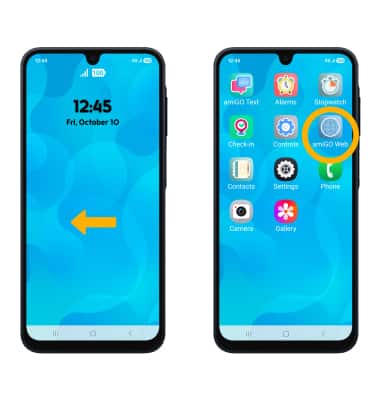
Access the amiGO web browser
Navigate to a website
Enter the desired website in the Search field, then select the Go key.
Note: In order to access the desired website, you must be granted permission through the AT&T amiGO™ app. If you enter a website that has not been approved, you will be prompted to select Request Approval. 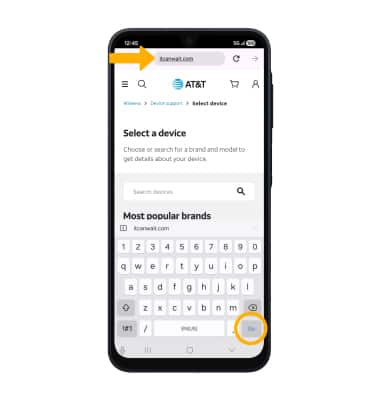
Access and use website management
1. To edit website browser settings, you must access the AT&T amiGO™ app from the linked Parent device. From the home screen, navigate to and select the  AT&T amiGO™ app.
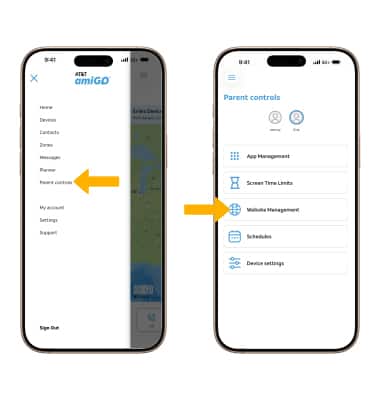
2. Select the  Menu icon, then select Parental Controls. Select Website Management.
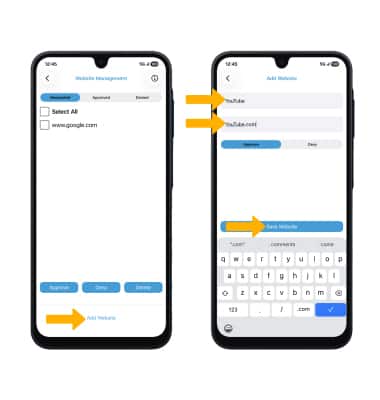
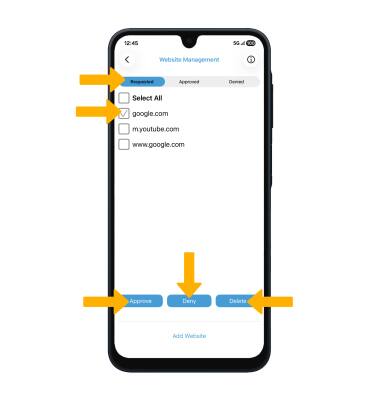
3. To view which websites have been requested, select the Requested tab. To approve or deny a website request, select the checkbox next to the desired website, then select Approve or Deny. To delete a website request, select Delete.
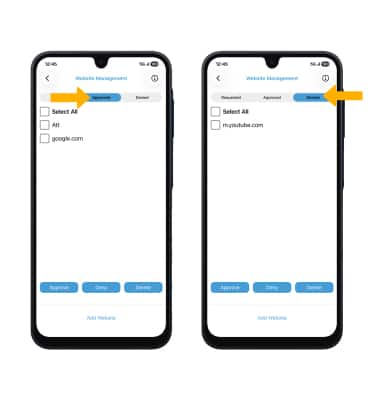
4. To view websites that have been previously approved, select the Approved tab. To view websites that have been previously denied, select the Denied tab.
5. To add a website to a Whitelist or a Blacklist, select Add Website. Enter the Name and the Address, then select the desired option. When finished, select Save Website.