 The AT&T amiGO™ Jr. Phone has limited access to most Wi-Fi settings. To gain access to these settings, the parent must first
 In this tutorial, you will learn how to:
• Access Wi-Fi networks
• Connect to a new Wi-Fi network
When connected to a Wi-Fi network, the  Wi-Fi connected icon will be displayed in the Notification bar.
Note: Data transmitted over a Wi-Fi network does not count toward your AT&T data plan, and will not be billed. When using the AT&T network, data rates apply.
Access Wi-Fi networks
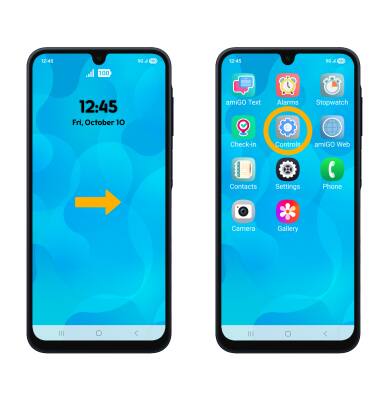
1. To access new Wi-Fi networks, from the home screen, swipe left to apps tray then select the Controls app.
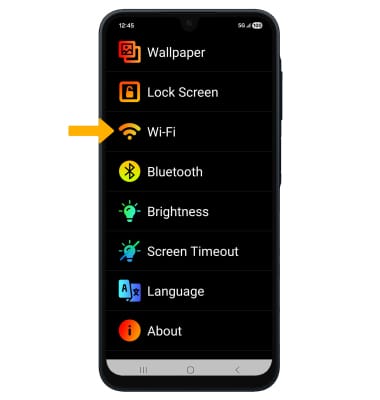
2. Select Wi-Fi.
Connect to a new Wi-Fi network
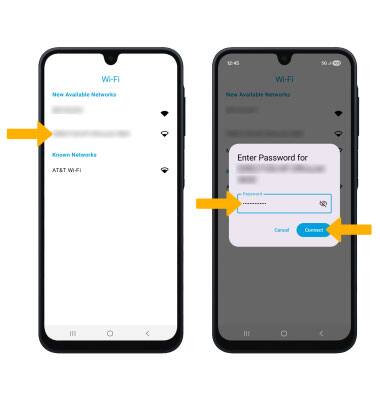
To connect to a new Wi-Fi network, select the desired Wi-FI network establish a connection. Enter the Wi-Fi password, then select Connect.
Note: Upon first set up, you will be prompted to connect to a Wi-Fi network. This tutorial will demonstrate how to switch to a new Wi-fi network. To turn Wi-Fi on or off, you must be granted access to Settings through the AT&T amiGO™ app.