There are multiple ways to reset your device if you are experiencing issues. Power cycling your device is the first step.
In this tutorial, you will learn how to:
• Power cycle your device
• Restart your device
• Reset network settings
• Perform a factory data reset
• Perform an alternate master reset
• Perform a factory reset from the Parent device
Power cycle your device
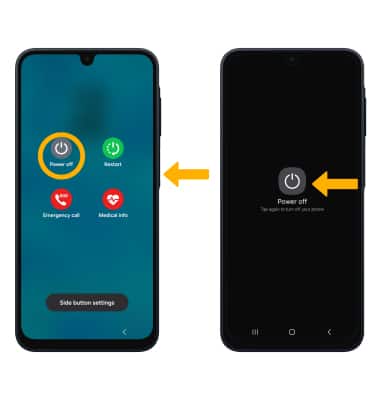
Press and hold the Volume down and Side buttons > select Power off > Power off. To turn the device back on, press and hold the Side button until the screen lights up.
Restart your device
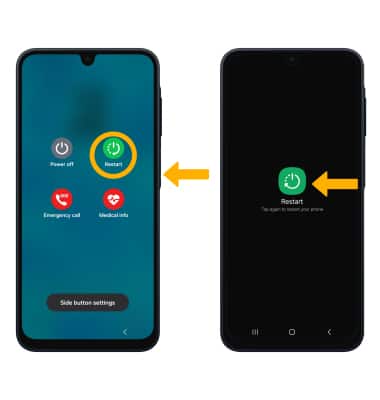
If a power cycle does not resolve your issue, perform a device restart. Press and hold the Volume down and Side buttons > select Restart > Restart.
Note: If you are unable to access the screen to ‘Restart’ the device or if it becomes unresponsive, press and hold the Volume down and Side buttons simultaneously for 10 seconds, until the device restarts.
Reset network settings
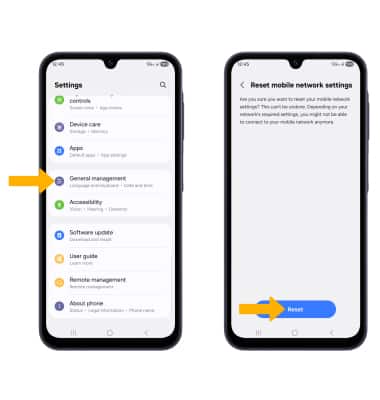
If you are having connectivity issues, you can try resetting your network settings. Swipe down from the upper right corner of the screen, then select the  Settings icon > scroll to and select General management > select Reset > scroll to and select Reset mobile network settings or Reset Wi-Fi and Bluetooth settings > select Reset settings > select Reset to confirm.
Note: This process can only be completed if the parent device has the Settings app enabled in App Management of the AT&T amiGO app. Resetting your network settings deletes previously associated Wi-Fi networks, security passcodes, Bluetooth devices and cellular network data settings.
Perform a factory data reset
Factory data reset functions on the AT&T amiGO Jr. Phone has been disabled, so that the child can not bypass parental controls by resetting up the phone. If you need to reset your phone, please contact our CARE center at 1-800-331-0500.
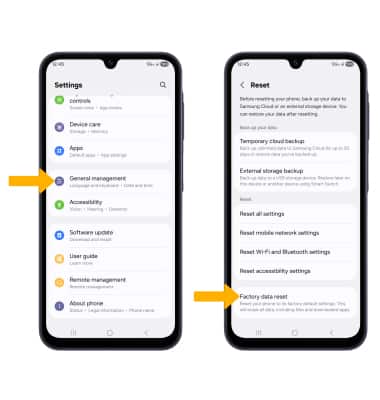
1. If a restart does not resolve your issue, you may need to perform a Factory data reset (Master reset). This will erase all data on your device and restore it to factory settings. To Factory data reset your device, swipe down from the upper right corner of the screen, then select the Settings icon > scroll to and select General management > select Reset > scroll to and select Factory data reset.
Note: This process can only be completed if the parent device has the Settings app enabled in App Management of the AT&T amiGO app. A Factory data reset will revert the device back to factory settings. It will permanently erase all personal data, preferences, settings and content such as pictures, ringtones and apps that are saved to the device. It is recommended that you save (backup) important data before proceeding.
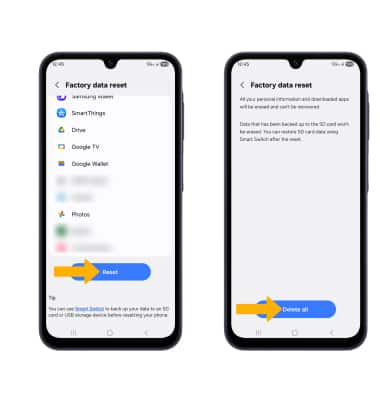
2. Scroll to and select Reset, then select Delete all to confirm.
Note: If you are signed into your Samsung account, you will be prompted to enter your password to continue.
Perform an alternate master reset
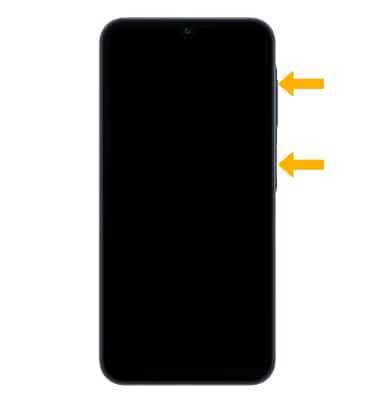
1. If unable to perform the standard ‘Factory data reset’ using the above steps, try the Alternate method by first powering the device off. With your device powered off, press and hold the Volume up and Side buttons simultaneously until the Android Recovery screen appears.
2. Press the Volume down button until Wipe data/factory reset is highlighted, then press the Side button.
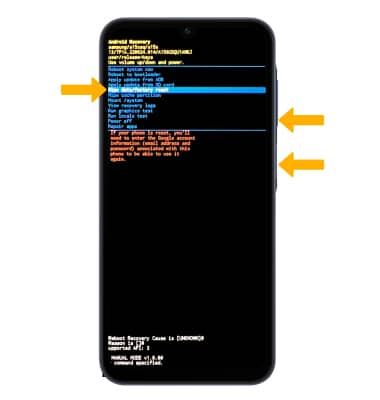
3. Press the Volume down button until Factory data reset is highlighted, then press the Side button to begin the reset process.
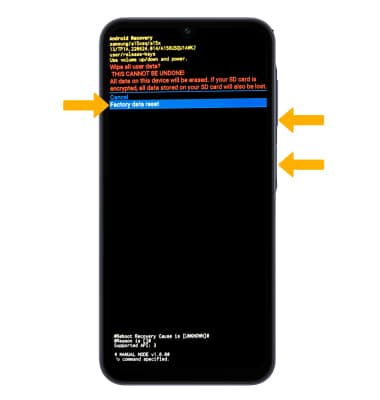
4. When the Android Recovery screen displays again, ensure that Reboot system now is highlighted then press the Side button.
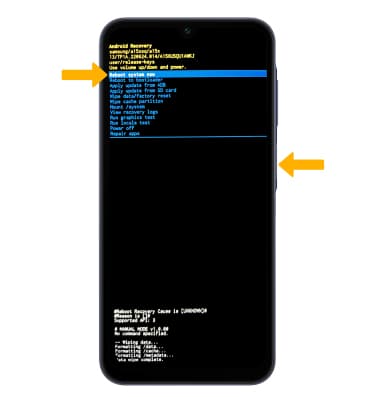
Perform a factory reset from the Parent device
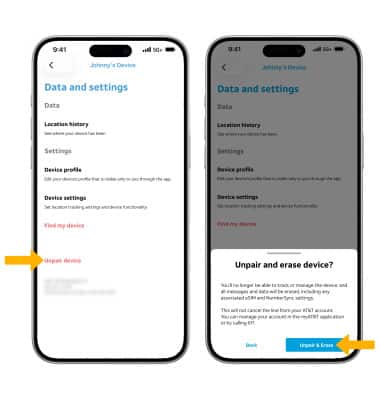
1. You can also reset the device from the parent device in the  AT&T amiGO™ app. From the AT&T amiGO™ app, ensure the desired device is selected then select the Settings icon.
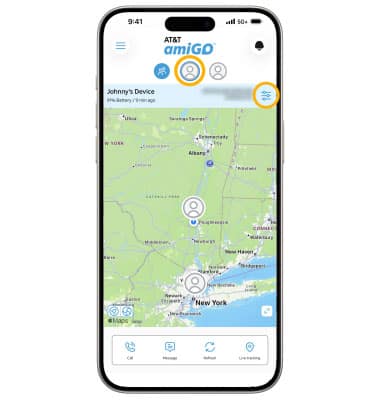
2. Select Unpair device, then select Unpair & Erase.