
In this tutorial, you will learn how to:
• Access messages
• Compose & send a message
• Read and respond to a new message
• Access messages from the AT&T amiGO™ app
Access messages
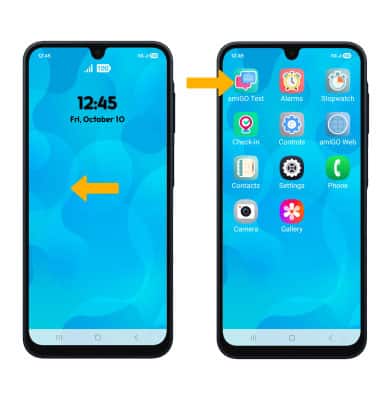
From the home screen, swipe left to the apps tray then select the amiGO Text app.
Compose and send a message
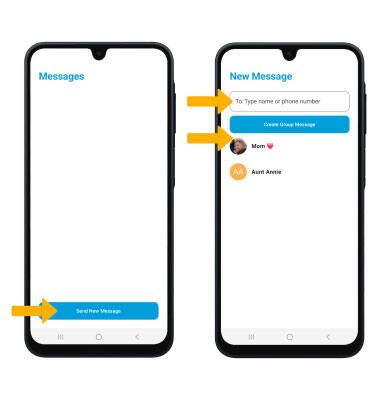
1. Select Send New Message. Select the 'To' field, then enter or select the desired recipient.
Note: Calls can only be made and received from Contacts added through the AT&T amiGO™ app.
2. Compose and send a message using the following options as desired: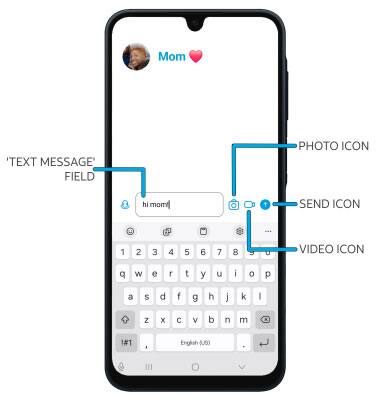
• ENTER MESSAGE: Select the 'Text message' field, then enter the desired message.
• ADD PHOTO ATTACHMENT: Select the Photo icon to attach a photo from the gallery or to take a picture.
• ADD VIDEO ATTACHMENT: Select the Video icon to attach a video from the gallery or to take a video.
• SEND A MESSAGE: When finished composing a message, select the Send icon to send the message.
Read and respond to a new message
From the Messaging inbox, select the desired message thread.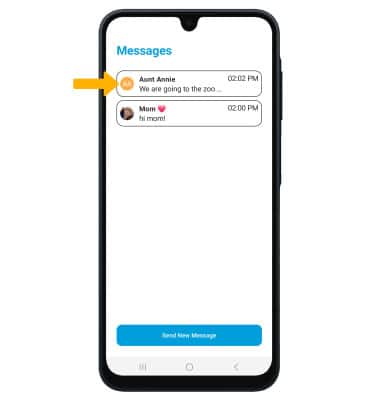
VIEW AN ATTACHMENT: To view an attachment, select the desired attachment. 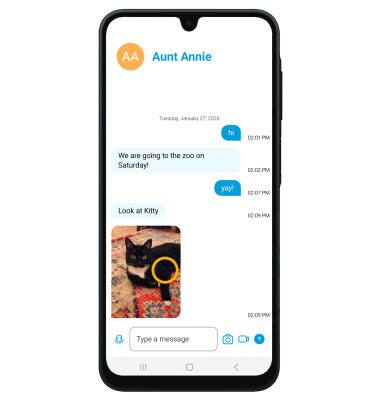
RESPOND TO A MESSAGE: Enter the desired message in the 'Text message' field, then select the Send icon. 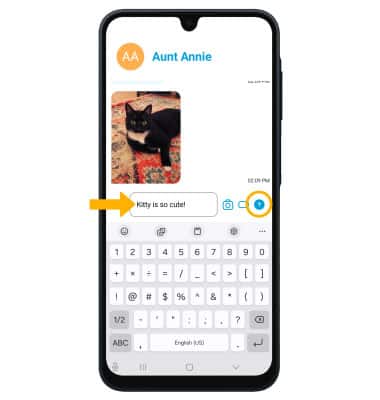
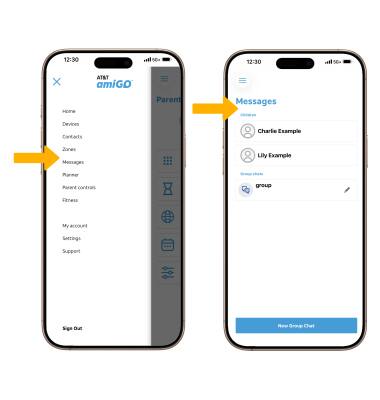
Access messages from the AT&T amiGO™ app
 AT&T amiGO™ app.
 Menu icon then select Messages. Select the desired message thread.