In this tutorial, you will learn how to:
• Access main browser
• Navigate to a website
• Bookmark a site
• Access Bookmarks
• Access Settings
• Open a new tab
• Close a tab
Access main browser
From the home screen, press the Center Dynamic key to access the Menu. Press the navigation keys to highlight the Browser app, then press the Select button to select.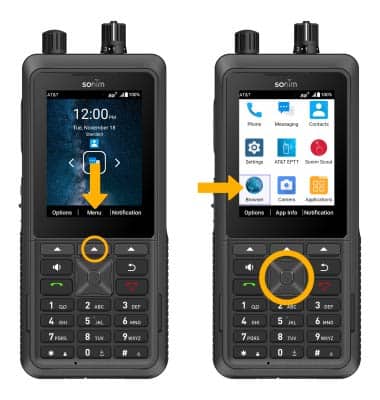
Navigate to a website
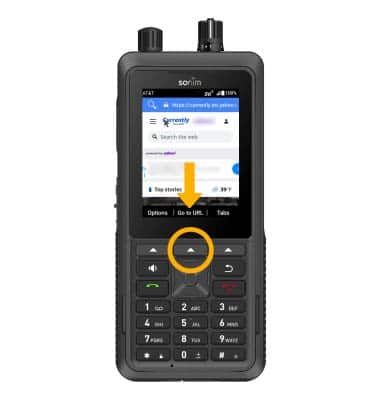
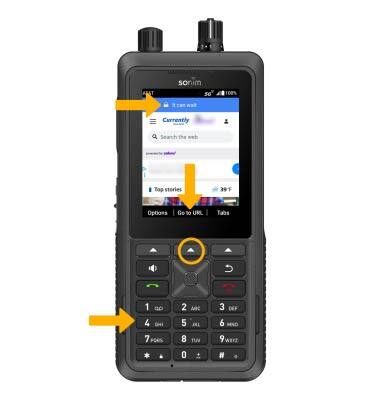
2. Use the keypad to enter the desired website, then press the Center Dynamic key to select Go to URL.
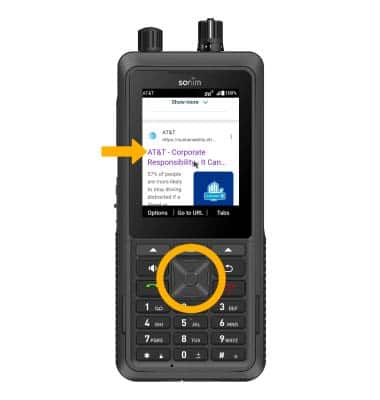
3. Press the navigation keys to highlight the desired website, then press the Select button to select.
Bookmark a site
To bookmark a site, press the Left Dynamic key to select Options. Press the navigation keys to scroll to and highlight Save to bookmarks, then press the Select button to select. Press the Center Dynamic key to select Submit.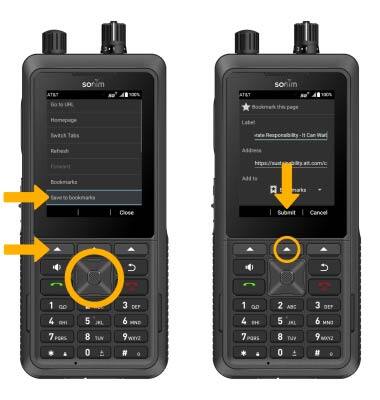
Access Bookmarks
1. From the Options menu, press the navigation keys to scroll to and highlight Bookmarks, then press the Select button to select.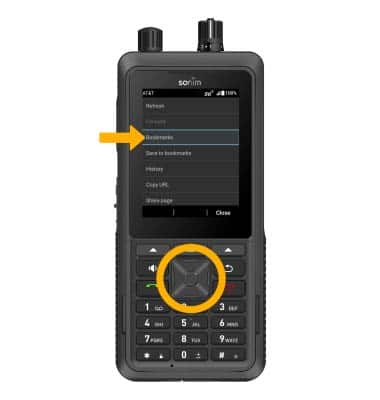
2. Press the navigation keys to scroll to and highlight the desired website, then press the Left Dynamic key to select Options. Press the navigation keys to highlight Open to open in current tab or to highlight Open in new tab to open in a new tab. Press the Select button to select.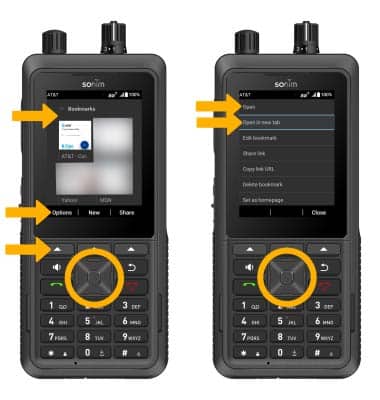
Access Setting
1. To access browser settings so you can clear browsing history, set the default homepage, adjust text size, block or unblock pop-ups, change the default browser, and restore default settings, from the Options menu, press the navigation keys to highlight Settings then press the Select button to select.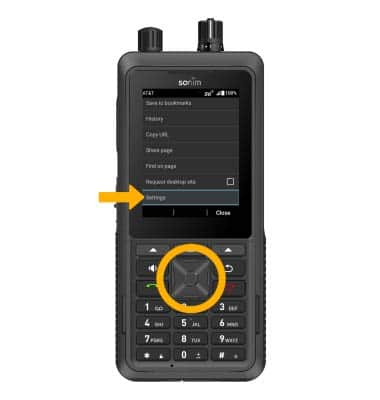
2. Press the navigation keys to highlight the desired option, then press the Select button to select. 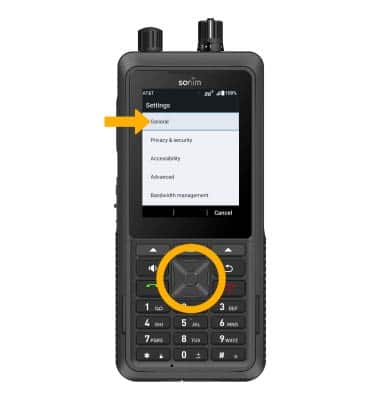
Open a new tab
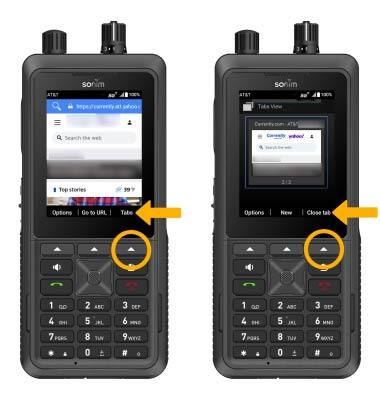
Press the Right Dynamic key to select Tabs, then press the Center Dynamic key to select New.
Note: The number displayed on the browser tab indicates the number of open tabs.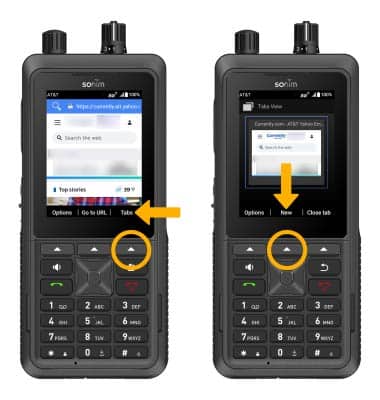
Close a tab
Press the Right Dynamic key to select Tabs, then press the Right Dynamic key to select Close tab.