In this tutorial, you will learn how to:
• Access and use Generative edit
• Access and use Edit suggestions
• Access and use Portrait Studio
Access and use Generative edit
USE AI ERASER: 1. Navigate to and select the  Gallery app, then navigate to and select the desired image to edit.
Note: To access the Gallery app, swipe up from the center of the home screen to access the Apps tray then navigate to and select the Gallery app.
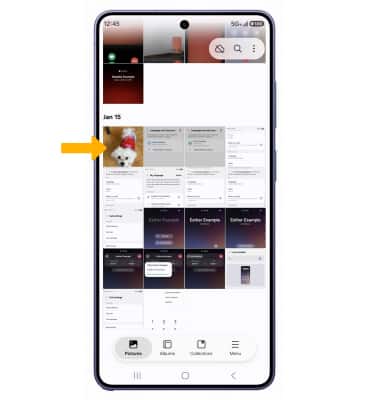
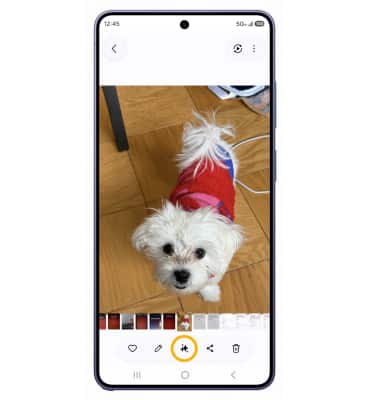
2. Select the Generative edit icon.
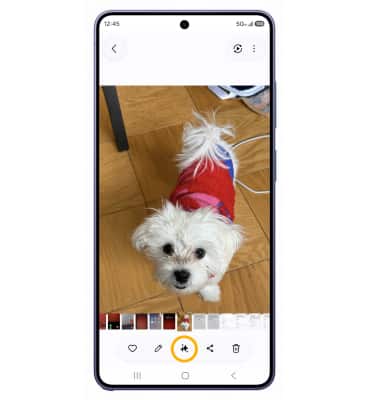
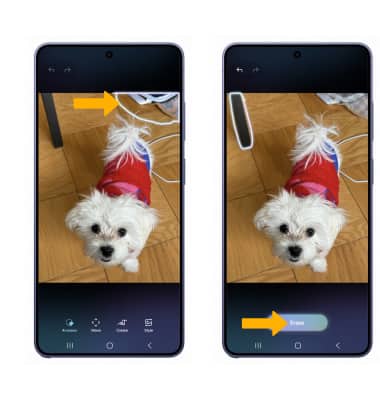
3. Ensure AI Eraser is highlighted. Select and hold or circle the desired object(s), then select Erase.
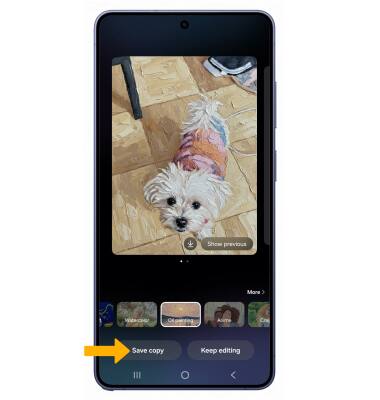
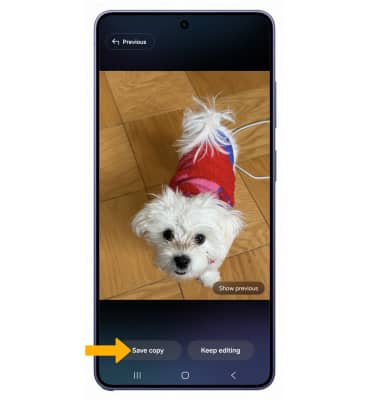
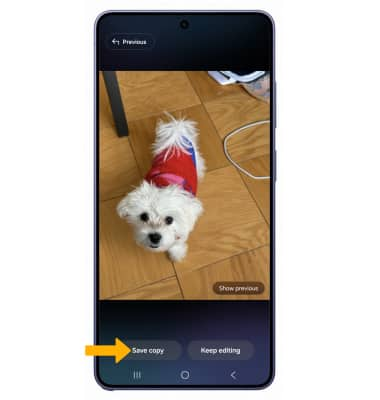
4. When finished, select Save copy.
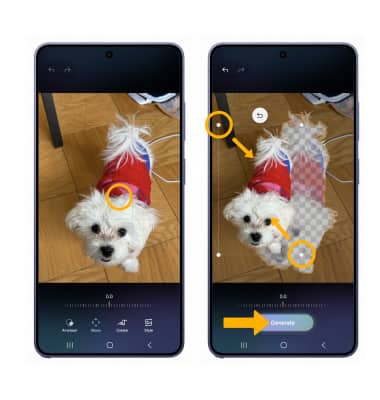
MOVE OR RESIZE:: 1. From the desired photo, select the Generative edit icon, then select Move.
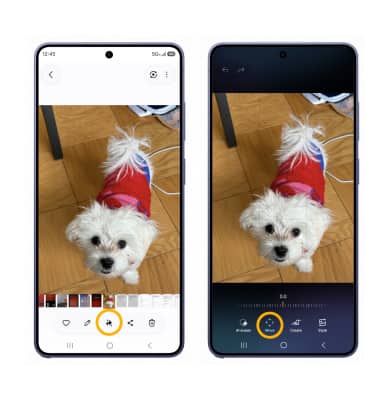
2. Select and hold the desired object. Edit as desired, then select Generate.
3. When finished, select Save copy.
Access and use Edit suggestions
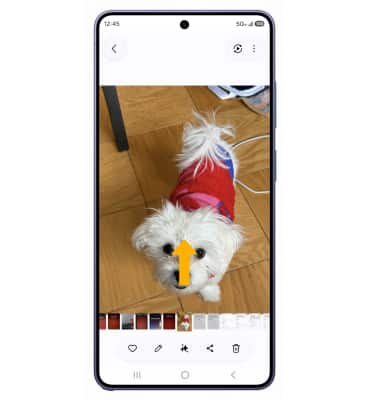
1. From the desired image in the Gallery app, swipe up to view edit suggestions.
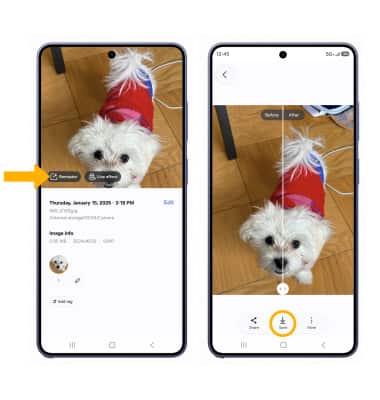
2. Select the desired smart edit suggestion to use. Edit as desired, then select Save.
Access and use Portrait Studio
1. From the desired photo, select the Generative icon.
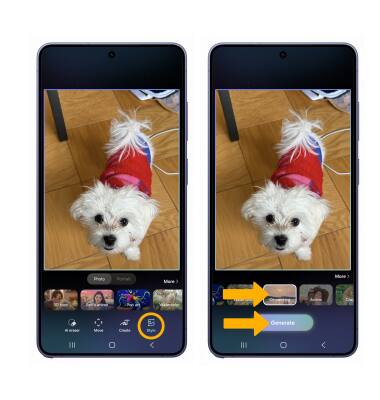
2. Select Style. Select the desired portrait style, then select Generate.
3. Select Save copy.