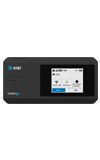
In this tutorial, you will learn how to:
• View connected devices from management website
• View connected devices from mobile router
View connected devices from management website
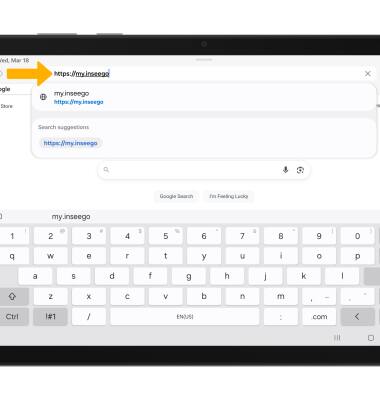
1. From your device's web browser, go to http://my.inseego.
Note: Ensure that your device is connected to the Inseego MiFi PRO M4's Wi-Fi network. For more information, please visit the Connect Devices to Wi-Fi or Connect PC or Mac to Wi-Fi tutorials. If this is your first time logging into the Web admin page, the default password will be displayed on the bottom of your device. You will be prompted to change the admin password.
Note: Ensure that your device is connected to the Inseego MiFi PRO M4's Wi-Fi network. For more information, please visit the Connect Devices to Wi-Fi or Connect PC or Mac to Wi-Fi tutorials. If this is your first time logging into the Web admin page, the default password will be displayed on the bottom of your device. You will be prompted to change the admin password.
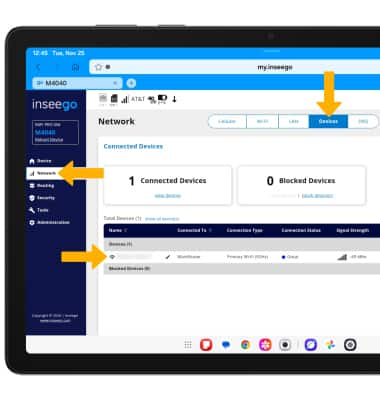
2. Select the Network menu, then select the Devices tab to view the connected devices.
View connected devices from mobile router
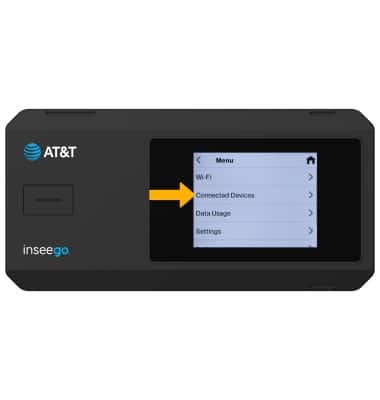
1. From the device home screen, select Menu then select Connected Devices.
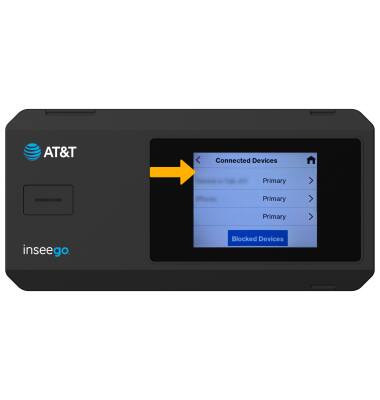
2. Connected devices will be displayed. To view a connected device's details, select the desired device. If multiple devices are connected, scroll to view other device(s).
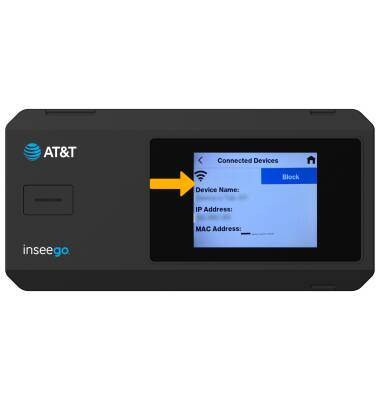
3. The connected device's details will be displayed.
2. Connected devices will be displayed. To view a connected device's details, select the desired device. If multiple devices are connected, scroll to view other device(s).
3. The connected device's details will be displayed.