In this tutorial, you will learn how to:
• Restrict internet access for application
• Add or remove a device
Restrict internet access for application
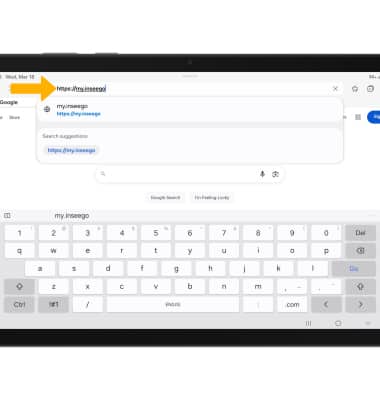
1. From your device's web browser, go to http://my.inseego.
Note: Ensure that your device is connected to the Inseego MiFi PRO M4's Wi-Fi network. For more information, please visit the Connect Devices to Wi-Fi or Connect PC or Mac to Wi-Fi tutorials. If this is your first time logging into the Web admin page, the default password will be displayed on the bottom of your device. You will be prompted to change the admin password.
Note: Ensure that your device is connected to the Inseego MiFi PRO M4's Wi-Fi network. For more information, please visit the Connect Devices to Wi-Fi or Connect PC or Mac to Wi-Fi tutorials. If this is your first time logging into the Web admin page, the default password will be displayed on the bottom of your device. You will be prompted to change the admin password.
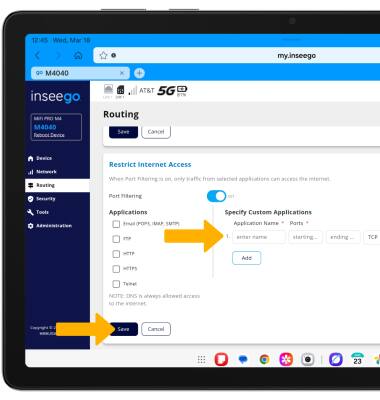
2. Select the Routing menu, then select the Port Filtering switch in the Restrict Internet Access section.
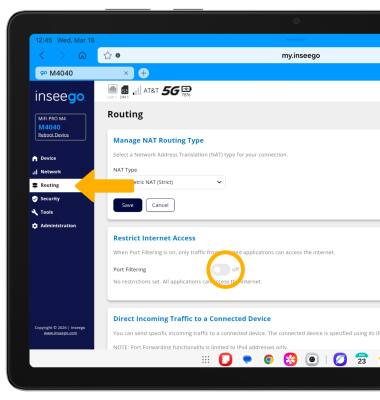
3. Edit the desired settings under Specify Custom Applications, then select Save.
Add or remove a device
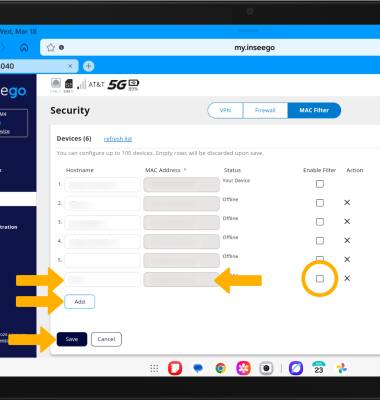
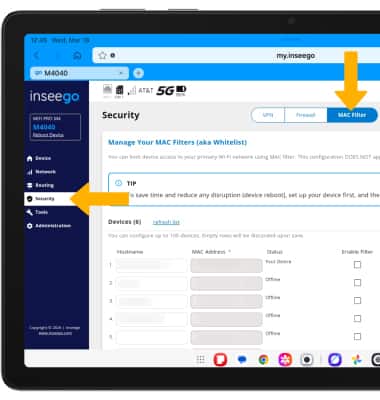
1. Select the Security menu, then select the MAC Filter tab.
2. Select the MAC Filter switch, then select Save.
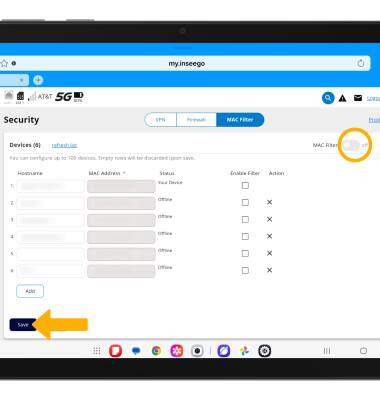
3. To add a device, select Add. Enter in device's Hostname and MAC address, then select the Enable Filter checkbox. Select Save.
Note: To remove a device, select the X icon next to the desired device.