- To access the Camera feature from the home screen, select Camera.
Note: You can also access the Camera from the lock screen, by swiping the Camera icon up.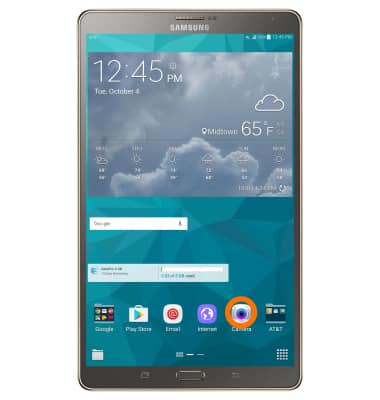
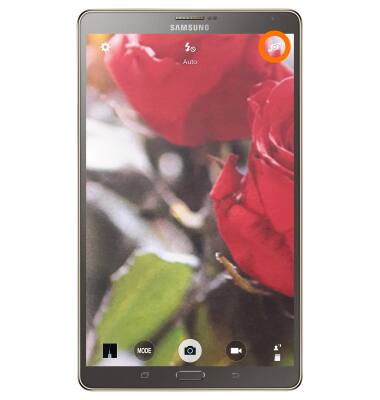
- To switch between front and rear camera, select the Camera switch icon.
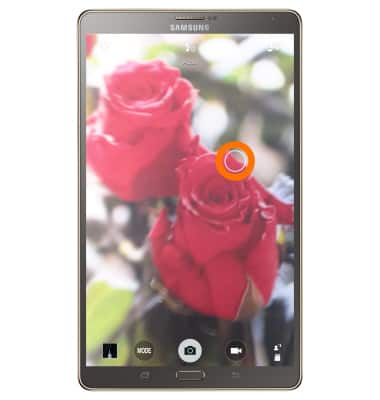
- To focus, select an area of the screen you would like to focus on.
- To zoom in or out, select anywhere on the image, then pinch your fingers together or apart.
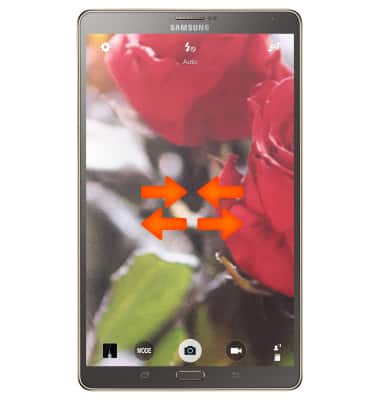
- To switch camera modes, select the MODE icon.
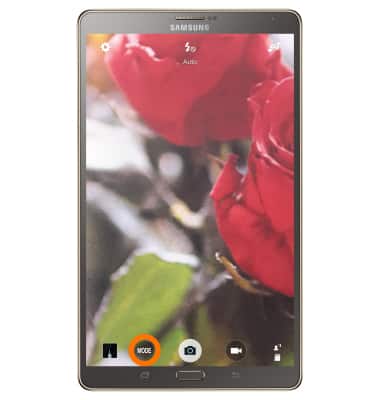
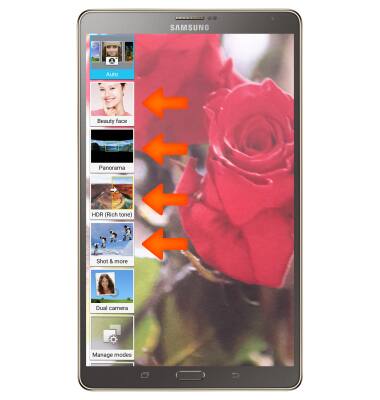
- Here you can select different camera modes, select your desired Mode.
- To choose a camera effect, select the Settings icon.
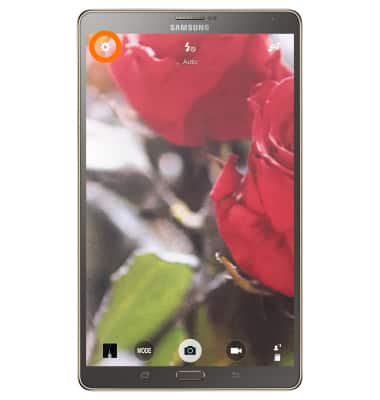
- Select Effects.
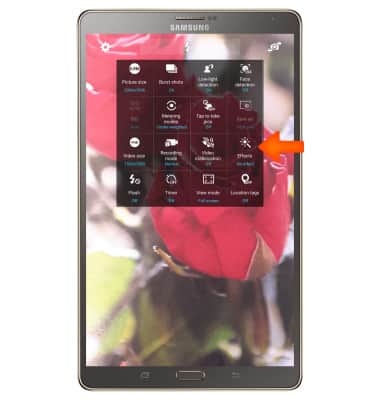
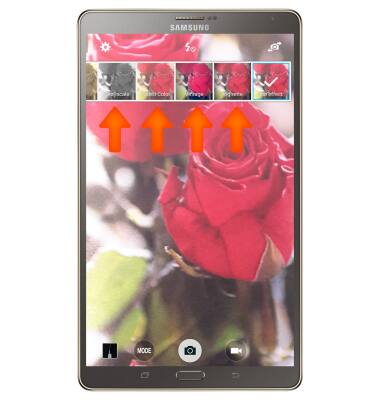
- Select the desired effect.
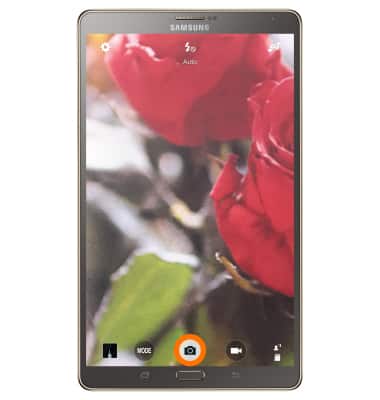
- To take a photo, select the Camera shutter icon.
- To capture video, select the Video icon.
Note: To capture a photo during video mode, tap the Camera shutter icon.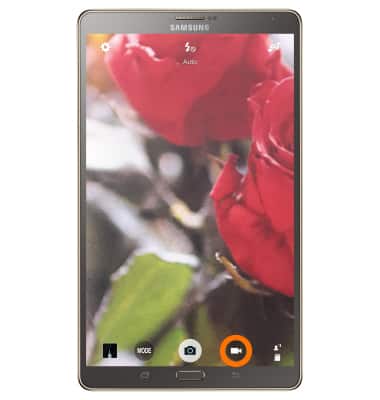
- To take a photo while recording, select the Camera icon.
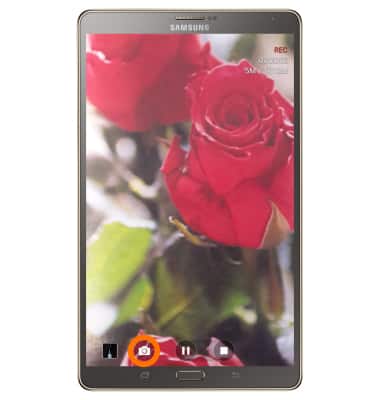
- While recording video, you can pause your recording by selecting the Pause icon.
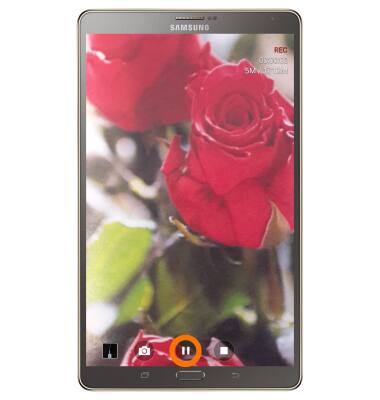
- Select Resume to continue recording.
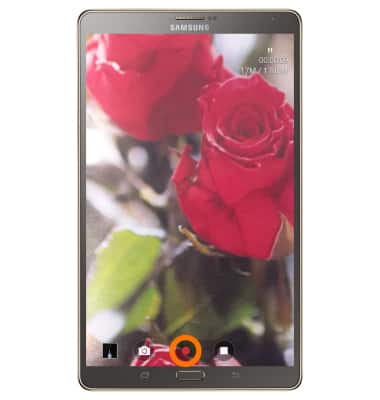
- When you are finished recording video, select the Stop icon and your video will automatically save to your device.
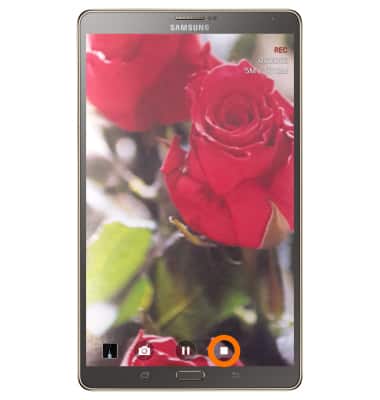
- Select the Image icon to see your photos and videos.
Note: To edit photos or videos in your album, select the Editor icon.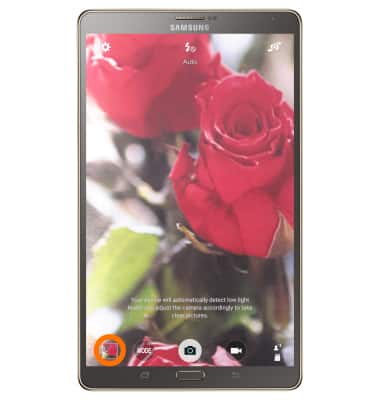
- This device has a 2.1MP front-facing and 8MP rear-facing camera. The video recorder records QHD (2560x1440) at 30fps for up to 300 seconds and FHD for up to 3600 seconds. The file size limit is 4GB.
Note: To take a screen shot, select and hold the Home and Power buttons at the same time until you hear the camera shutter sound and a short flashing animation. To view captured screen shots select the Gallery or Photos app.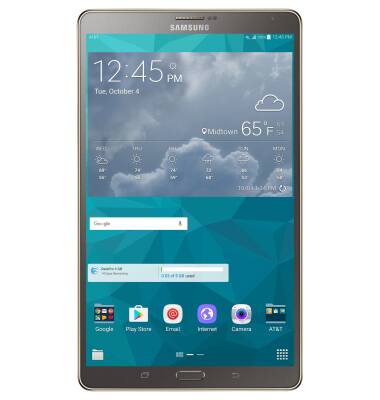
Take a Picture or Video
Samsung Galaxy Tab S 8.4 (T707A)
Take a Picture or Video
Take a screenshot, edit a picture or video, use the front and rear camera, and switch between camera and video modes.
INSTRUCTIONS & INFO