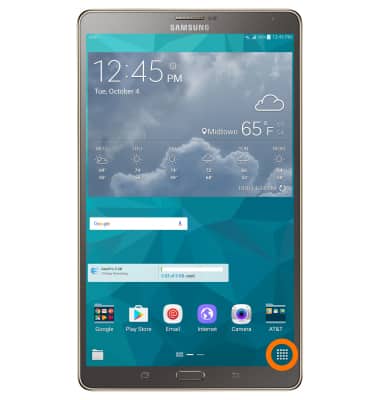
- From the home screen, select the Apps icon.
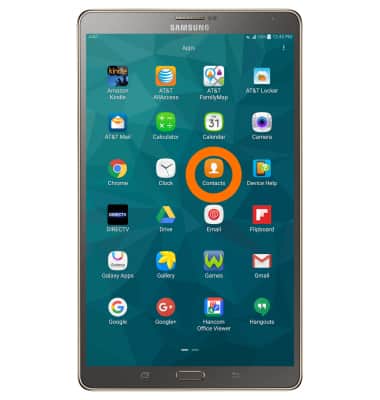
- Select Contacts.
- To create a new contact, select the Add icon.
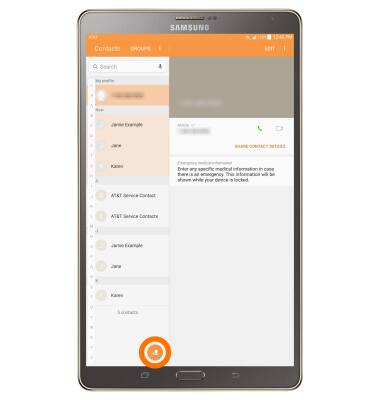
- Select the Desired storage location for the new contact.
Note: For this demonstration "Device" was chosen.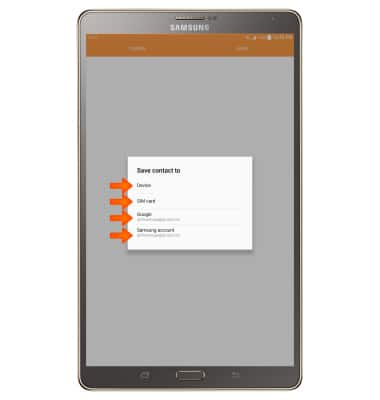
- Enter the contact name in the Name field.
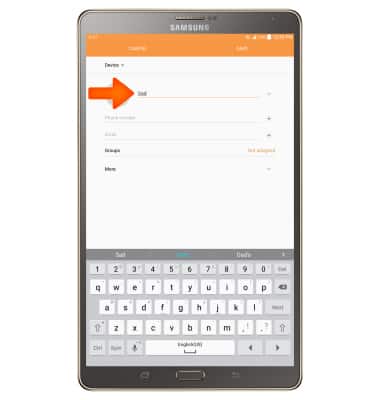
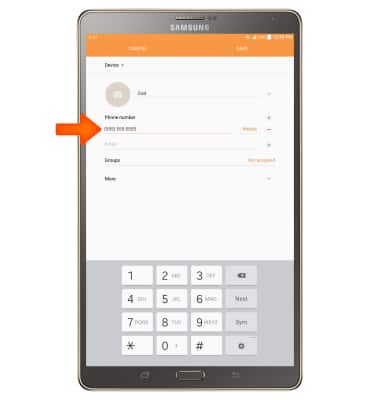
- Select the Phone number field then enter the Desired phone number.
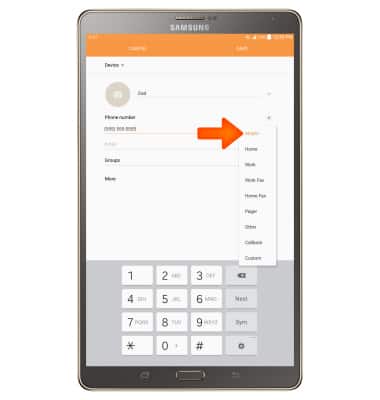
- Select the Phone type field to change the assigned phone type.
- To add a contact photo, select the Camera icon, then follow the onscreen prompts.
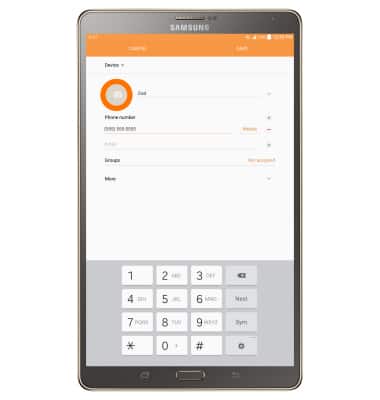
- To change the ringtone for a contact, select More.
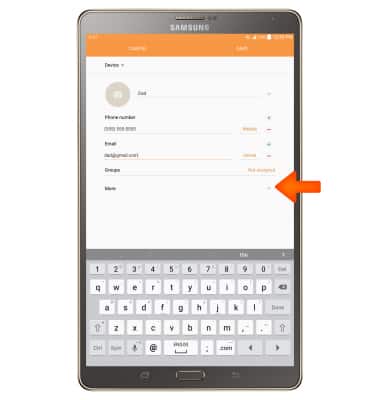
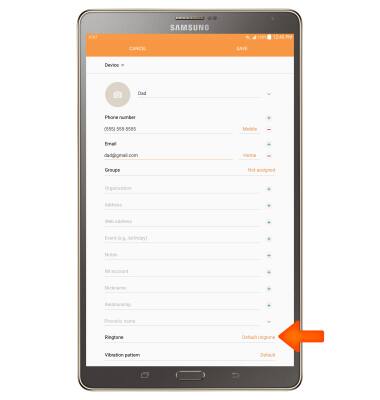
- Select Ringtone > choose the desired ringtone > OK.
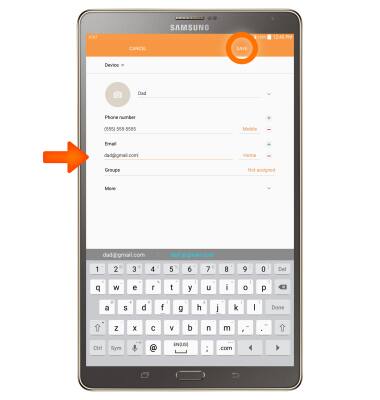
- Edit additional details as desired, then select SAVE.
- To edit or delete a contact from the contact page, select the Desired contact.
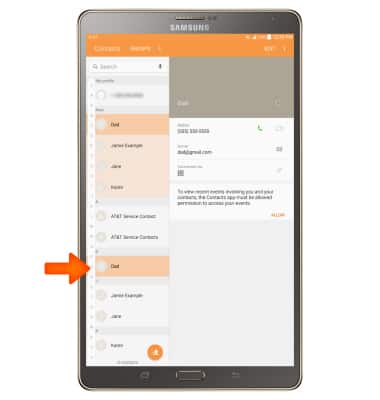
- To edit the contact, select EDIT.
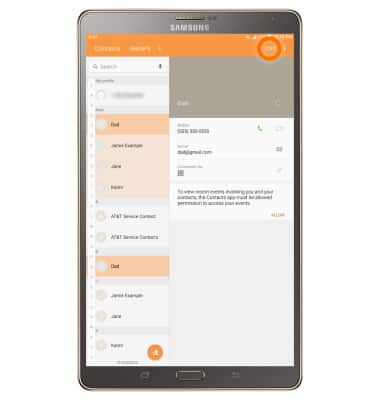
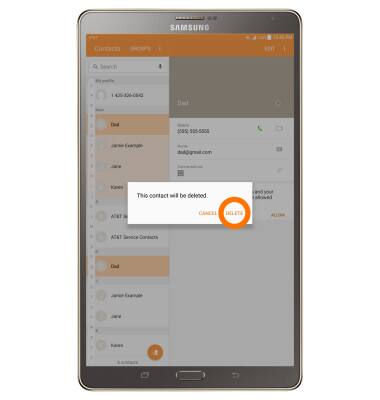
- To delete a contact select the MORE icon.
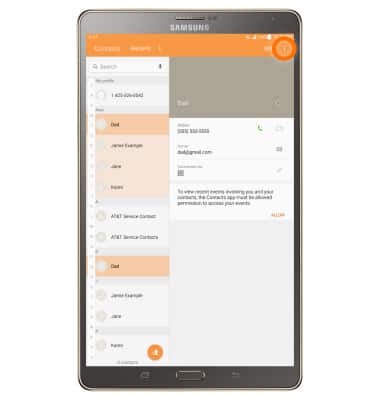
- Select Delete.
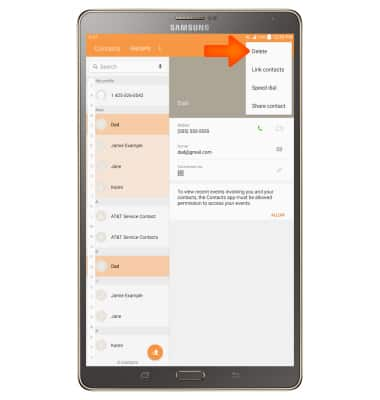
- Select DELETE.
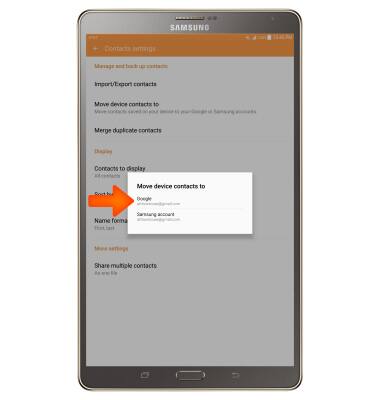
- To back up contacts to your Google account select Apps > Contacts > MORE > Settings > Move device contacts to > Google account.
Contacts
Samsung Galaxy Tab S 8.4 (T707A)
Contacts
Add, view, delete, and customize contacts by adding a picture or ringtone.
Contacts
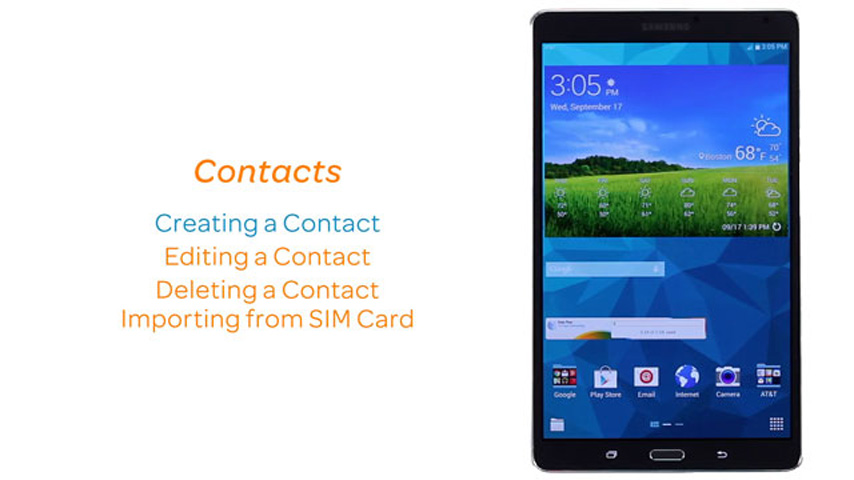
This video explains how to add and edit contacts.
Contacts
2:28
INSTRUCTIONS & INFO