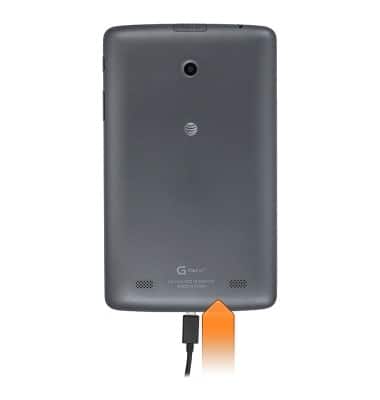
- Insert the microUSB end of the microUSB cable into the microUSB port on the device.
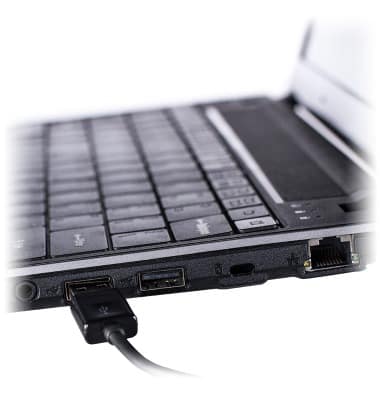
- Insert the USB end of the microUSB cable into an available USB port on the computer.
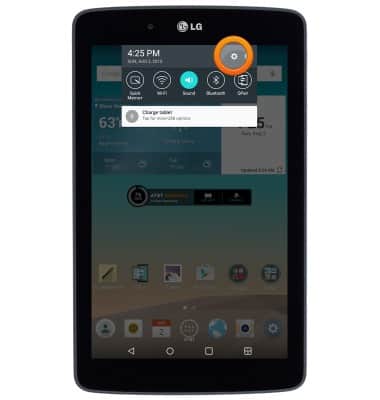
- On the device, swipe down from the top of the screen, then tap the USB icon notification.
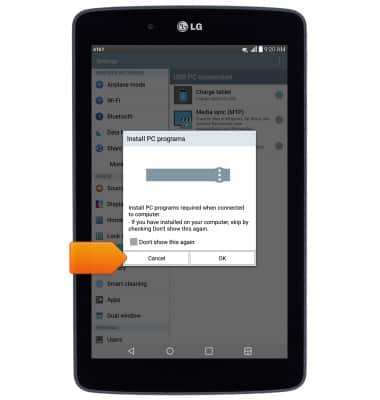
- If prompted, tap OK if this is your first time connecting the device, otherwise tap Cancel.
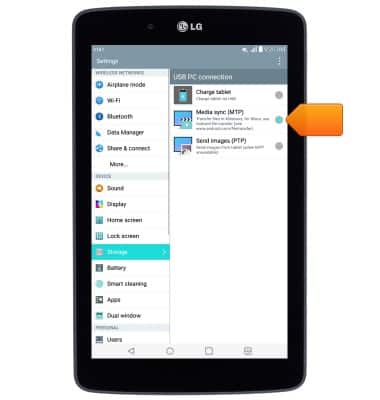
- Tap Media sync (MTP).
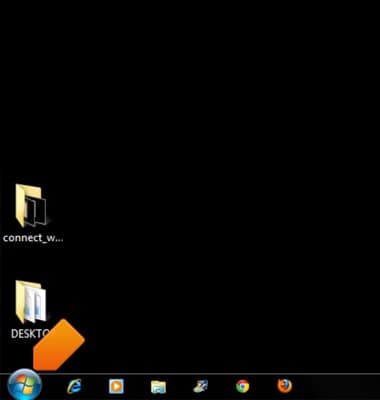
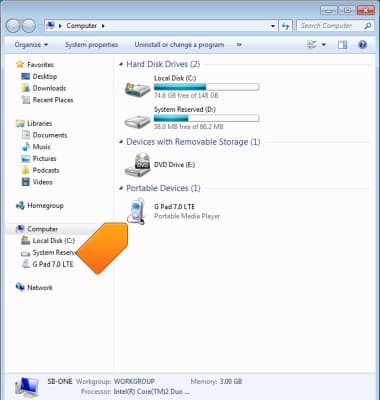
- On the PC, click the Start icon.
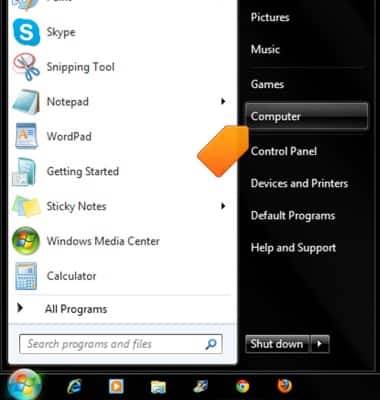
- Click Computer.
- Double-click G Pad 7.0 LTE.
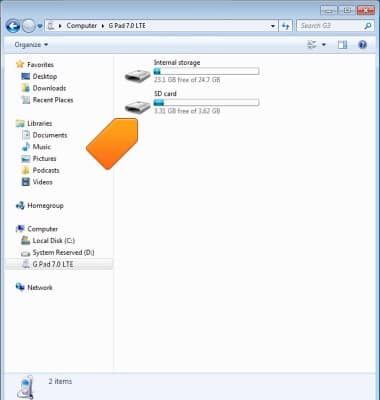
- Double-click the desired storage location.
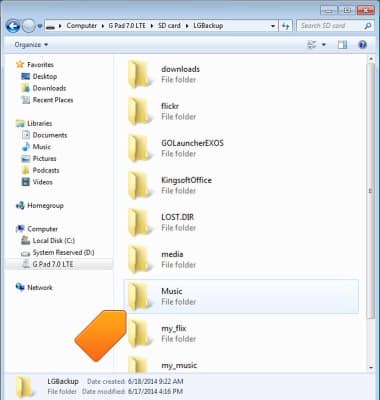
- Navigate to the desired files.
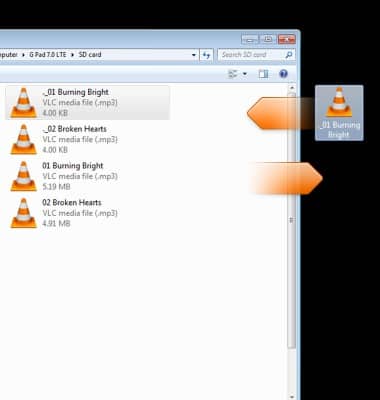
- Drag and drop the desired files to and from the device and PC.
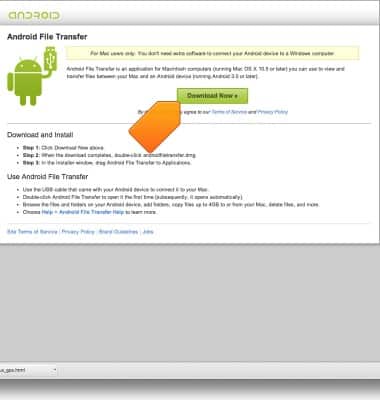
- If using a Mac, Android File Transfer is required to complete this tutorial. Download Android File Transfer here.
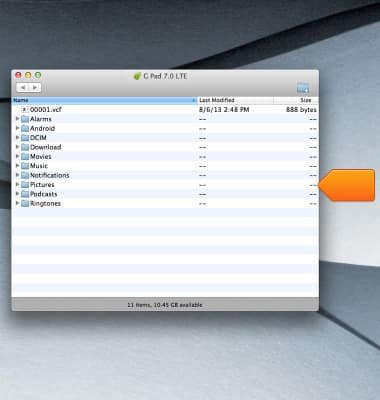
- After following steps 1-6, Android File Transfer will open. Navigate to the desired folder to access files.
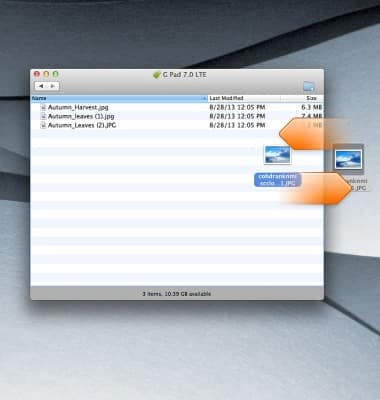
- Drag and drop the desired files to and from the device and Mac.
Transfer media to & from computer
LG G Pad 7.0 LTE (V410)
Transfer media to & from computer
This article describes how to transfer media to & from PC and Mac.
INSTRUCTIONS & INFO