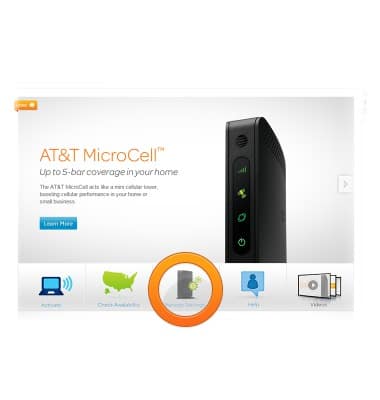
- Open a web browser on your computer, and navigate to www.att.com/MicroCell, then click Manage Settings.
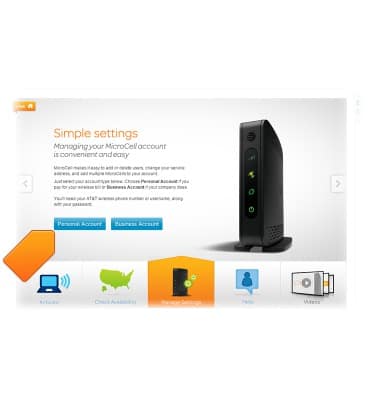
- Click on your account type.
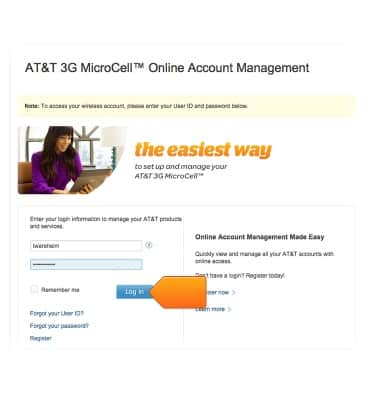
- Enter your account information, then click Log in.
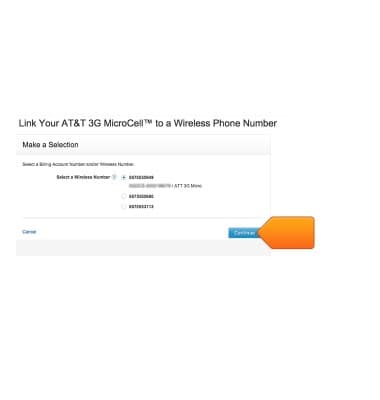
- Click the desired wireless number that is linked to your MicroCell, then click Continue.
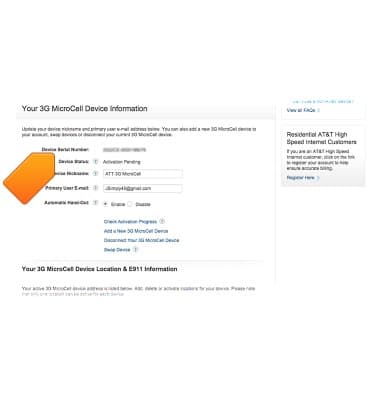
- The device serial number will be displayed in the Device Serial Number field.
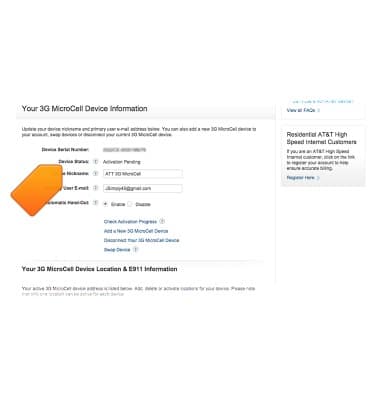
- Your device status will be displayed in the Device Status Field.
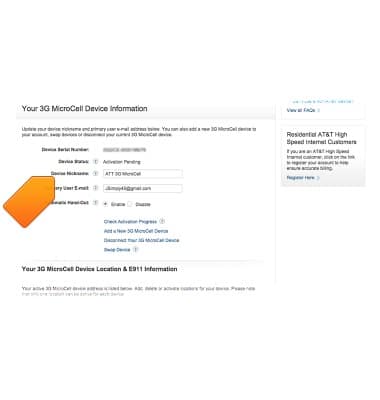
- The Device Nickname is the name that will be displayed in your network router settings.
- The primary user email will receive all notifications and updates regarding your MicroCell device.
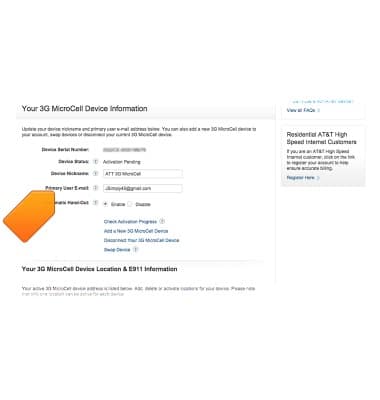
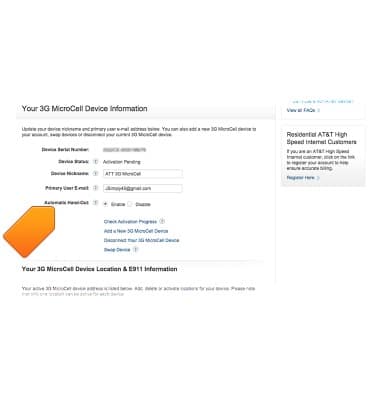
- Automatic Hand-Out, if enabled, transfers your call to an AT&T Cell Tower if there is poor connection to the MicroCell.
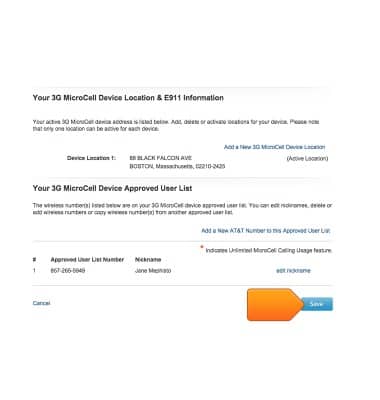
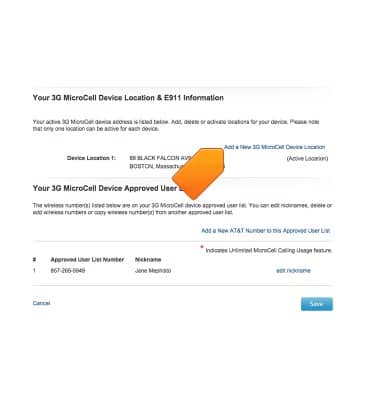
- Scroll to view the MicroCell device location information. Click Add a New MicroCell Device Location to add a new location and change the default location of the MicroCell.
- Scroll to view the MicroCell device approved user list. Click Add a New AT&T Number to this Approved User List to add an AT&T number to the approved numbers to connect to the MicroCell.
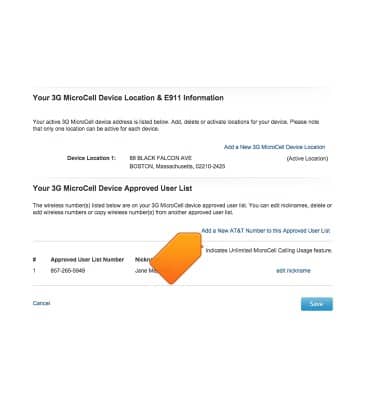
- Click Save to save your settings.