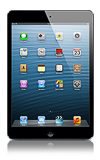
- The Multi-Touch screen displays a wealth of info, entertainment, and creativity, all at your fingertips. A few simple gestures tap, drag, swipe, and pinch are all you need to explore and use iPhone apps.
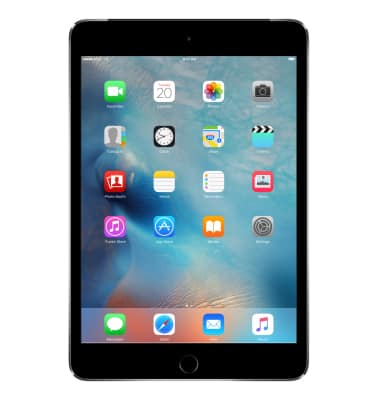
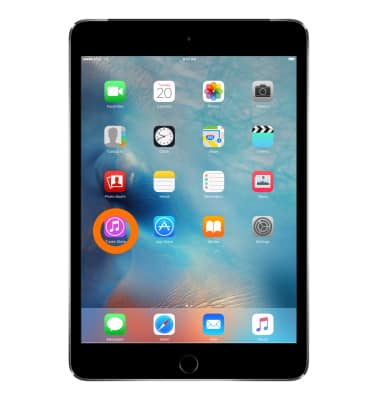
- Tap an App to open it.
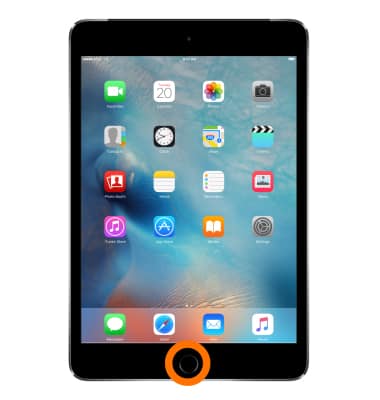
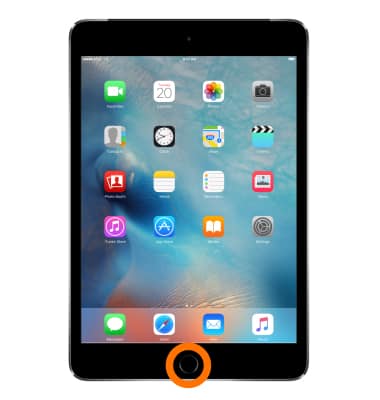
- Press the Home button to return to the Home screen.
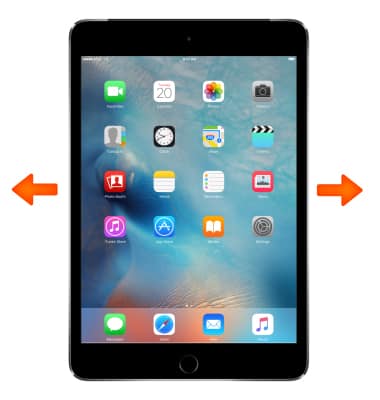
- Swipe left or right to see other screens.
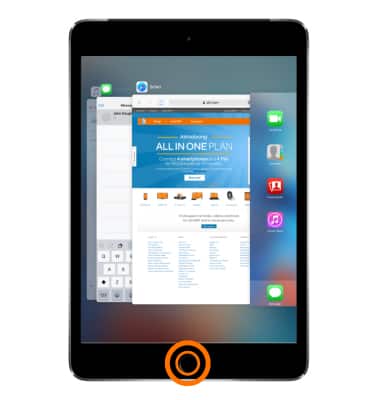
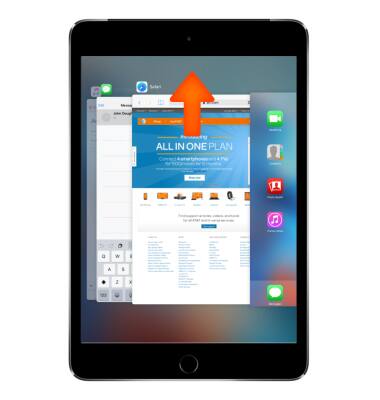
- Double-click the Home button to view running apps, favorites, and recently accessed contacts.
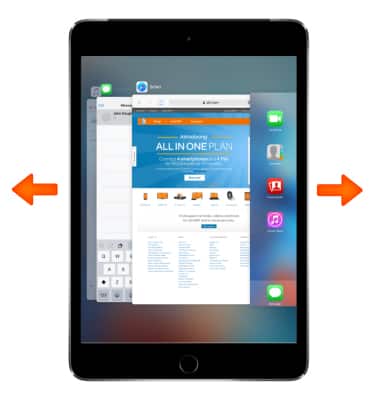
- Swipe left or right to see more.
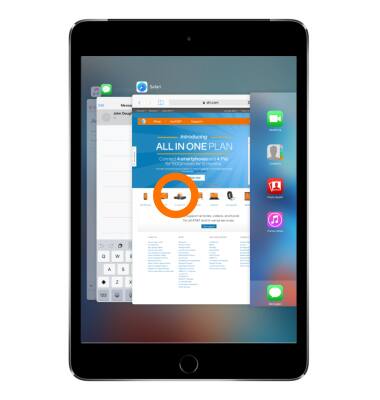
- To switch to another app, tap it.
- If an app isn't working properly, you can force it to quit in the multi-tasking display by swiping up. Then try opening it again.
- Stretch a photo, webpage, or map for a close-up then pinch to zoom back out.
Note: In Photos, keep pinching to see the collection or album the photo's in.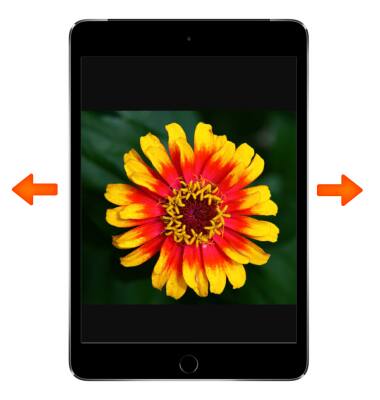
- Or double-tap a photo or webpage to zoom in, and double-tap again to zoom out.
Note: In Maps, double-tap to zoom in and tap once with two fingers to zoom out.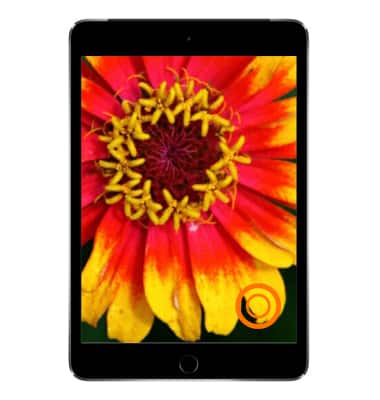
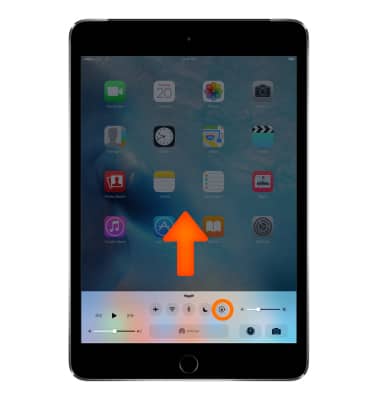
- To lock the screen in portrait orientation, swipe up from the bottom edge of the screen to open Control Center, and then tap the Lock rotation button.
- To Arrange apps, touch and hold any app on the Home screen until it jiggles, then drag apps around.
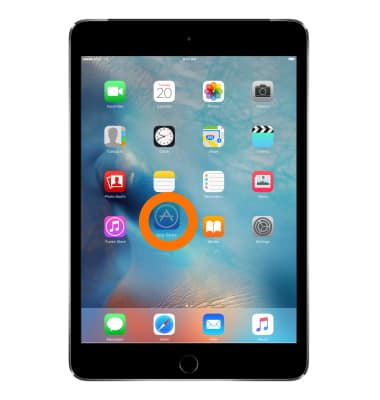
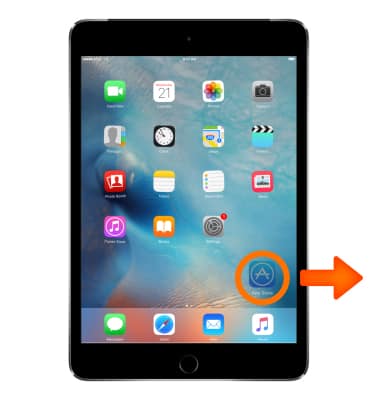
- Drag an app to the edge of the screen to move it to a different Home screen, or to the Dock at the bottom of the screen.
- Press the Home button to save your arrangement.
- To Create a new Home screen, while arranging apps, drag an app to the right edge of the last Home screen.
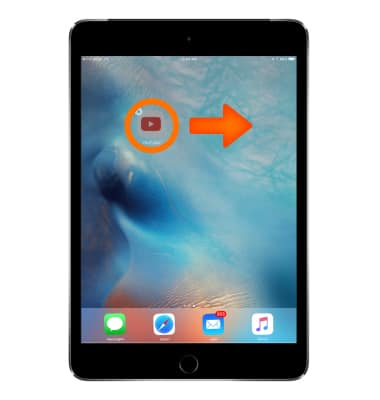
- The dots above the Dock show how many Home screens you have, and which one you're viewing.
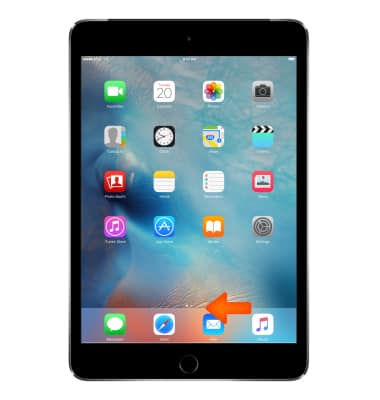
- To Create a folder, while arranging apps, drag one app onto another.
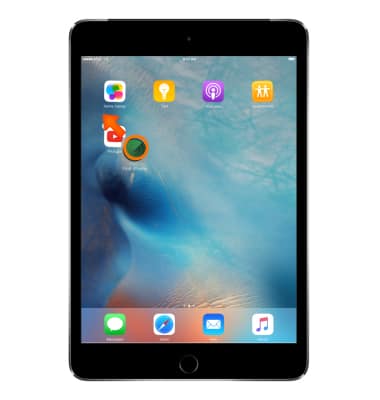
- Tap the name of the folder to rename it.
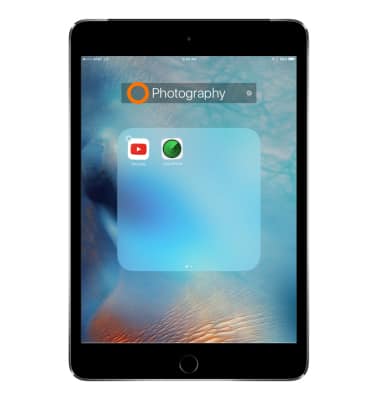
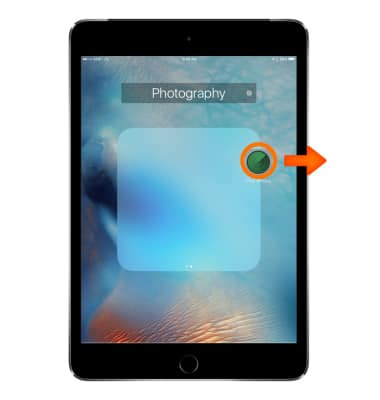
- Drag apps to add or remove them.
- Press the Home button when you finish.
Note: You can have multiple pages of apps in a folder.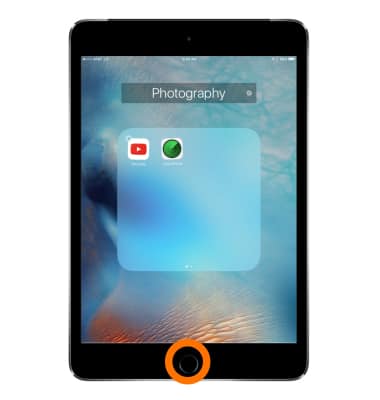
- To Delete a folder, drag out all the apps the folder deletes automatically.
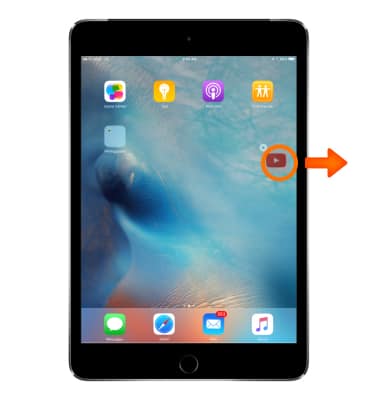
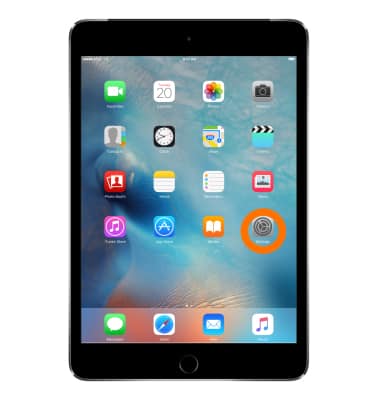
- To Start over, go to Settings.
- Tap General.
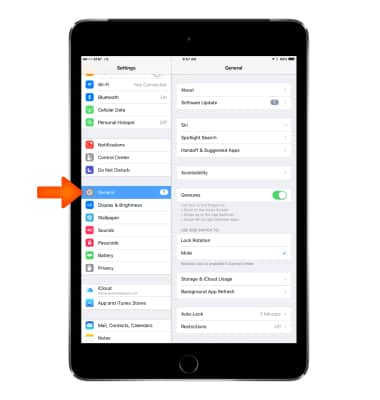
- Tap Reset.
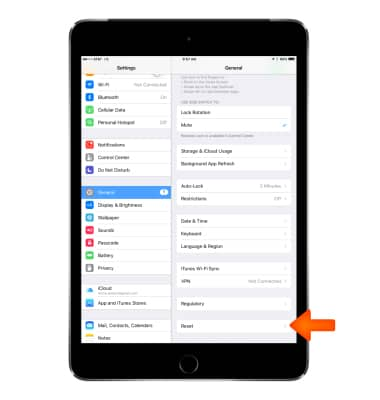
- Tap Reset Home Screen Layout to return the Home screen and apps to their original layout.

Gestures & navigation
Apple iPad mini
Gestures & navigation
Control your device by making specific movements with your hand.
INSTRUCTIONS & INFO