- Maps gives you turn-by-turn spoken directions, interactive 3D views, guidance to take public transportation, and helps you explore your surroundings. To open, from the home screen tap Maps.
Note: Learn more from the Apple Maps website: http://www.apple.com/ios/maps/.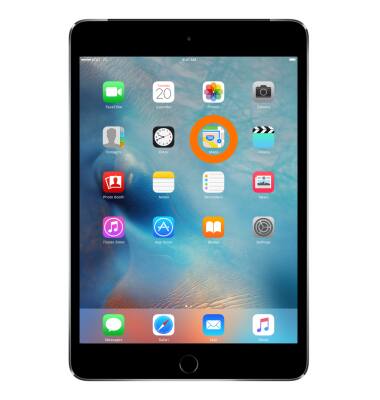
- Move the map around by touching and dragging the screen.
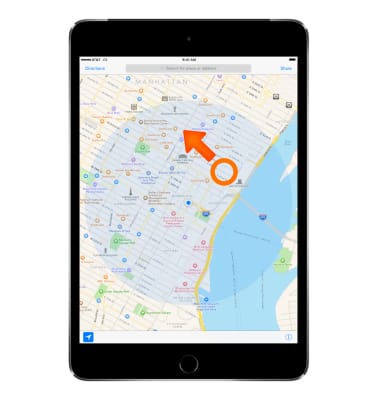
- To face a different direction, rotate with two fingers.

- To zoom in, double-tap with one finger. To zoom out tap with two fingers.
Note: You can also pinch and stretch to zoom out or in.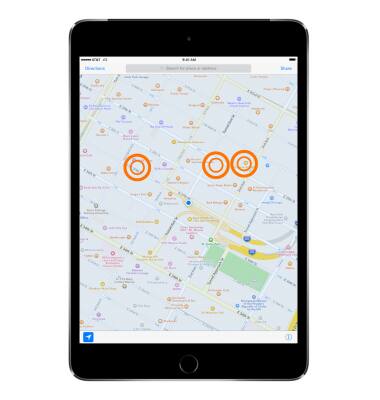
- To get driving directions, enter an address, or drop a pin on the screen for your destination.
Note: To drop a pin, touch and hold the desired location on the map. To change the location of a pin touch, hold, and drag to the new location.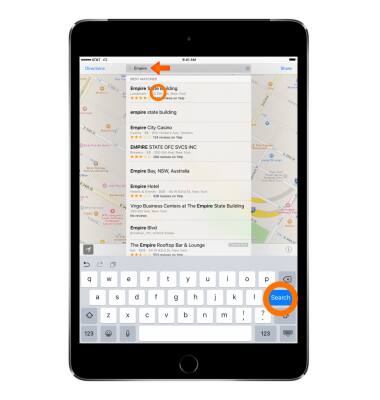
- Tap the Car icon next to the location or Directions in the upper left corner.
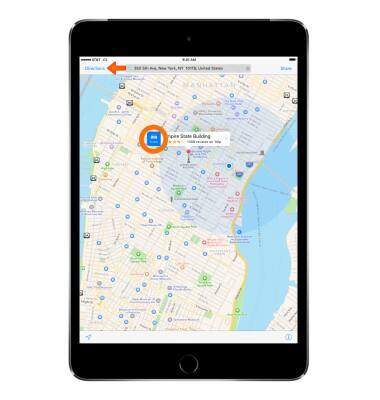
- If prompted, select the Desired route on the map.
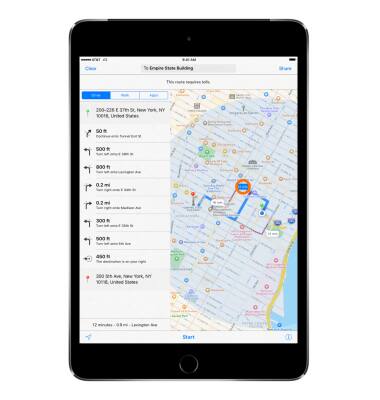
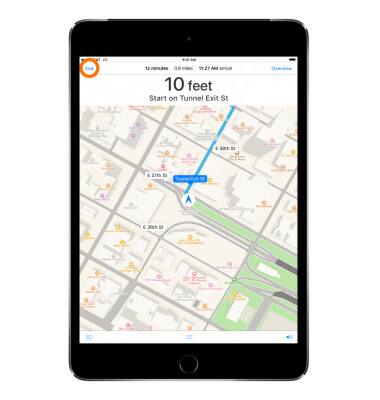
- To begin navigation tap Start.
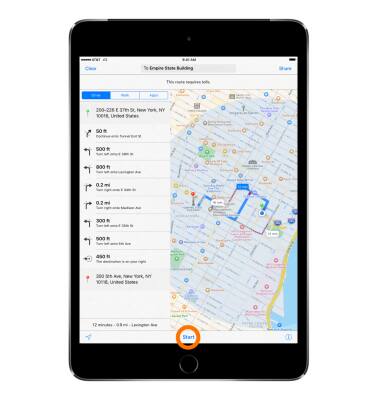
- To stop turn-by-turn directions, tap the Screen, then tap End.
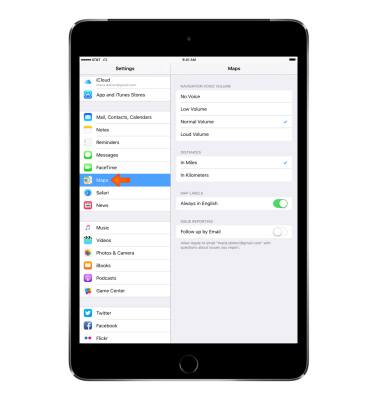
- To change Maps settings, form the home screen, go to Settings > Maps.
Maps
Apple iPad mini
Maps
Get directions and navigation using the Maps app.
INSTRUCTIONS & INFO