- Watch, search, record, and more. You never have to be without the entertainment you can’t live without. With the DIRECTV app on your phone, your favorite movies and shows are all right there in your pocket, ready to entertain whenever the mood strikes you.
Note: Both devices (watch and smartphone) have to be connected to the same Wi-Fi network in order for the DIRECTV app to work. For instructions on connecting to a Wi-Fi network, see the Wi-Fi tutorial.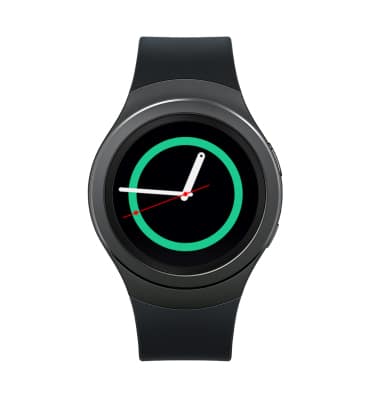
- ACCESS DIRECTV LOGIN: You must first sign in on your connected device. From your connected device, select the DIRECTV app.
Note: If prompted, review the "End User Acknowledgement" and if you accept, select I Agree.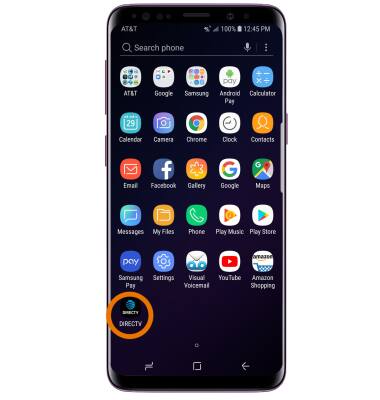
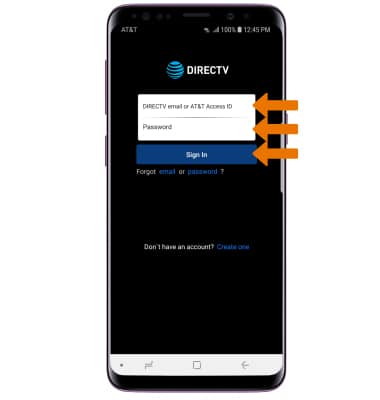
- Enter your Login information, then select Sign in.
- ACCESS DIRECTV FROM WATCH: From the clock screen, press the Power/Home button then rotate the bezel to and select the DIRECTV app.
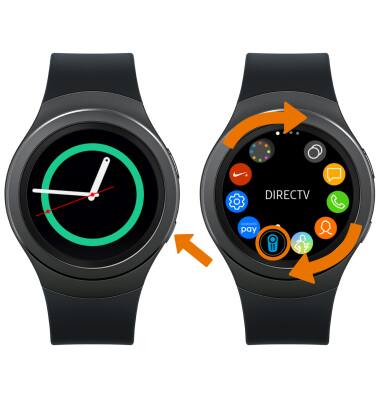
- Select the desired receiver.

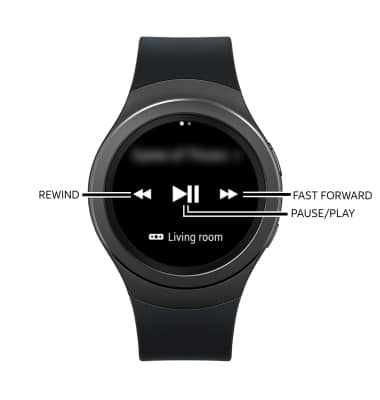
- The current program from your receiver is displayed. Select the desired icon to Pause/Play, Rewind, and Fast Forward.
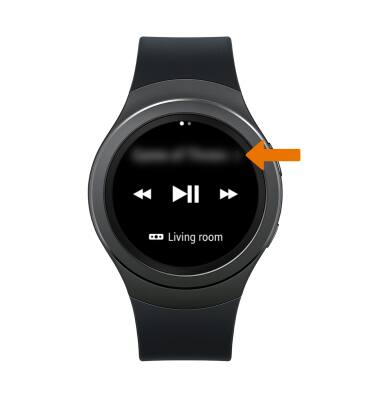
- RECORD A PROGRAM: Select the title at the top of the screen.
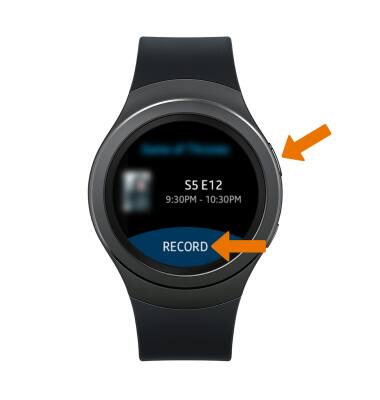
- Select RECORD, then press the Back button to return to the previous screen.
- DTV QUICK REMOTE: Swipe left to access the DTV Quick Remote.
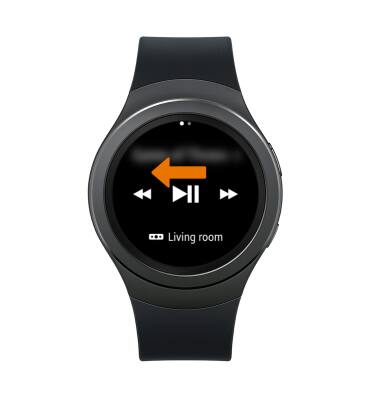
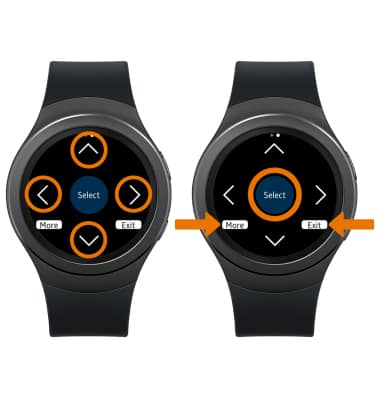
- Select the Arrow icons to scroll through channels and lists. Select Select to choose an item. Select More to access the Guide, Playlist, and Menu. Select Exit to exit.
DIRECTV App
Samsung Gear S2 (R730A)
DIRECTV App
This tutorial shows how to access and use the DIRECTV app if you are a DIRECTV subscriber.
INSTRUCTIONS & INFO