- ACCESS NOTIFICATIONS & QUICK SETTINGS: Swipe down from the Notification bar to access Quick Settings and view Notifications.
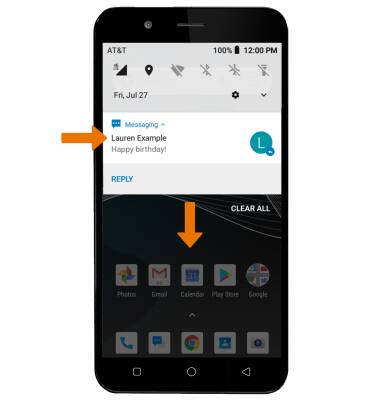
- ACCESS EXPANDED QUICK SETTINGS: Swipe down from the Notification bar with two fingers.
Alternately, you can swipe down from the Notification bar twice.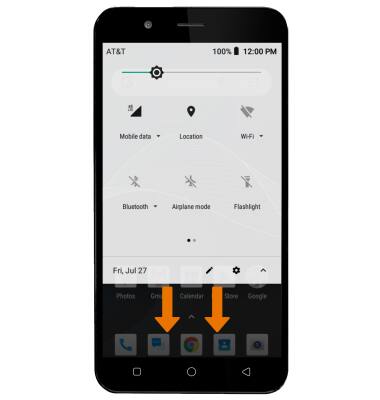
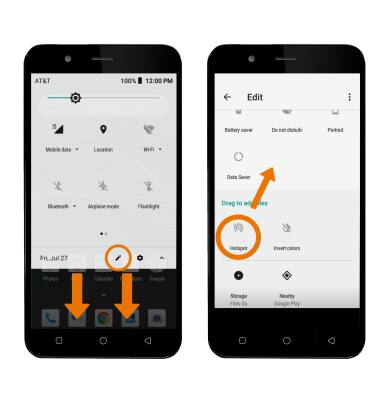
- EDIT QUICK SETTINGS MENU: Select the Edit icon, then select and drag the desired icon to the desired location.
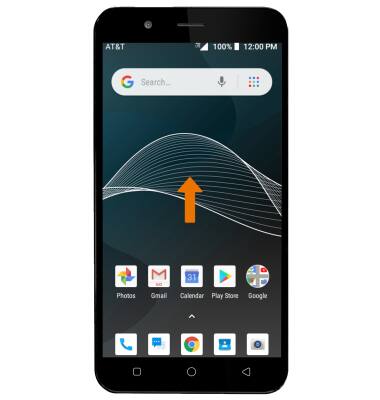
- ACCESS THE APPS TRAY: Swipe up from the center of the home screen.
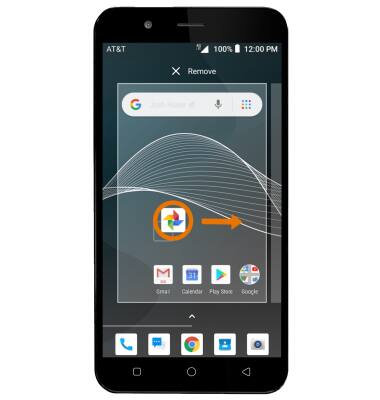
- MOVE AN APP OR WIDGET: Select and drag the desired app to the desired location.
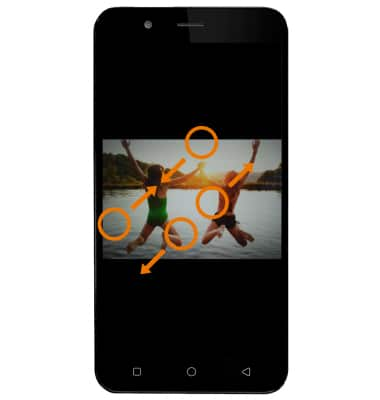
- ZOOM IN OR OUT: With two fingers on the screen, move fingers apart to zoom in and pinch fingers together to zoom out.
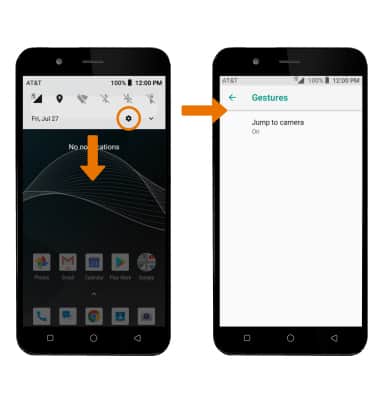
- ACCESS ADDITIONAL GESTURES: Swipe down from the Notification bar, then select the Settings icon > scroll to and select System > Gestures > edit the settings as desired.
Gestures & Navigation
AT&T AXIA (QS5509A)
Gestures & Navigation
Control your device by making specific movements with your hand.
INSTRUCTIONS & INFO