- ACCESS EMAIL SETTINGS: From the home screen, select the Gmail app.
Note: You must have already Set Up Email first.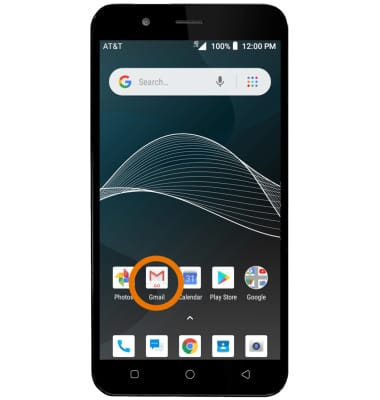
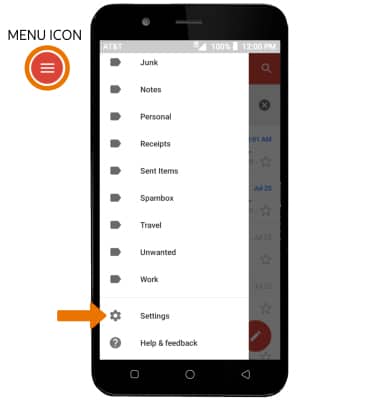
- Select the Menu icon, then select Settings.
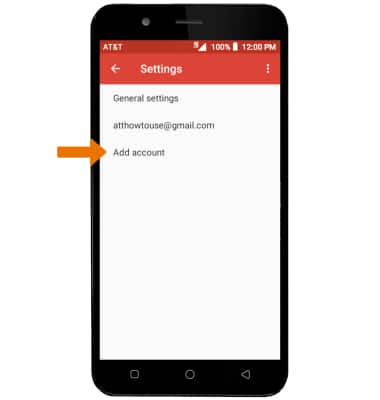
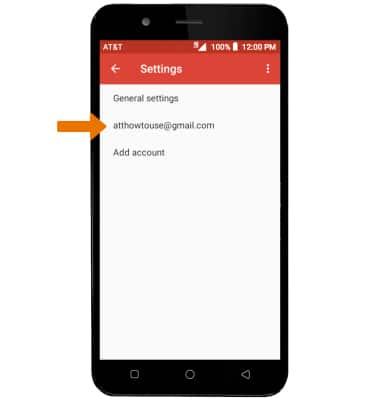
- ADD NEW ACCOUNT: From the Email settings screen, select Add account then follow the on-screen prompts.
- EDIT EMAIL ACCOUNT SETTINGS: From the Email settings screen, select the desired email account.
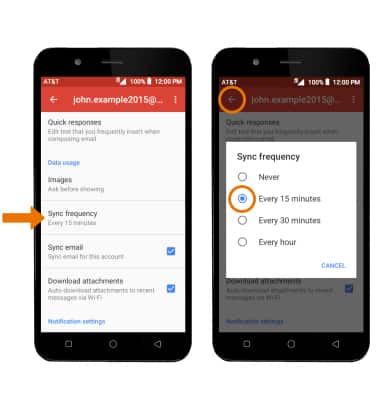
- EDIT SYNC SETTINGS: From the desired email account settings screen, scroll to and select Sync frequency > Set sync schedule > desired sync frequency > Back icon.
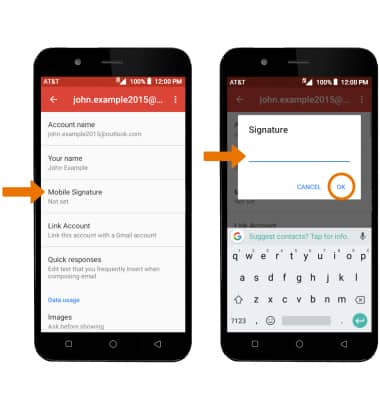
- ADD/EDIT SIGNATURE: From the desired email account settings screen, select Mobile Signature > enter the desired signature > select OK.
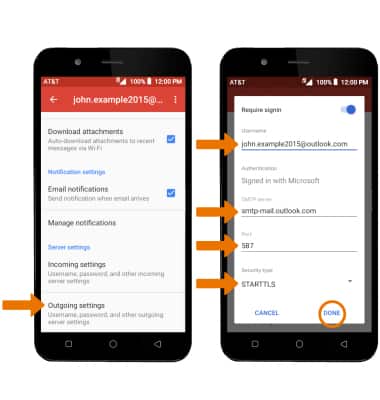
- CHANGE SERVER SETTINGS: From the desired email account settings screen, scroll to and select Outgoing settings > edit Server settings as desired > select DONE.
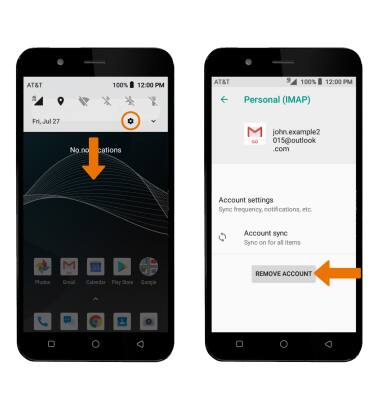
- REMOVE ACCOUNT: Swipe down from the Notification bar, then select the Settings icon > scroll to and select Users & accounts > select the desired account > REMOVE ACCOUNT.
Email Settings
AT&T AXIA (QS5509A)
Email Settings
Manage email settings such as sync frequency, server settings, signature, deleting an email account, and more.
INSTRUCTIONS & INFO