
Access Display Options through Quick Settings
• Swipe down from the Notification bar twice to access Expanded Quick Settings.
DISPLAY OPTIONS: Select the desired option to enable or disable the display option. You can also select and hold certain display options to access their settings.
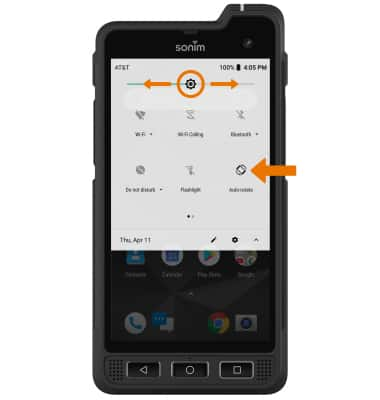
• AUTO ROTATE: Select Auto-rotate to enable/disable Auto rotate. When enabled, Auto rotate will automatically rotate the device's screen orientation depending on how you are holding it.
• BRIGHTNESS: Drag the Brightness slider left or right to adjust the brightness manually.
• BRIGHTNESS: Drag the Brightness slider left or right to adjust the brightness manually.
Access Display Options through Settings
• Swipe down from the Notification bar, then select the  Settings icon.
Settings icon.• Select Display.
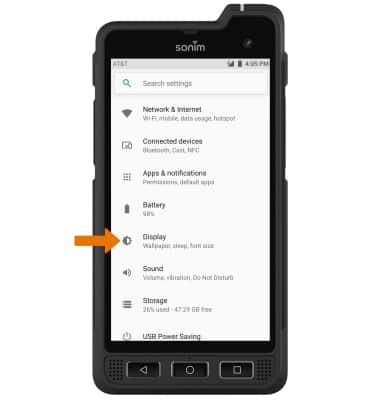
DISPLAY OPTIONS: Select the desired switch to enable or disable the desired display option. You can also access the settings for certain display options by selecting the name of the desired display option.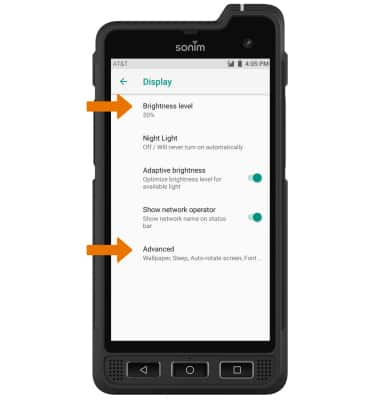
• SCREEN BRIGHTNESS: Select Brightness level, then drag the brightness slider to the desired brightness level.
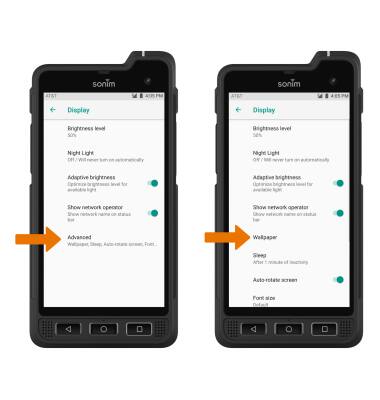
• ADVANCED DISPLAY SETTINGS: Select Advanced, then edit settings as desired.
• ADVANCED DISPLAY SETTINGS: Select Advanced, then edit settings as desired.
EDIT HOME SCREEN DISPLAY: From the Display screen, select Advanced > Wallpaper > navigate to and select the desired wallpaper.