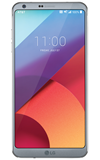
- ACCESS THE KEYBOARD: Select a Text entry field.
Note: Text entry fields will appear as wide sections of white space in any text-based app, such as Messaging or Email.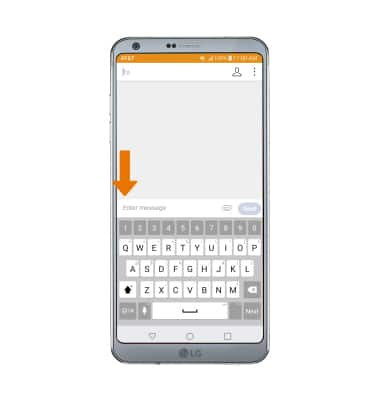
- ACCESS SYMBOLS & NUMBERS: Select the Symbols key. USE SPEECH-TO-TEXT: Select the Customizable key and begin speaking your desired message. CAPITALIZE TEXT: Select the Shift key to capitalize the next letter. Double-tap the Shift key to enable or disable caps lock.
Note: Upon first access, the customizable key will default to the microphone. To change the function, select and hold the Customizable key then select the desired function.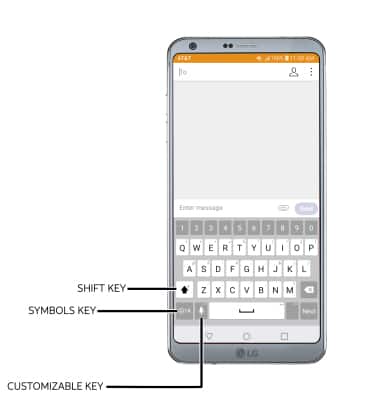
- ACCESS EMOJIS: Select the Symbols key, then select the Emoji key.
Note: To return to the alphabet, select the abc key.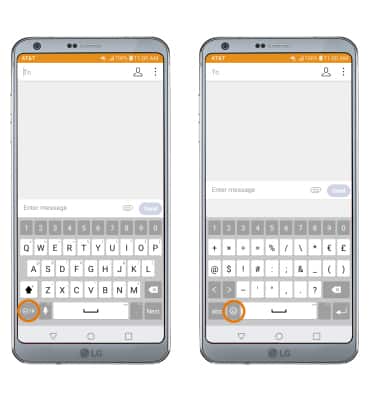
- USE AUTO-COMPLETE SUGGESTIONS: Begin typing the desired word, then select the desired suggestion.
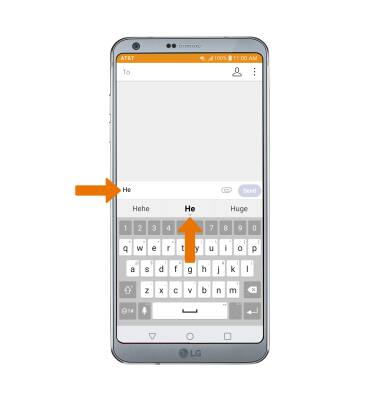
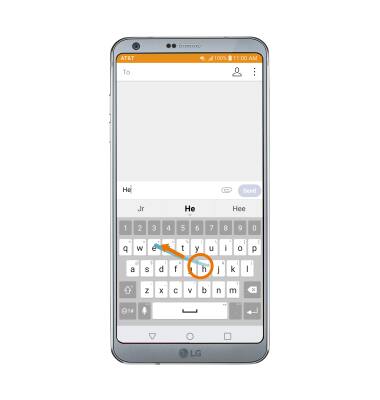
- SWYPE: Select and drag across each letter of the desired word without removing the finger from the screen.
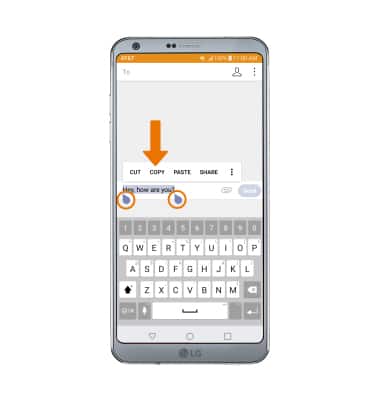
- COPY & PASTE TEXT: Select and hold the desired text. Select and drag the Text Selection handles to highlight all the desired text, then select COPY.
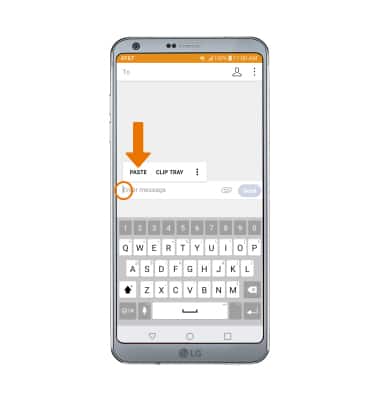
- In the desired pasting location, select and hold the desired text field to place the cursor. Select PASTE.
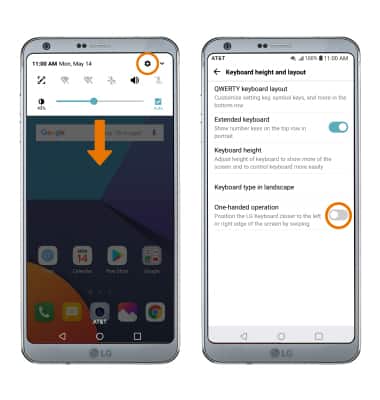
- ONE-HANDED OPERATION: To enable One-handed operation, swipe down from the Notification bar > select the Settings icon > General tab > scroll to and select Language & input > select On-screen keyboard > LG Keyboard > Keyboard height and layout > One-handed operation switch.
- ACCESS KEYBOARD SETTINGS: Select and hold the Customizable key, then select the Settings icon.
Note: To access additional keyboard settings, swipe down from the Notification bar then select the Settings icon > General tab > Language & input > On-screen keyboard > LG Keyboard.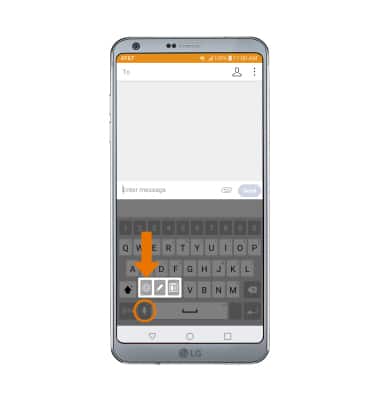
Keyboard & Typing
LG G6 (H871 / H871S)
Keyboard & Typing
Keyboard functions, auto-complete, Swype, copy & paste, one-handed operation, and keyboard settings.
INSTRUCTIONS & INFO