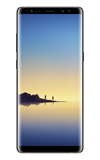
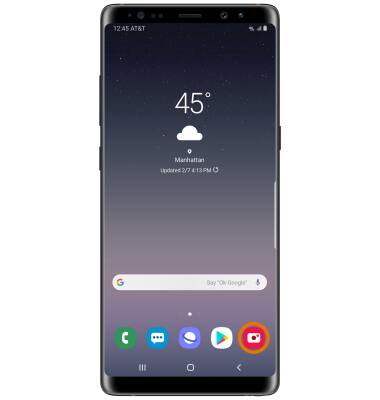
- ACCESS VISUAL INTELLIGENCE: From the home screen, select the Camera app.
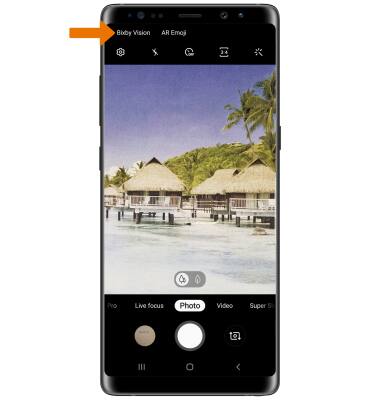
- Select Bixby Vision.
- Select the down arrow, then review the terms and conditions. Select I agree to all of the above, then select NEXT.
Note: If you are not signed into your Samsung account, select SIGN IN then enter your account user name and password.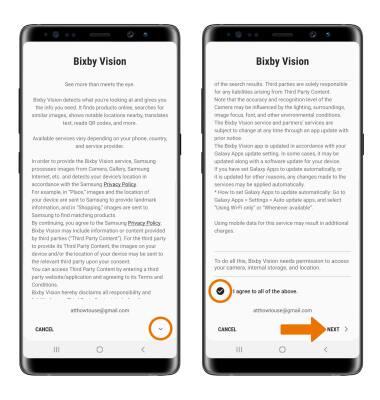
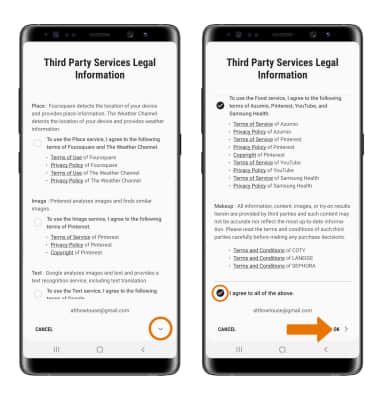
- Select the down arrow, then review the Third Party Services Legal Information. Select I agree to all of the above, then select OK when finished.
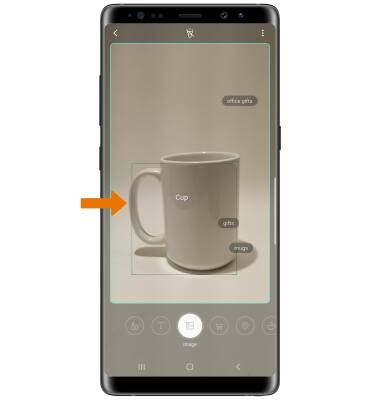
- Point the device's camera at an object or location. Bixby Vision will automatically identify the object or location.
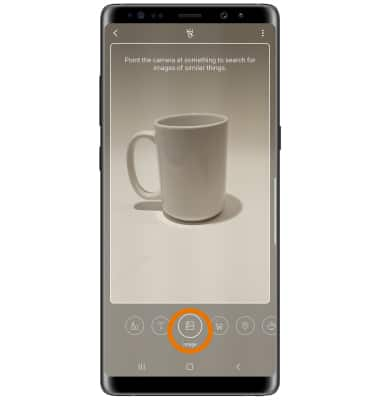
- FIND SIMILAR LOCATIONS/OBJECTS: While focused on a location or object, select the Image icon.
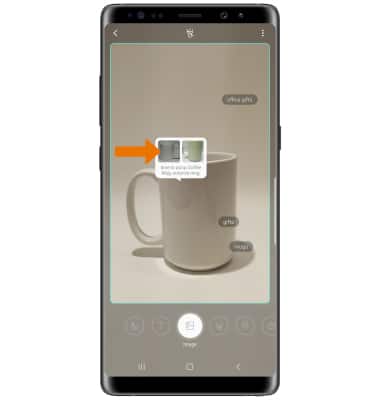
- Select the desired image to view the image online.
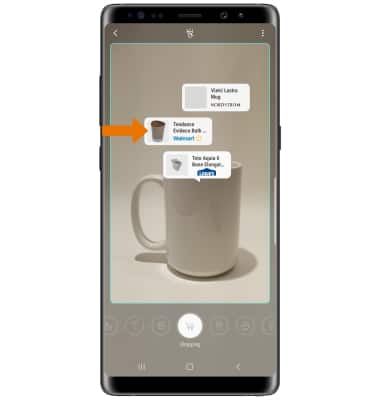
- SHOP FOR SIMILAR OBJECTS: While focused on an item, select the Shopping icon.
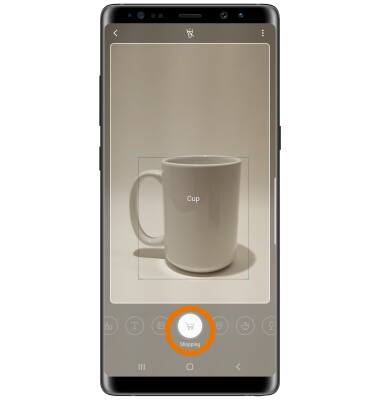
- Select the desired option that you would like to search for and purchase, then follow the prompts.
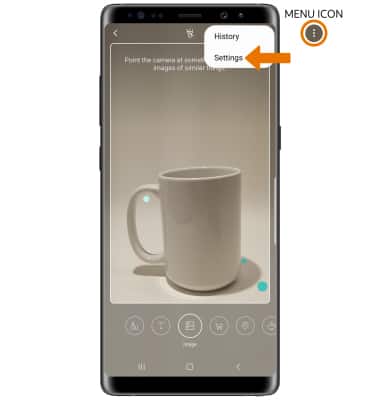
- ACCESS & EDIT VISUAL INTELLIGENCE SETTINGS: While using Bixby vision, select the Menu icon then select Settings.
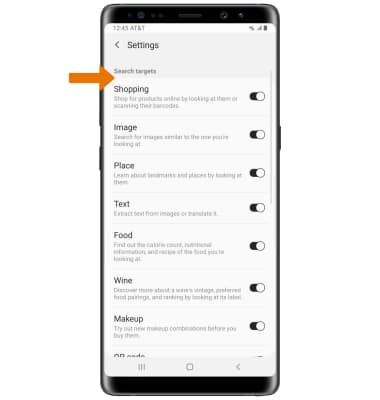
- Edit settings as desired.
Visual Intelligence
Samsung Galaxy Note8 (N950U)
Visual Intelligence
Bixby Vision gives you a deeper understanding of what you're looking at through your camera by identifying landmarks, translating languages, or showing you where to buy an item.
Visual Intelligence
How to access and use Visual Intelligence
Visual Intelligence
2:32
INSTRUCTIONS & INFO